AXIO Distribution - Prevent Duplicate Serial Receipts
Overview
The Prevent Duplicate Serial Receipts feature provides controls around the ability to receive or reject the same serialized item into a Warehouse. This provides the insight into whether an item was received into the warehouse previously, and who received it. Further, it gives the option to accept the receipt, reject the receipt, or override the existing serial number with the new receipt. This accounts for those times when a serialized item may go back to a vendor and then is returned and needs to be restocked. When a serialized item is received into the Warehouse and then a second receipt for that serial number is attempted, the system can give a Warning message to alert the user to the duplicate receipt, can Reject the duplicated serialized item, or can optionally give the ability to override the receipt with a Work Exception Code and track the Overrides.
Setups
To enable Present duplicate serial receipts feature:
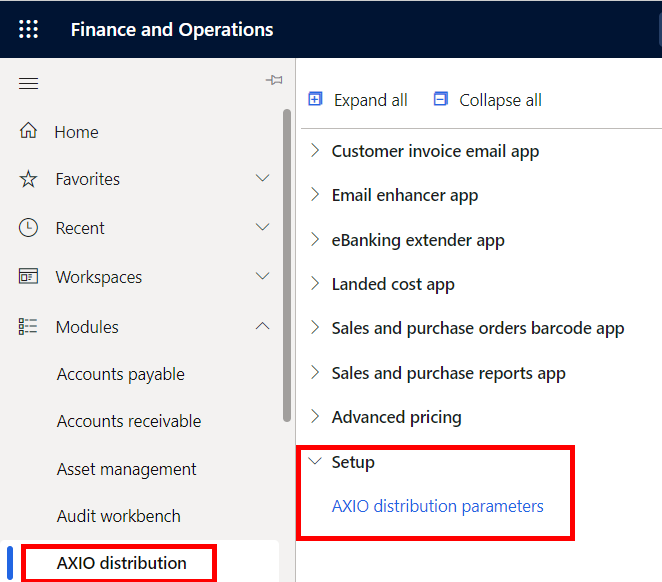
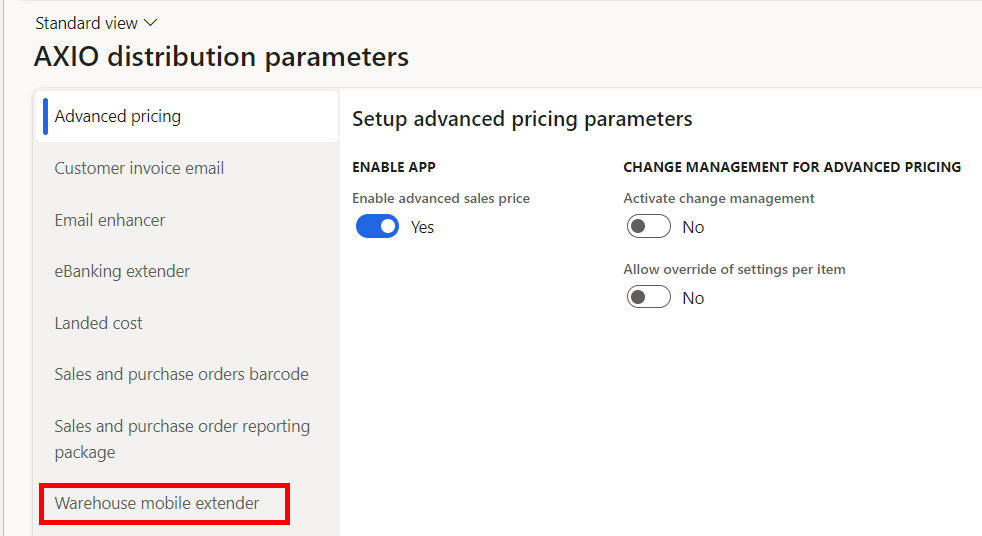
Navigate to AXIO distribution > Setup > AXIO distribution parameters > Warehouse mobile extender
Prevent Duplicate Serial Receipts: Set Boolean to Yes.
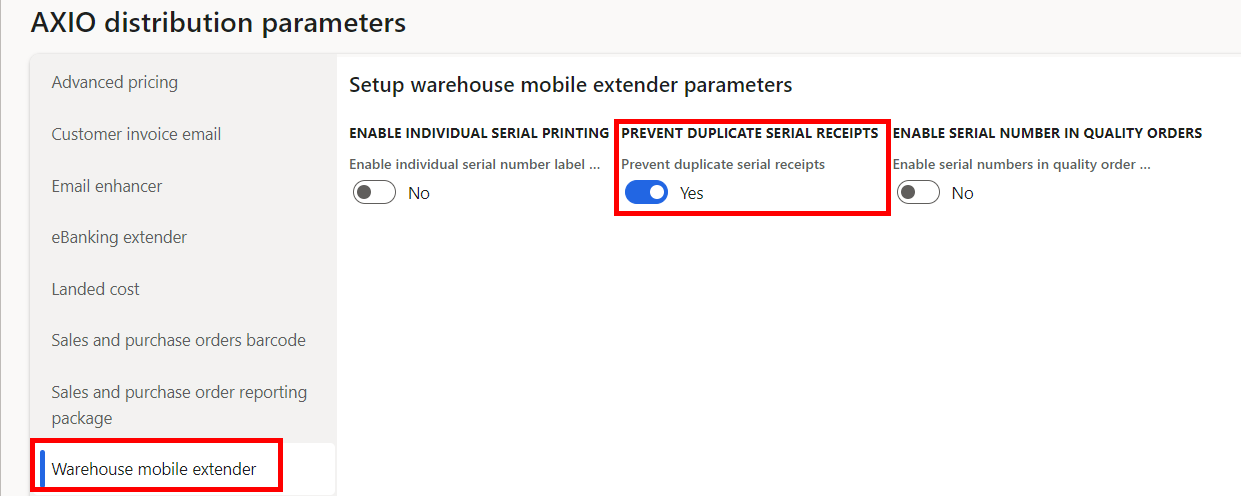
Click Save.
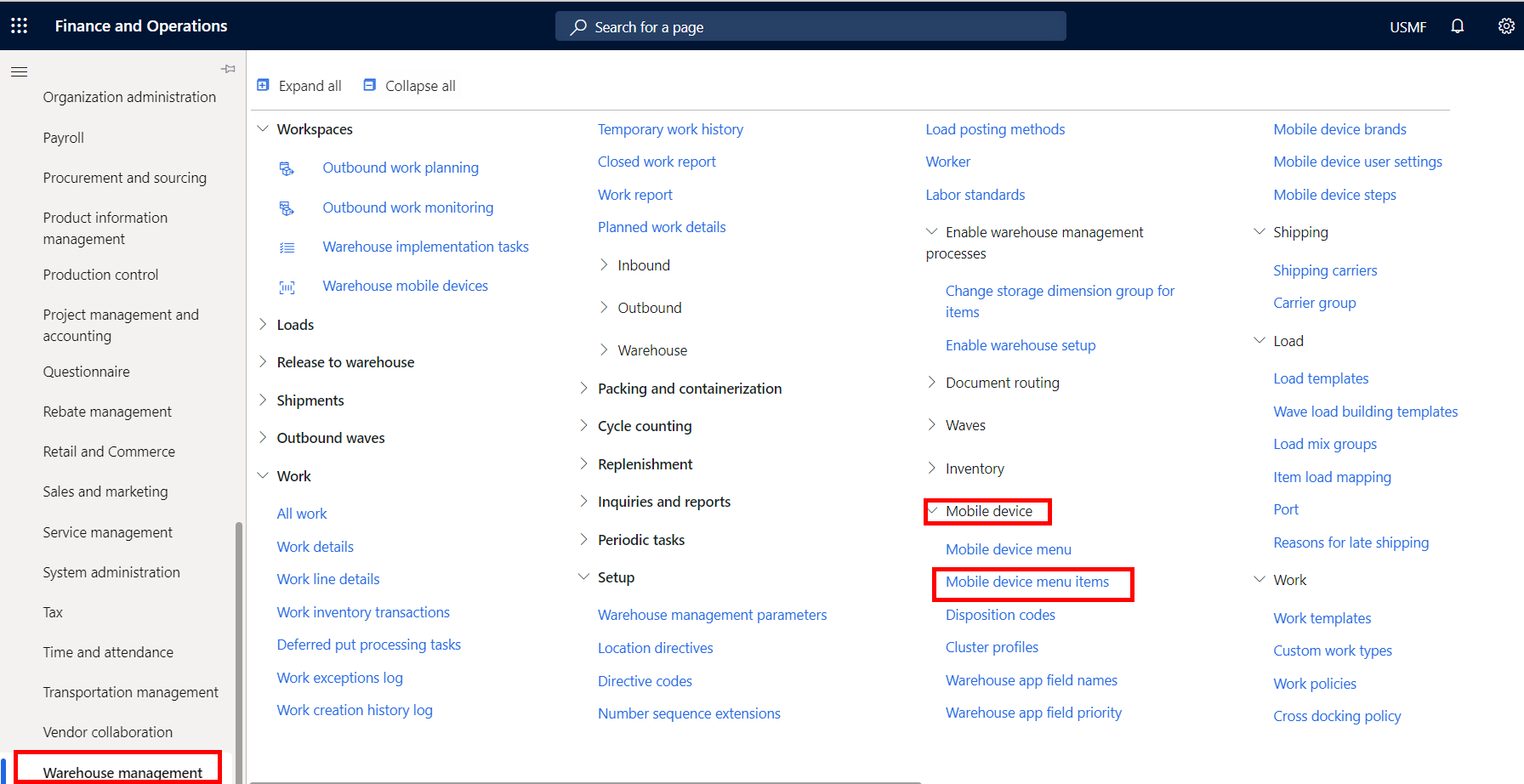
Navigate to Warehouse management > Mobile device > Mobile device menu items: Purchase Receive
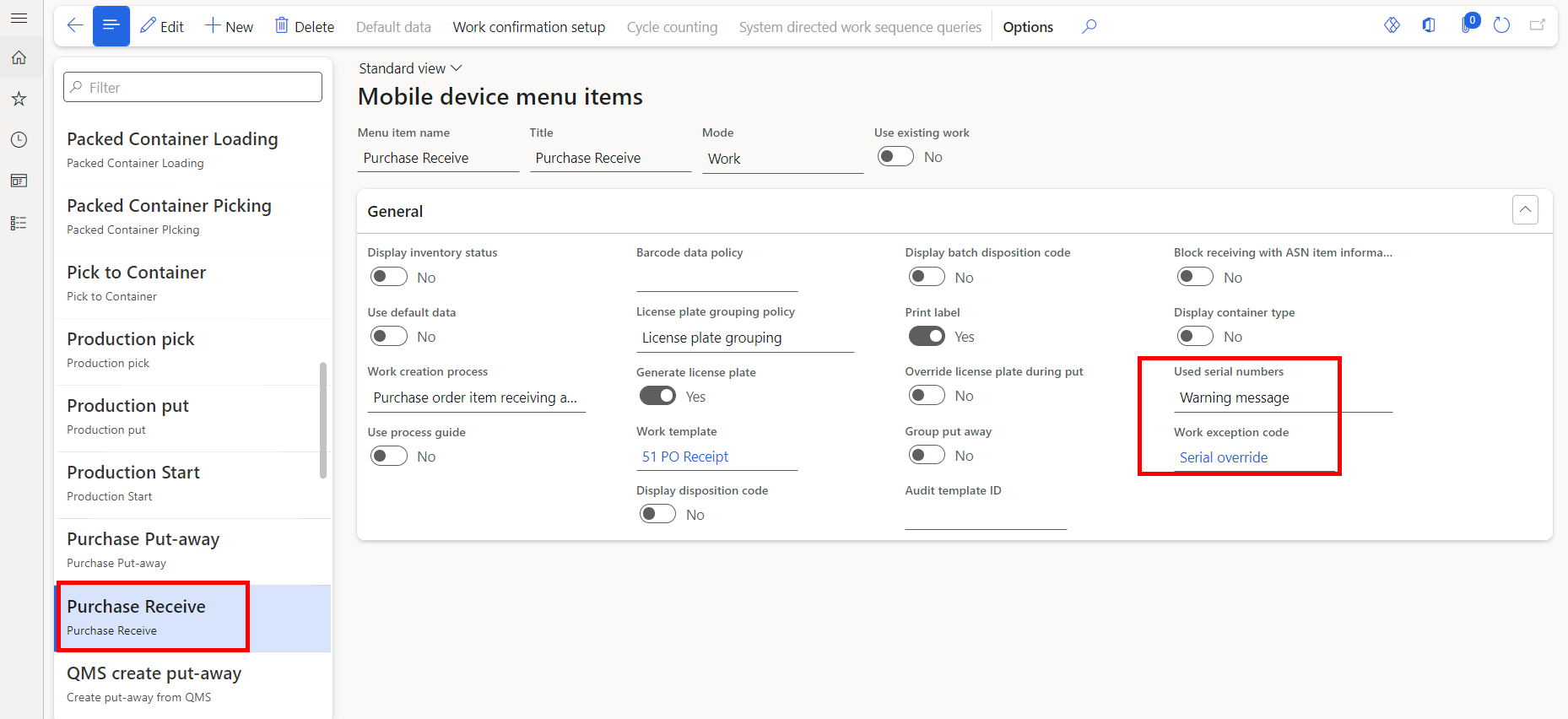
Used serial numbers
Used serial numbers options:
Warning message: When Used serial numbers is set to Warning, upon trying to receive a duplicate serial number on an Item, the user receives a message "Warning - Serial number 'XXXX' has been received previously on Purchase order xxxxxxxx." The user can continue with the receipt of the duplicate serial number.
Reject receipt: When Used serial numbers is set to Reject Receipt, upon trying to receive a duplicate serial number on an Item, the user receives a message "Error - Serial number 'XXXX' has been received previously on Purchase order xxxxxxxx." The receipt will not complete successfully until a different serial number is entered.
Important
If Warning Message is selected for Used serial numbers, you are required to use a Work Exception Code.
Work exception code
Create a new code named: Serial override.
Note
The value for Work Exception Code must be set up in the Work Exceptions Code page. The name of the code must be Serial override. For more information on setting up Work Exception Codes, see: Set up work exceptions

Item Requirements
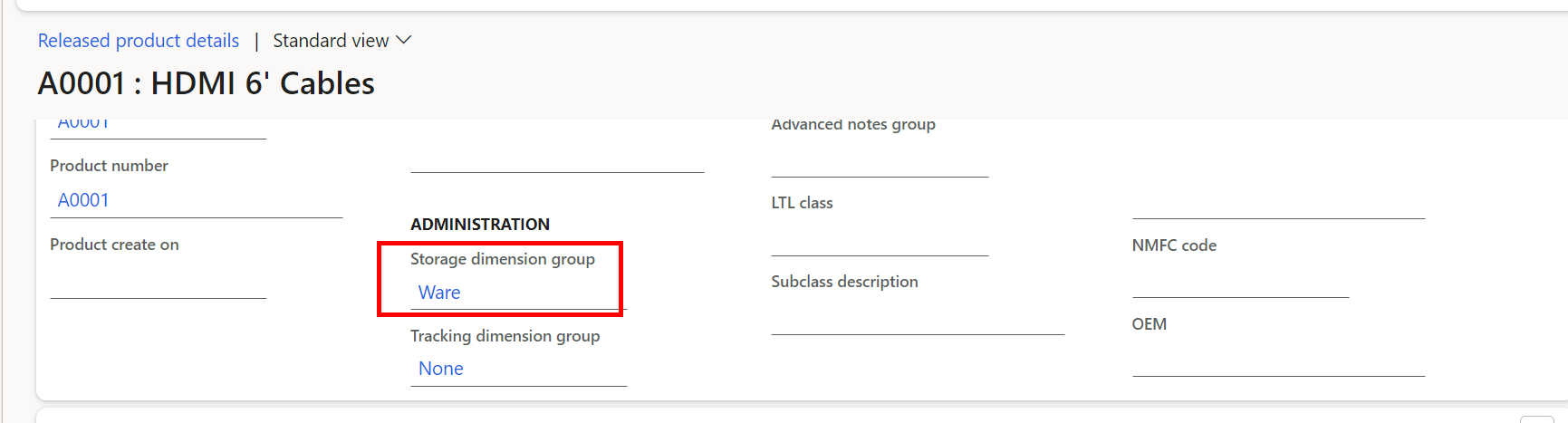
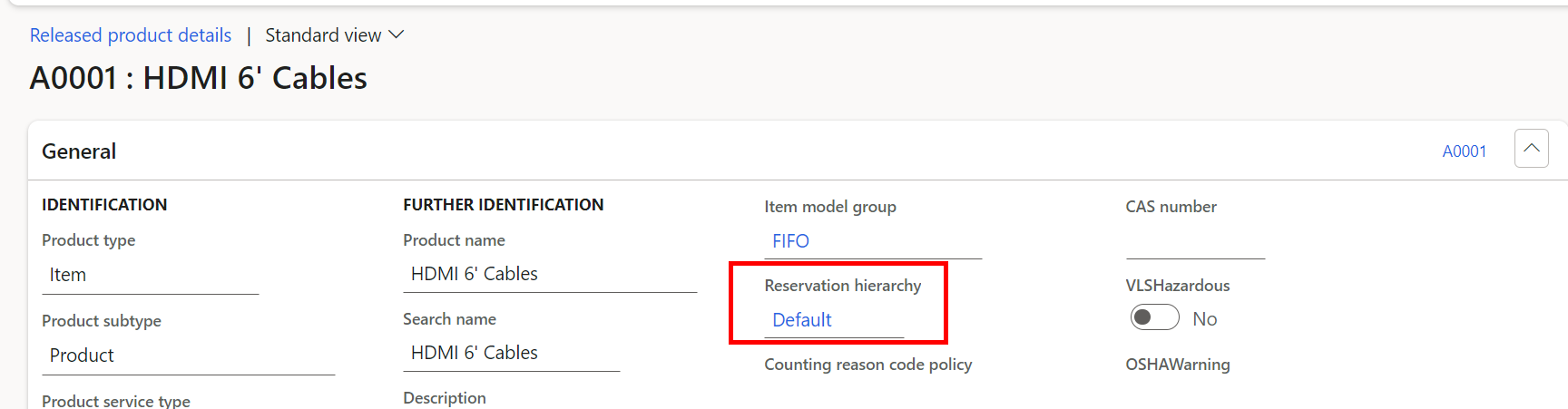
To use Items with the Prevent duplicate serial receipts, the Item must be classified as a Warehouse Item. Under Product Information Management > Released Products > Released product details > General, the Item settings must include:
Storage dimension group: Should be set to Ware.
Reservation hierarchy Should be set to Default.
Processing
Create Purchase Order for serialized Warehouse Item.
Generate Confirmation on the Purchase Order for the quantity to receive.
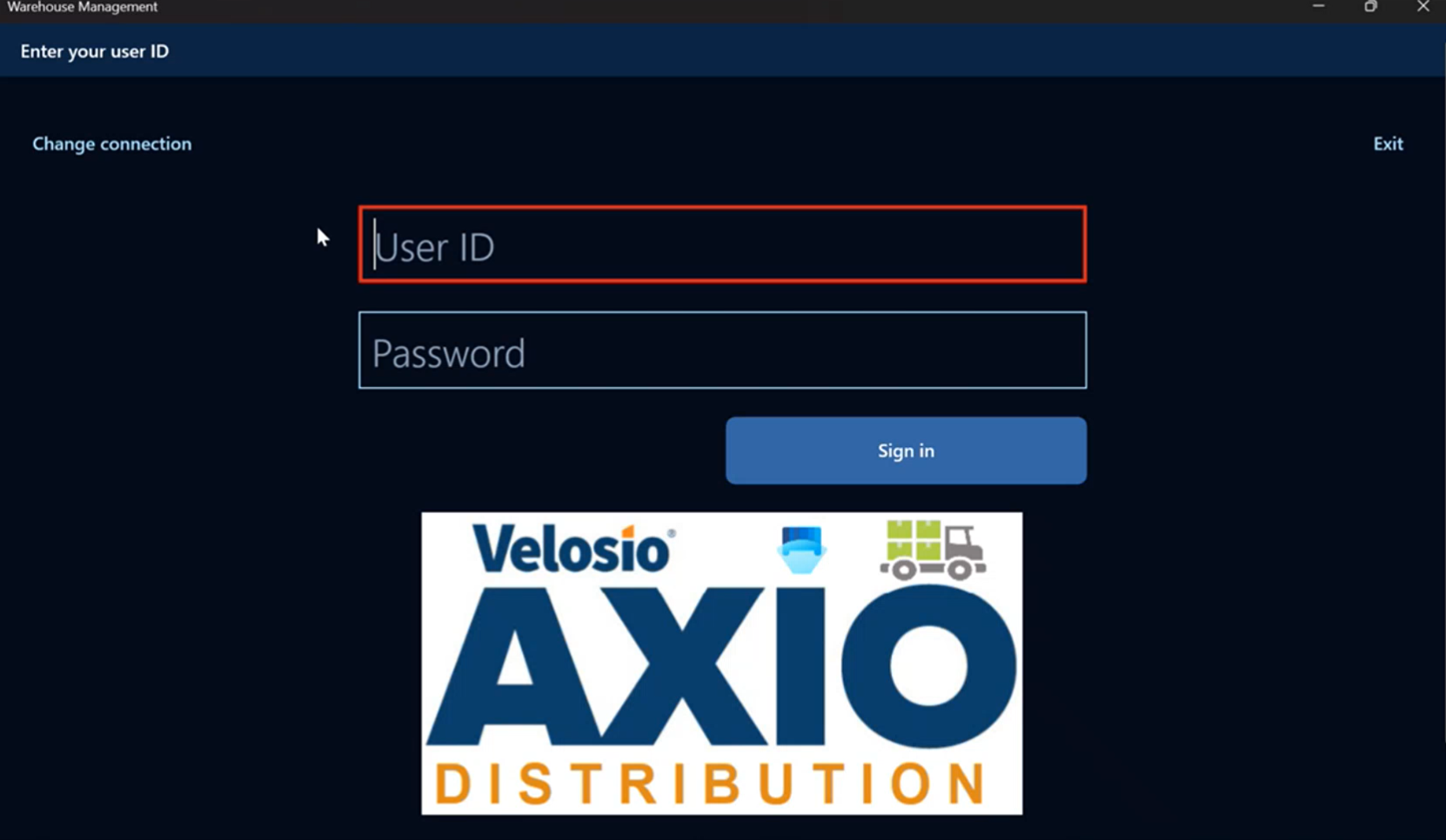
Log into the Warehouse Management application.
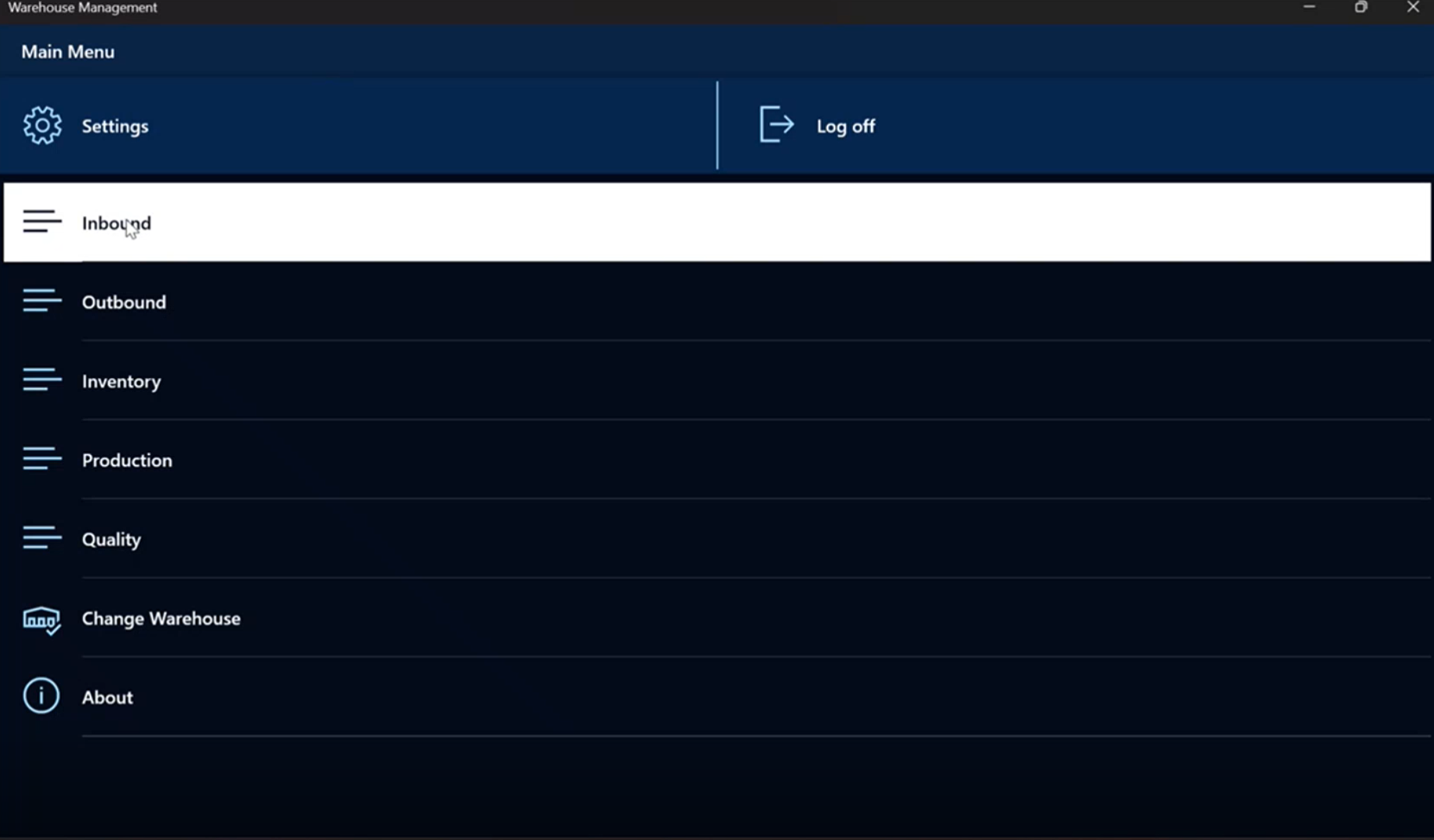
Click Inbound.
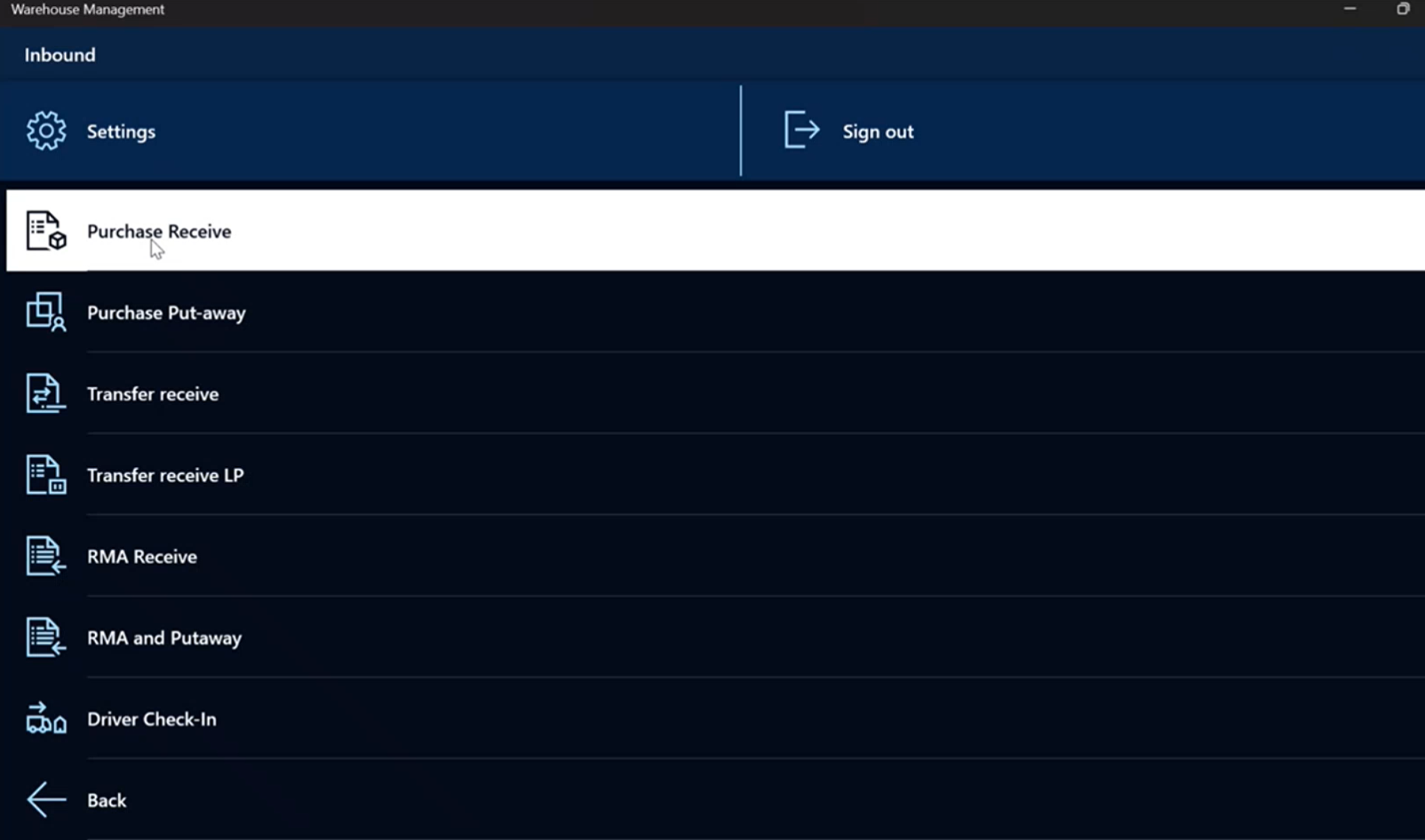
Click Purchase Receive.
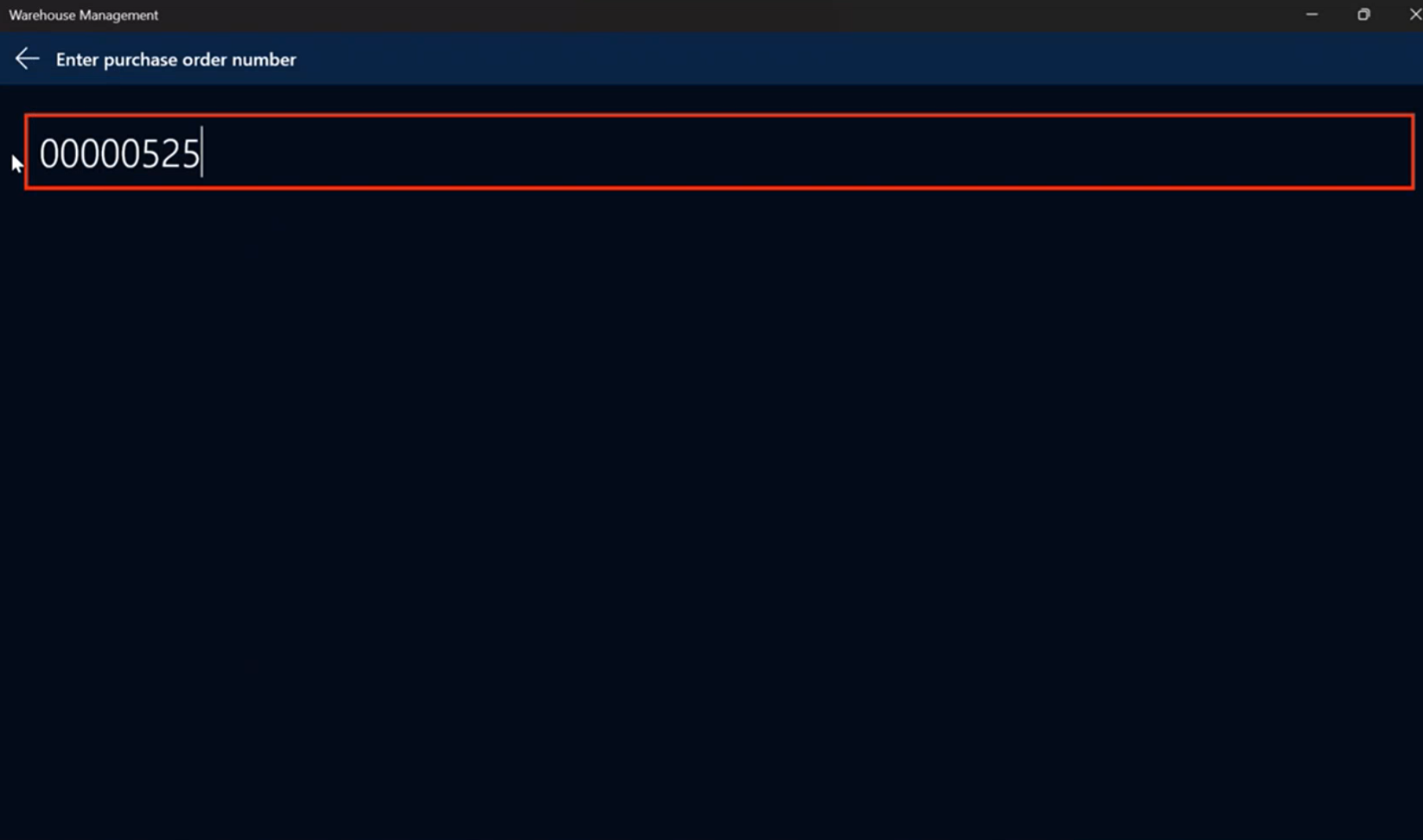
Enter Purchase Order number.
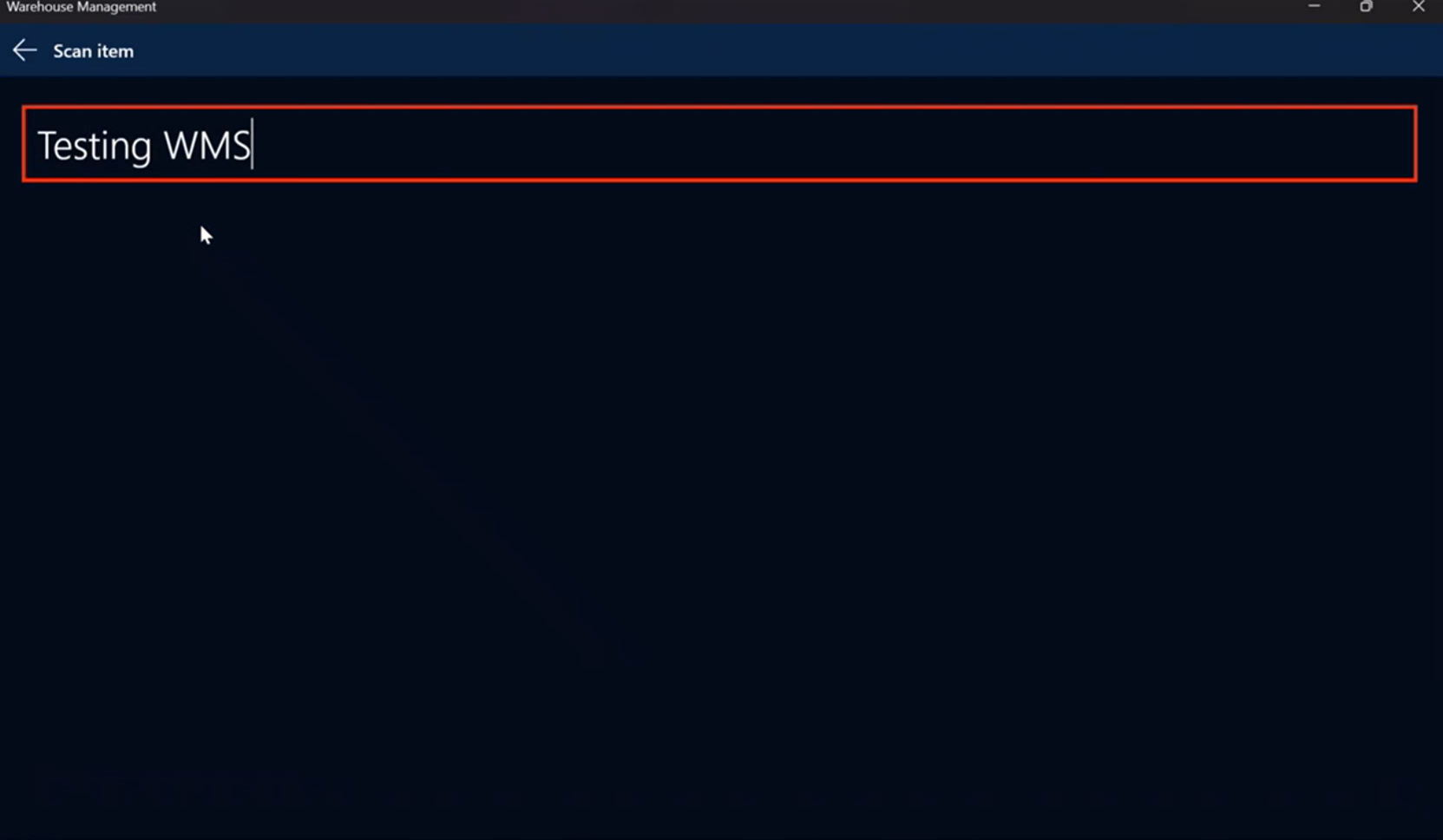
Enter or scan Item.
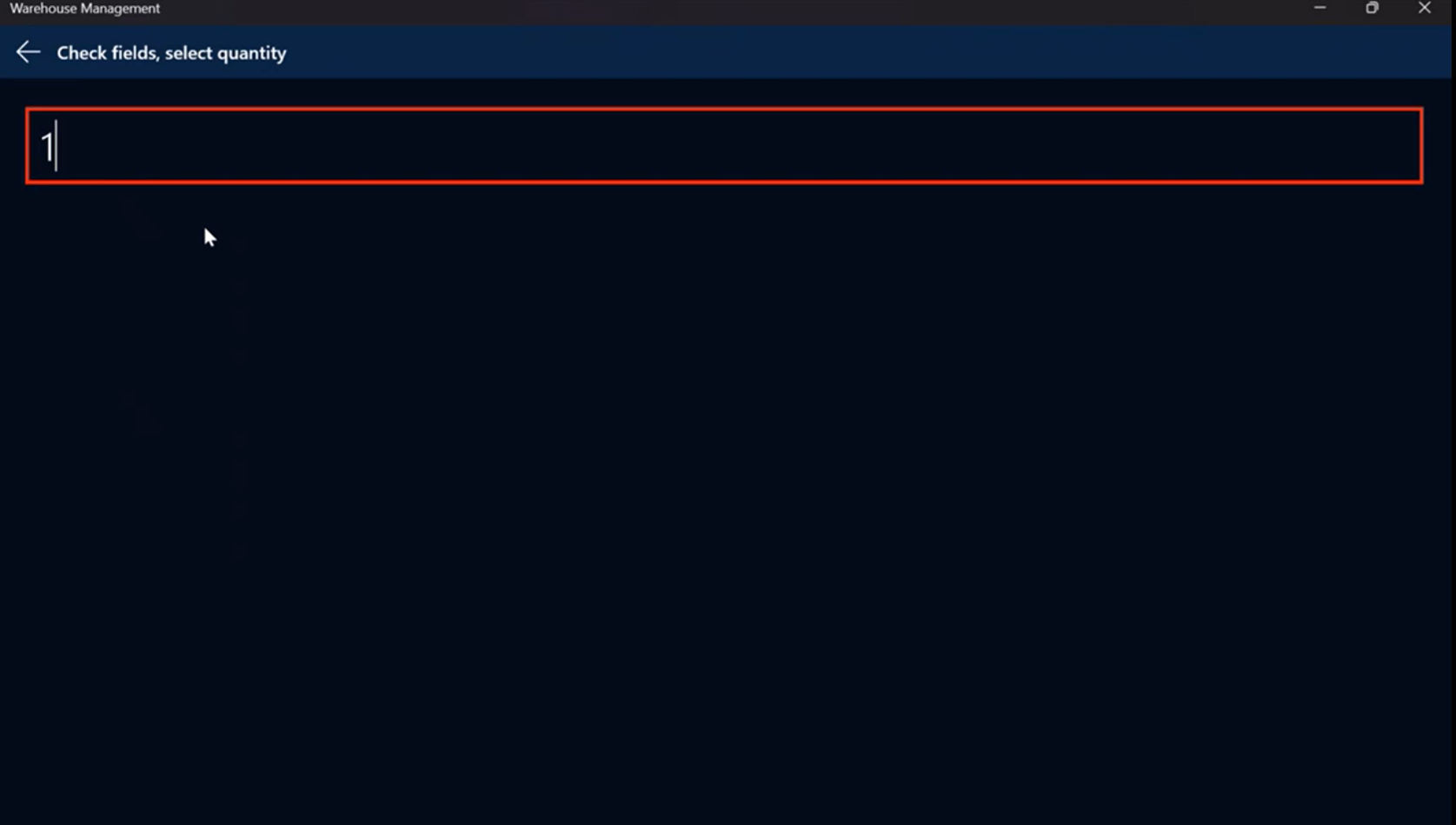
Enter Quantity of Item received.
Enter Serial Number of the Item received.
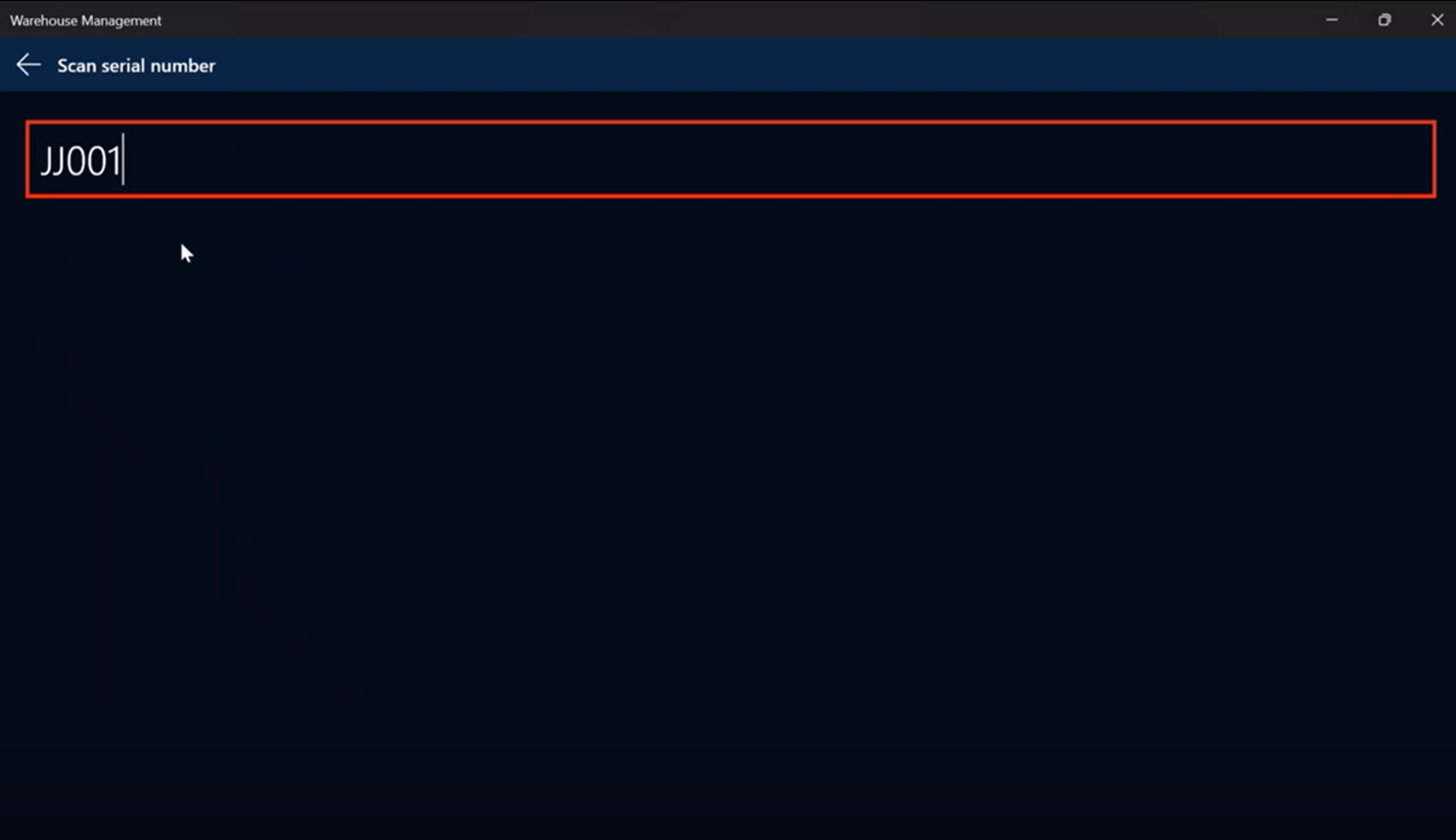
If the serial number entered is a duplicate serial number:
If Warning is selected in Warehouse management > Mobile device > Mobile device menu items > Purchase Receive > Used serial numbers, upon trying to receive a duplicate serial number on an Item, the user receives a message "Warning - Serial number 'XXXX' has been received previously on Purchase order xxxxxxxx." The user can continue with the receipt of the duplicate serial number.
- If Reject receipt is selected in Warehouse management > Mobile device > Mobile device menu items > Purchase Receive > Used serial numbers, upon trying to receive a duplicate serial number on an Item, the user receives a message "Error - Serial number 'XXXX' has been received previously on Purchase order xxxxxxxx." The receipt will not complete successfully until a different serial number is entered.