Landed Cost
Tracking landed costs is essential for accurate financial management, pricing strategies, and operational efficiency. It goes far beyond just the purchase price of goods, and includes shipping and freight, import duties and tariffs, customs and handling fees, insurance, and miscellaneous surcharges.
Overview
The AXIO Landed Cost module helps businesses streamline inbound shipping operations by giving users complete financial and logistical control over imported freight, from the manufacturer to the warehouse.
Composed of the fees and other costs associated with shipping freight from start to finish, landed costs often make up over 40% of total import costs for an item. Failing to provide accurate estimates for landed costs can lead to costly errors, wasted time, and mismanaged financials.
It is possible for distributors to calculate landed cost manually, but to do so you must have a clear understanding of all the complicated pieces, including the import taxes, government agency fees, container volume calculations, air freight calculations, and more. Even for supply chain industry veterans, this manual process can take an hour or more per item.
The setup of parameters is shared across all legal entities and can be modified by an Administrator.
When a Purchase Order is entered and a destination is selected, a freight entry is automatically created.
The AXIO Landed Cost module was built to be a simple alternative to Microsoft Landed Cost feature.
Setup
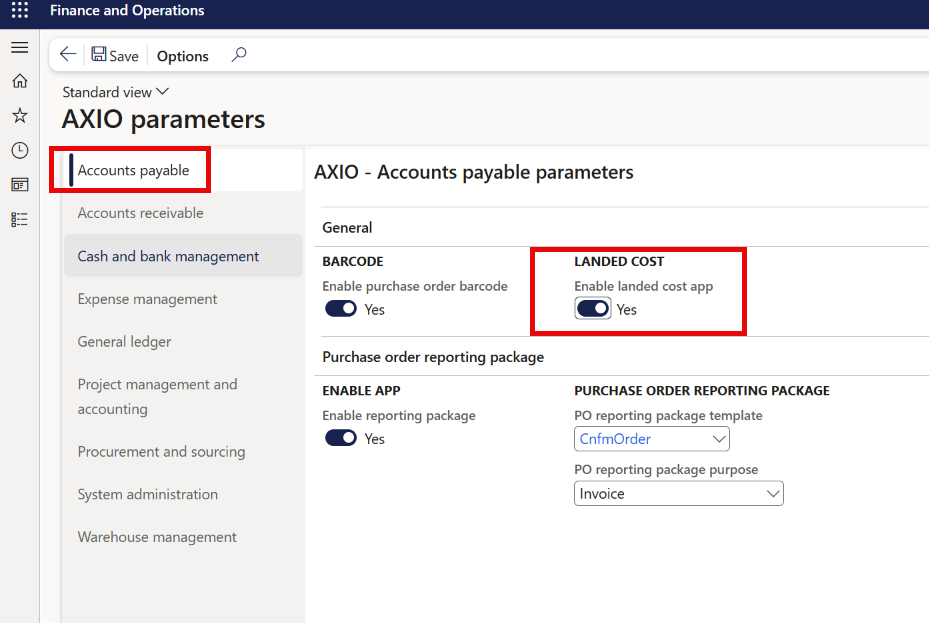
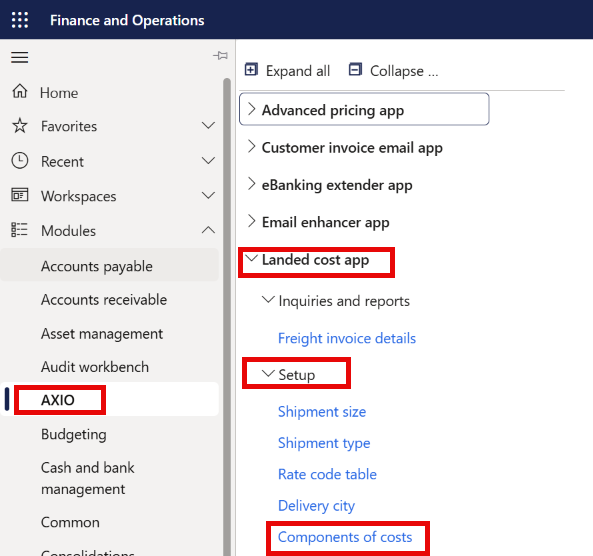
Navigate to AXIO > AXIO Parameters > Accounts Payable > LANDED COST > Landed Cost app
Set Enable landed cost app to "Yes".
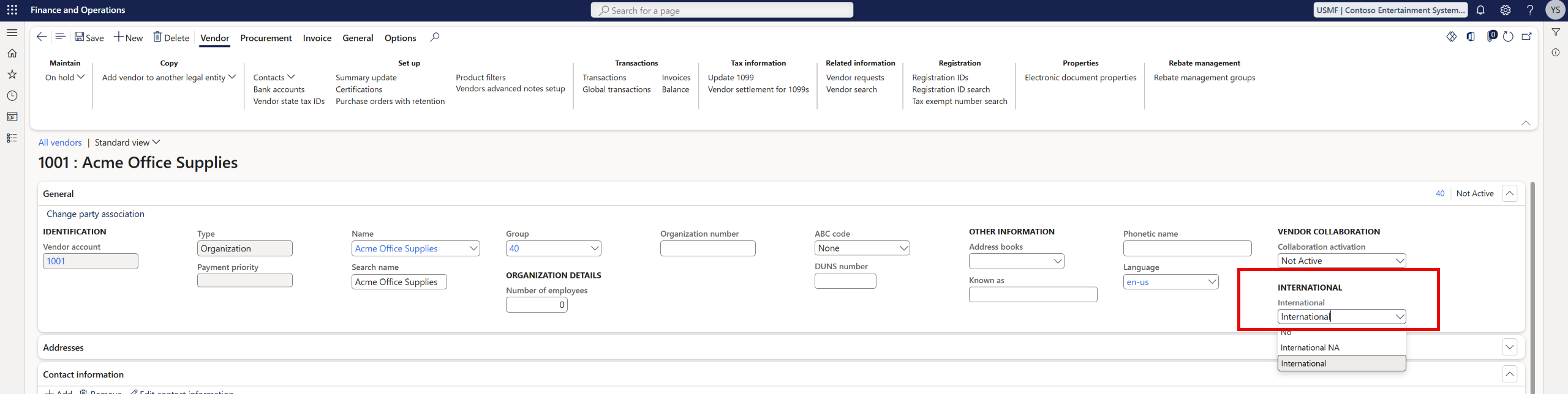
Navigate to Accounts payable > Vendors > All vendors.
Select a Vendor account and change the International field value to International.
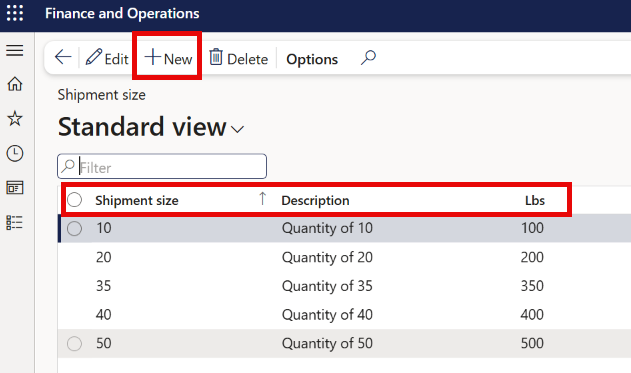
Go to AXIO > Landed cost app > Setup > Shipment size.
Click New and then complete Shipment size, Description and Lbs for each Shipment size.
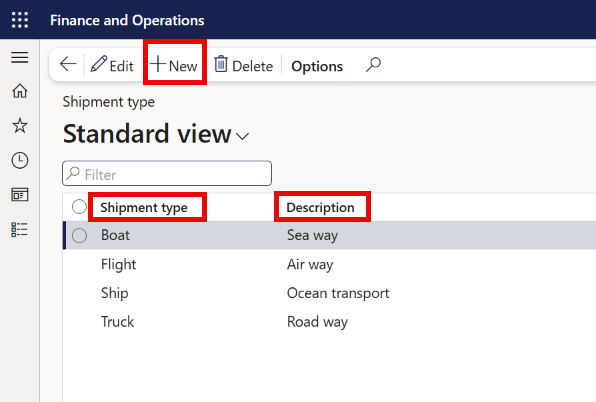
Go to AXIO > Landed cost app > Setup > Shipment type.
Click New, then complete Shipment type and Description fields for each Shipment type.
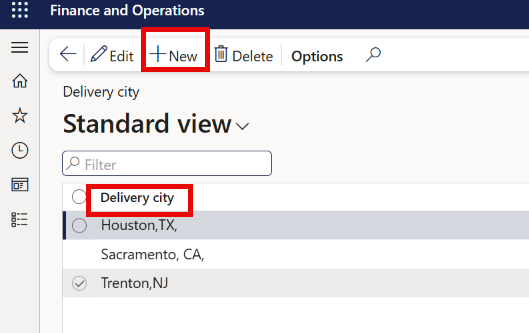
Go to AXIO > Landed cost app > Setup > Delivery city.
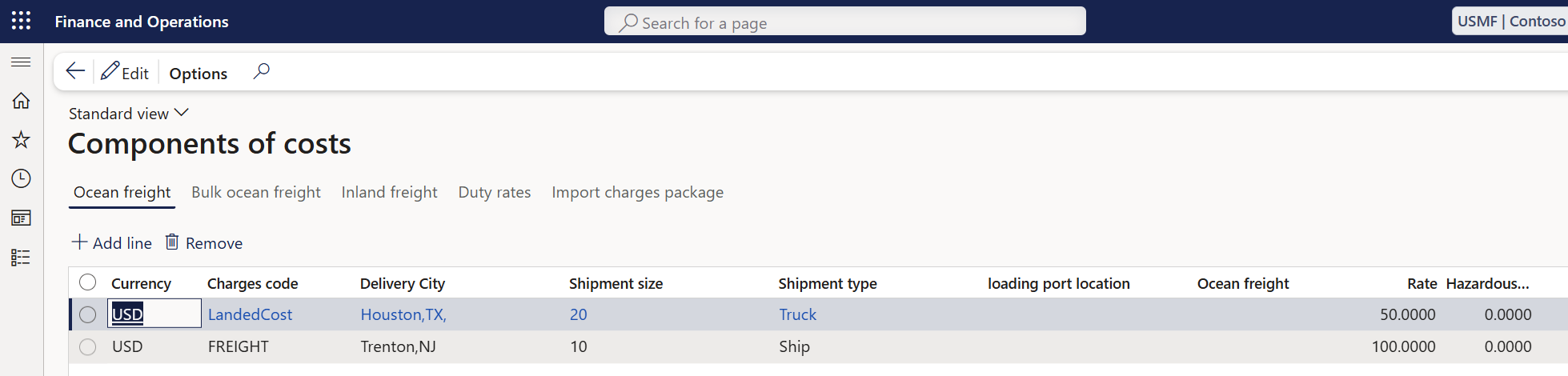
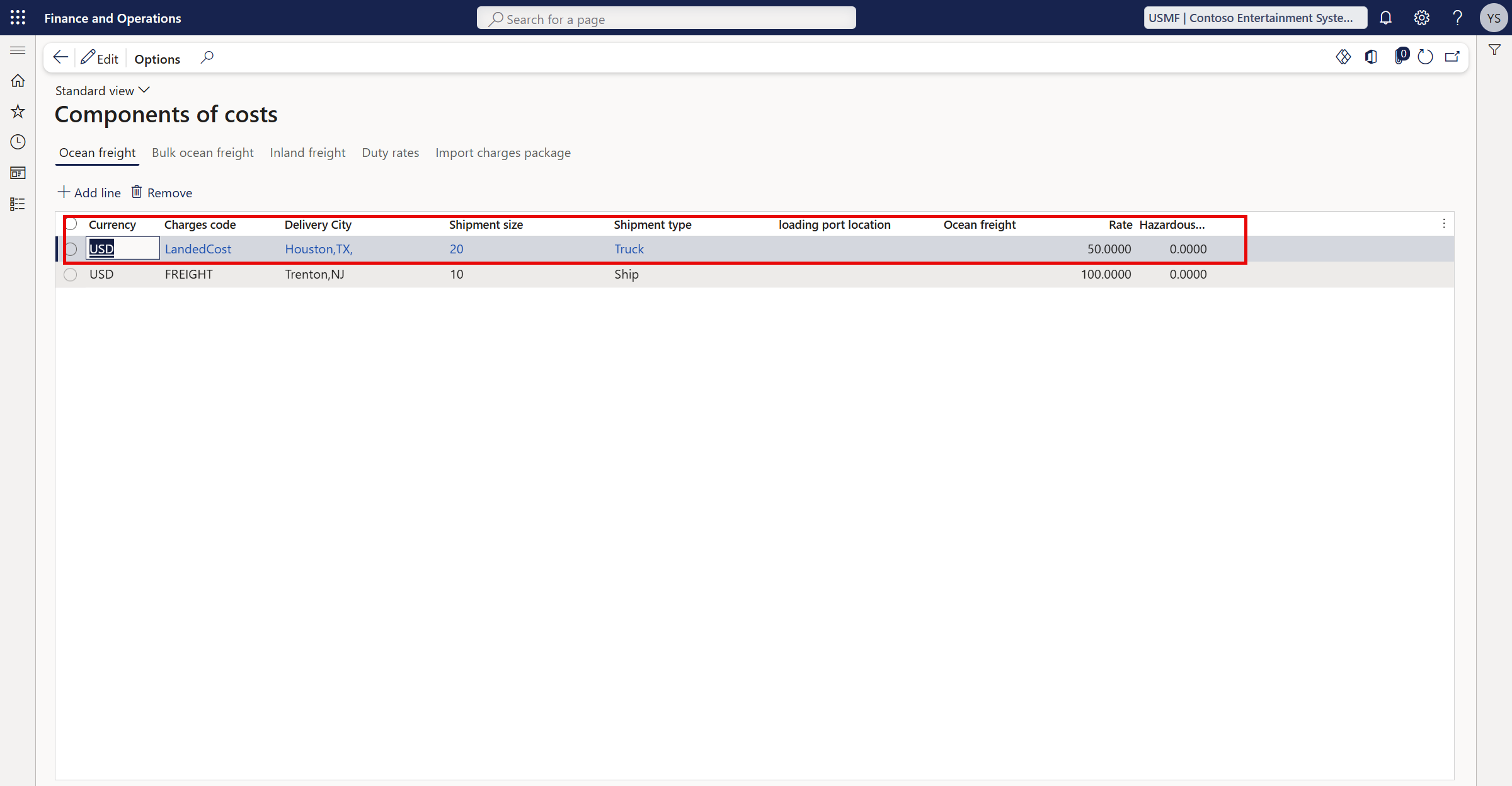
Go to AXIO > Landed cost app > Setup > Components of costs.
This is an example of the Components of costs page where we set up a Delivery city for Houston, Texas. We also specified the Shipment size, and Shipment type, to ensure accurate costs, in this case $50, which will be added to purchase orders.
The system will automatically add a $50 landed cost to any purchase orders with these configurations and a Delivery city of Houston. The second example shows a Delivery city of Trenton, New Jersey and has different configurations and a landed cost of $100. In the next section on Processing, we will show how to apply these costs to purchase orders.
Processing Landed costs example
Go to Accounts payable module > Vendors > All vendors > Select a vendor and set the value in the International field to "International".
Create a Purchase Order.
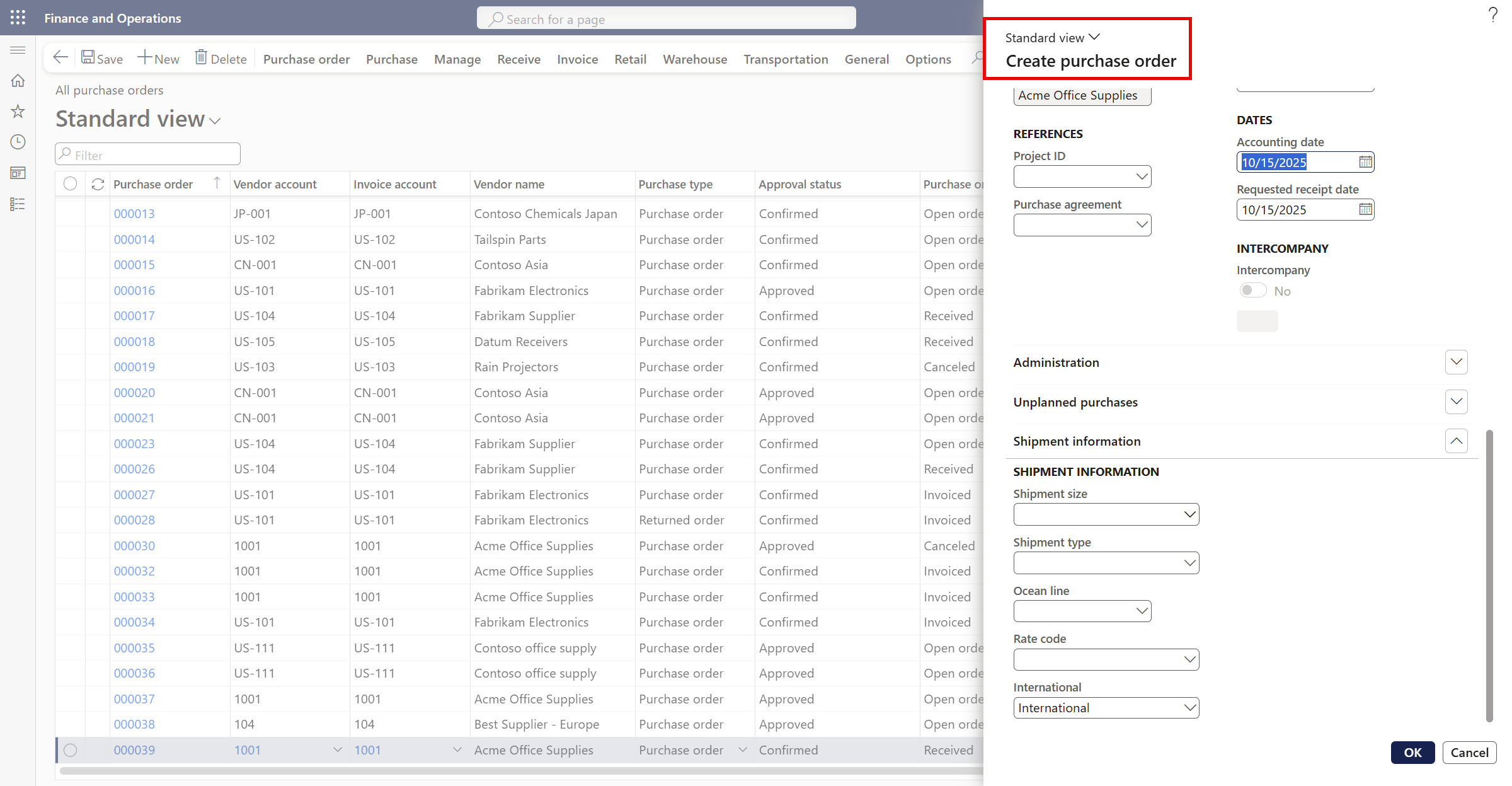
Click Shipment size dropdown and select a Shipment size for the purchase order.
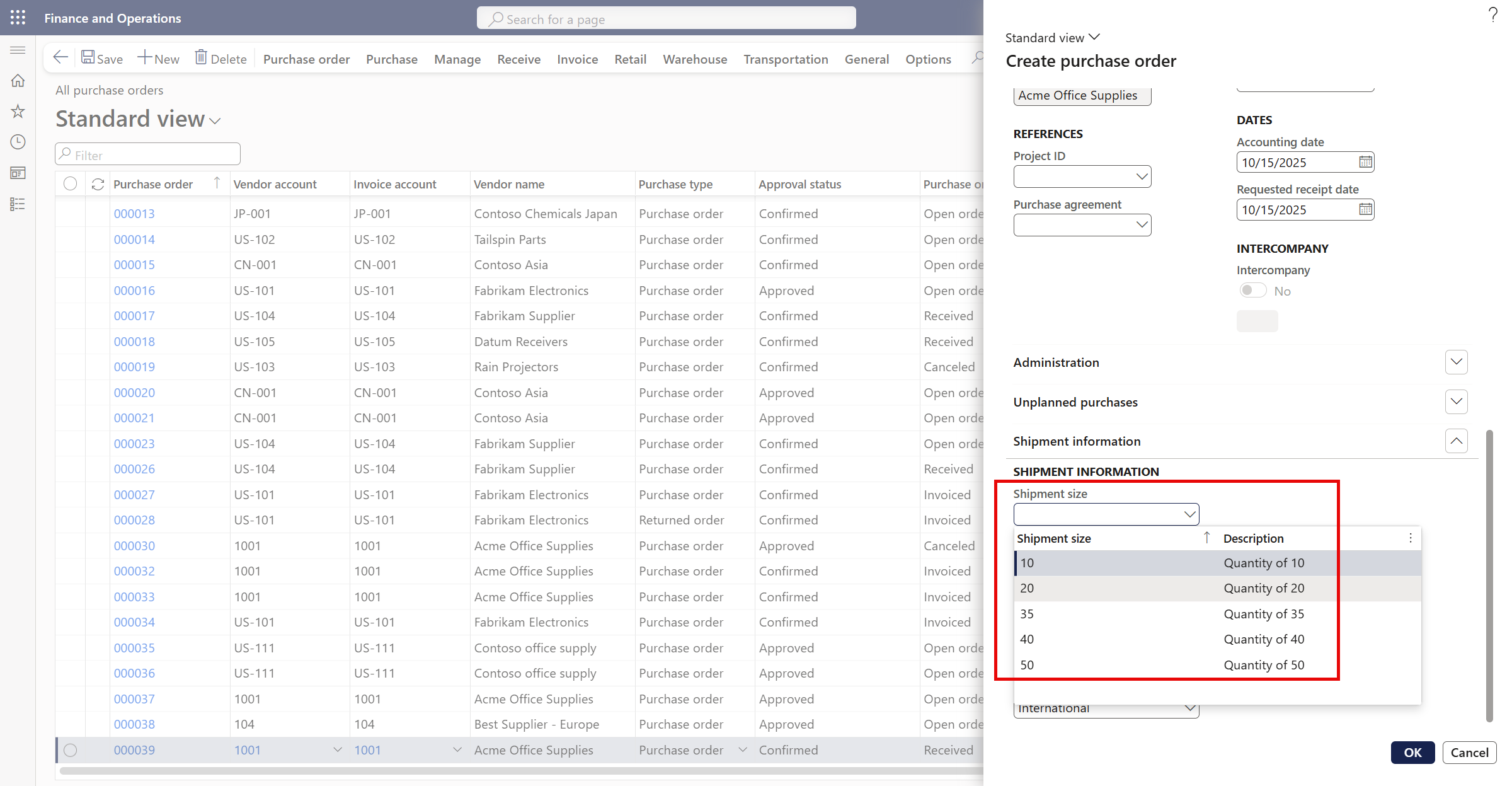
Click Shipment type dropdown and select a Shipment size for the purchase order.
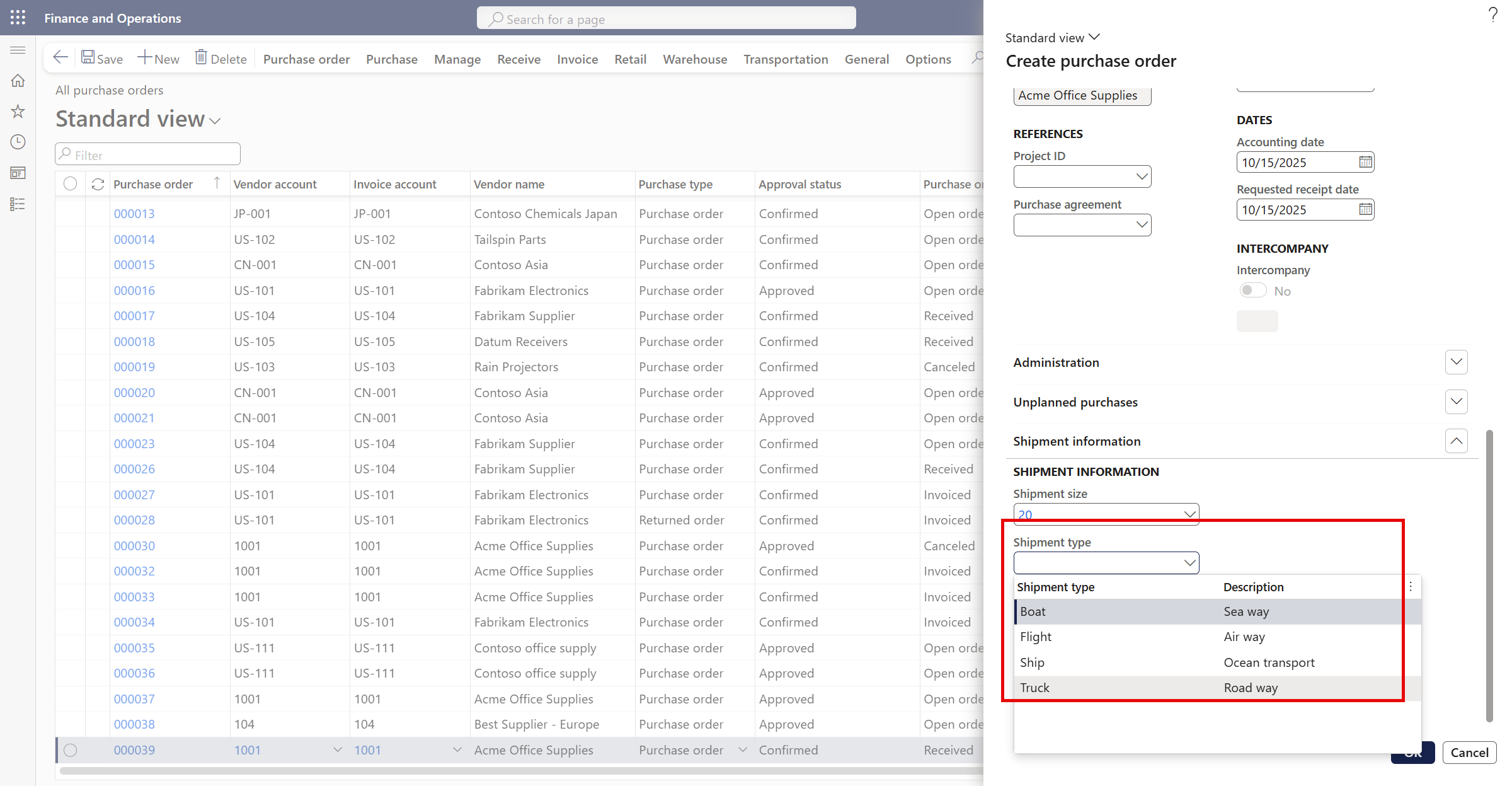
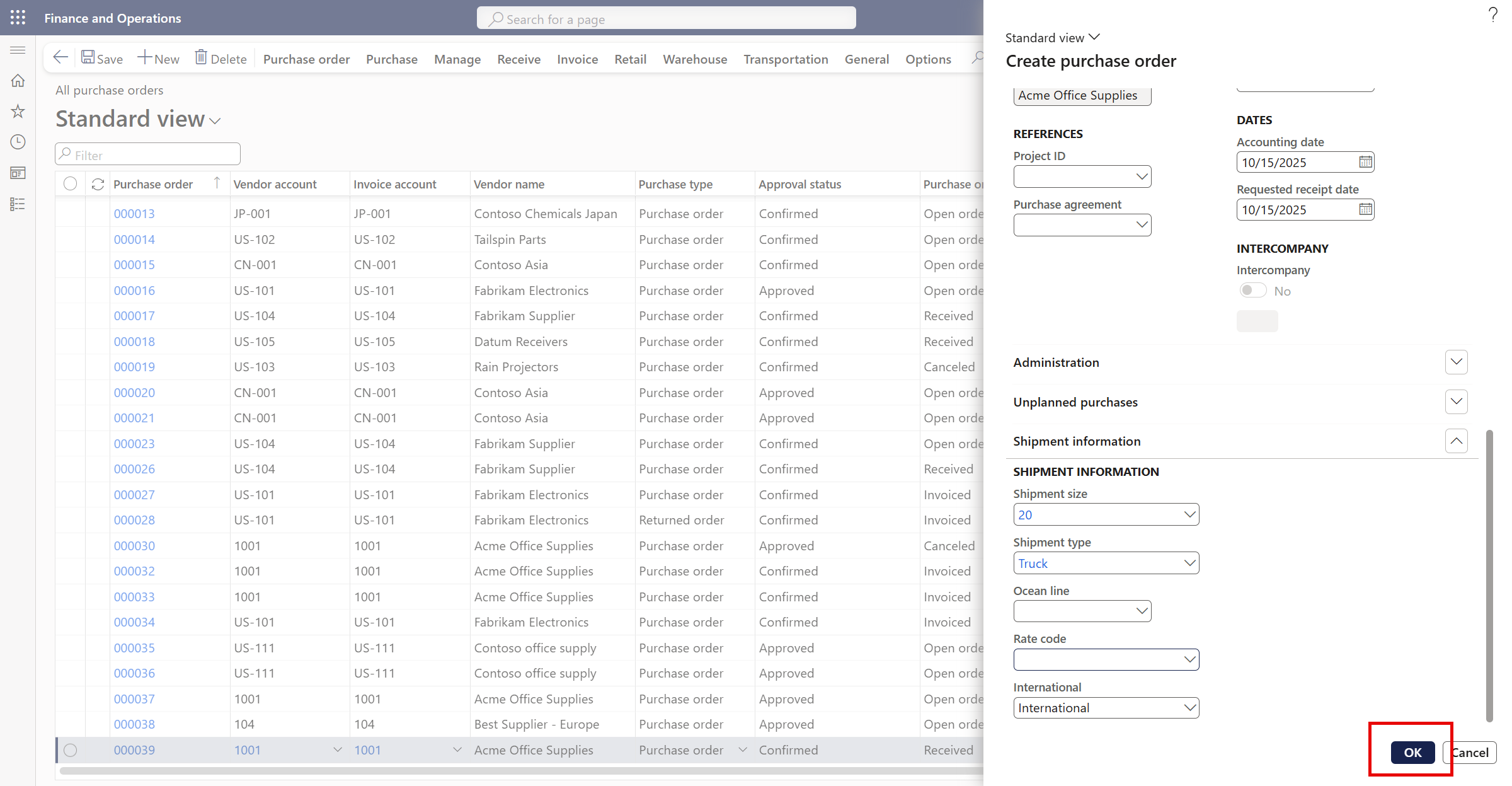
Click OK to create the Purchase order.
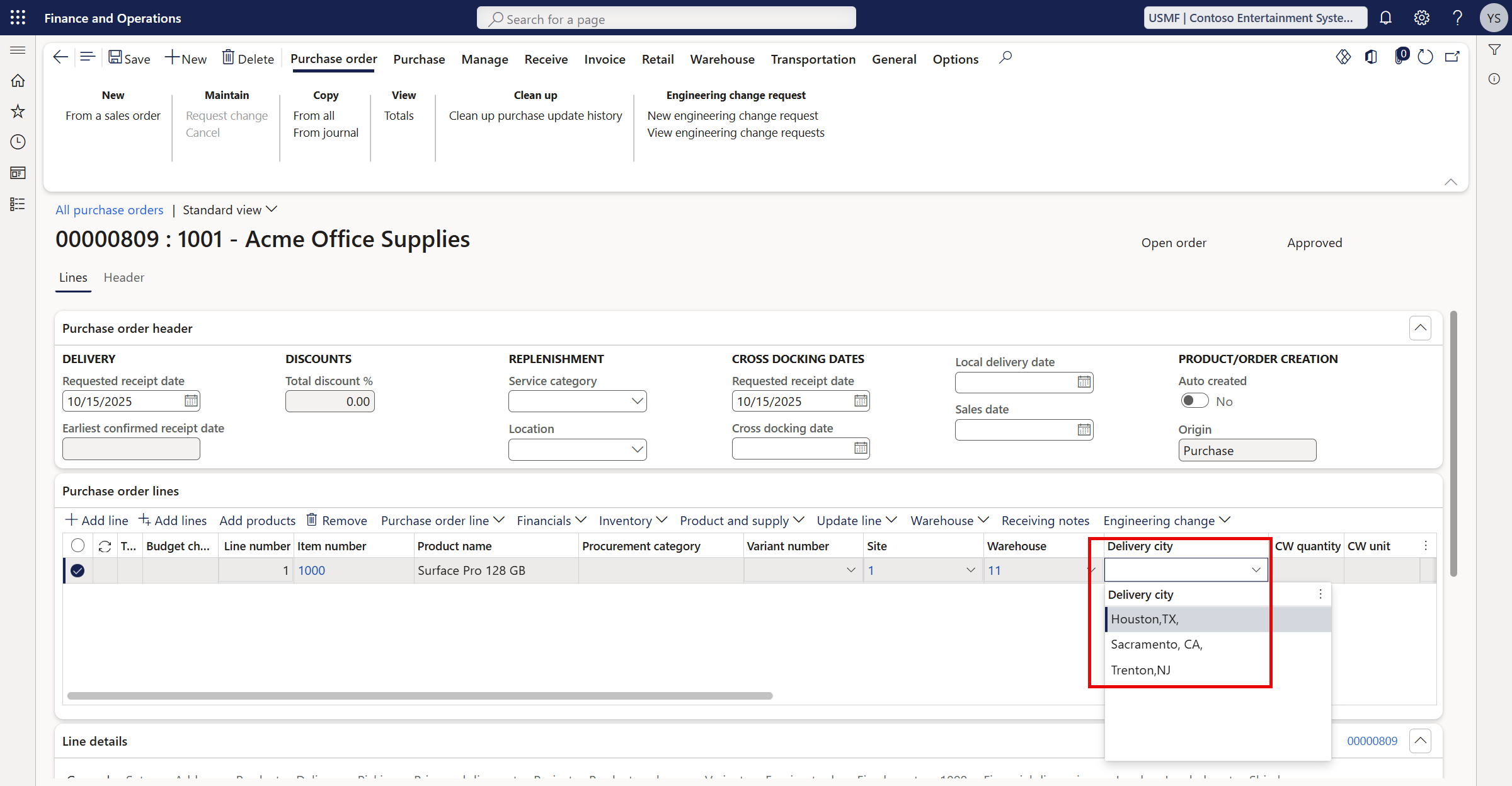
Navigate to the created Purchase order > Purchase order lines, and select the Delivery City from the dropdown.
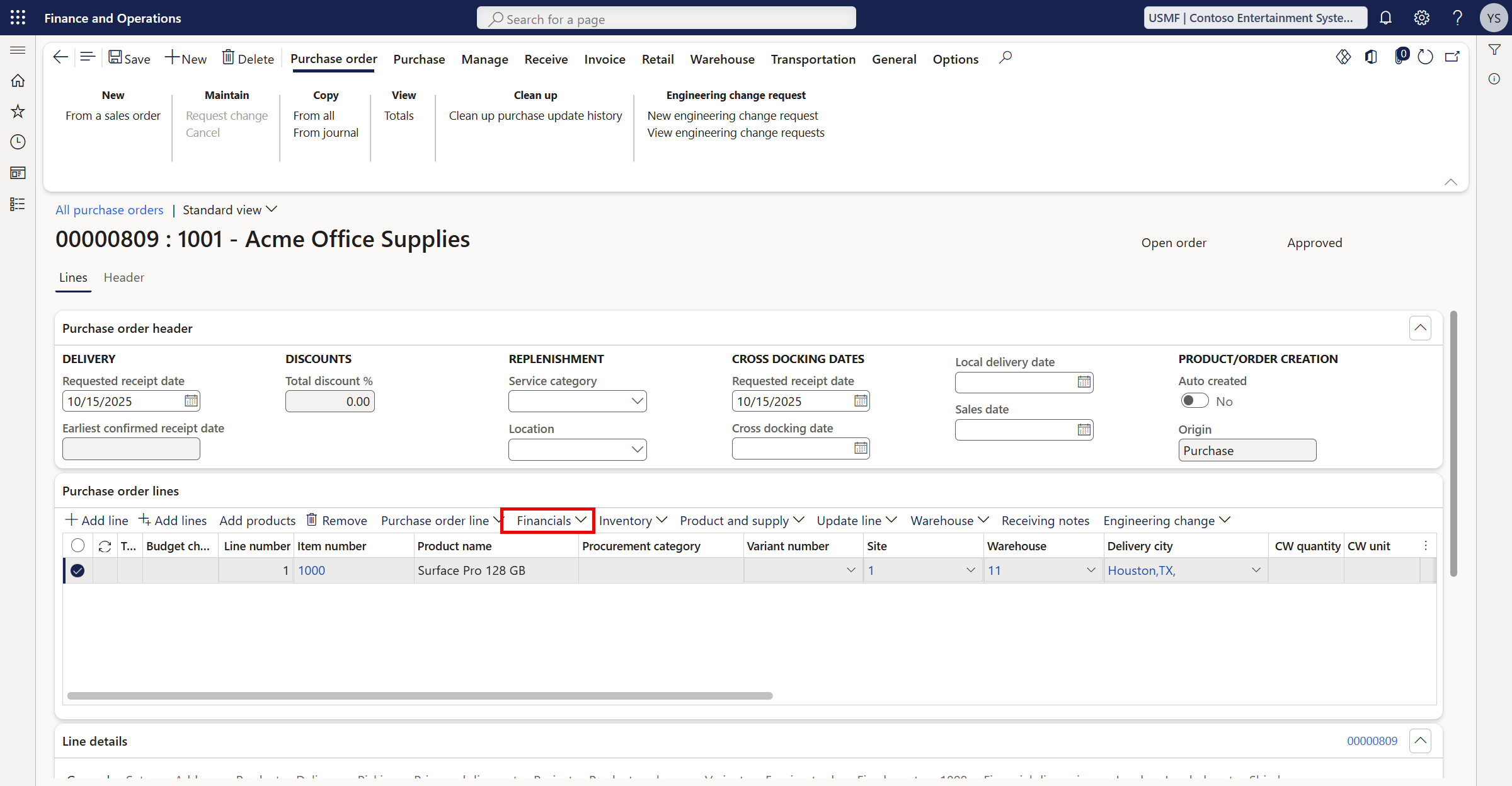
Click the Financials tab.
Review the landed cost charges under the Financials tab, Maintain charges.
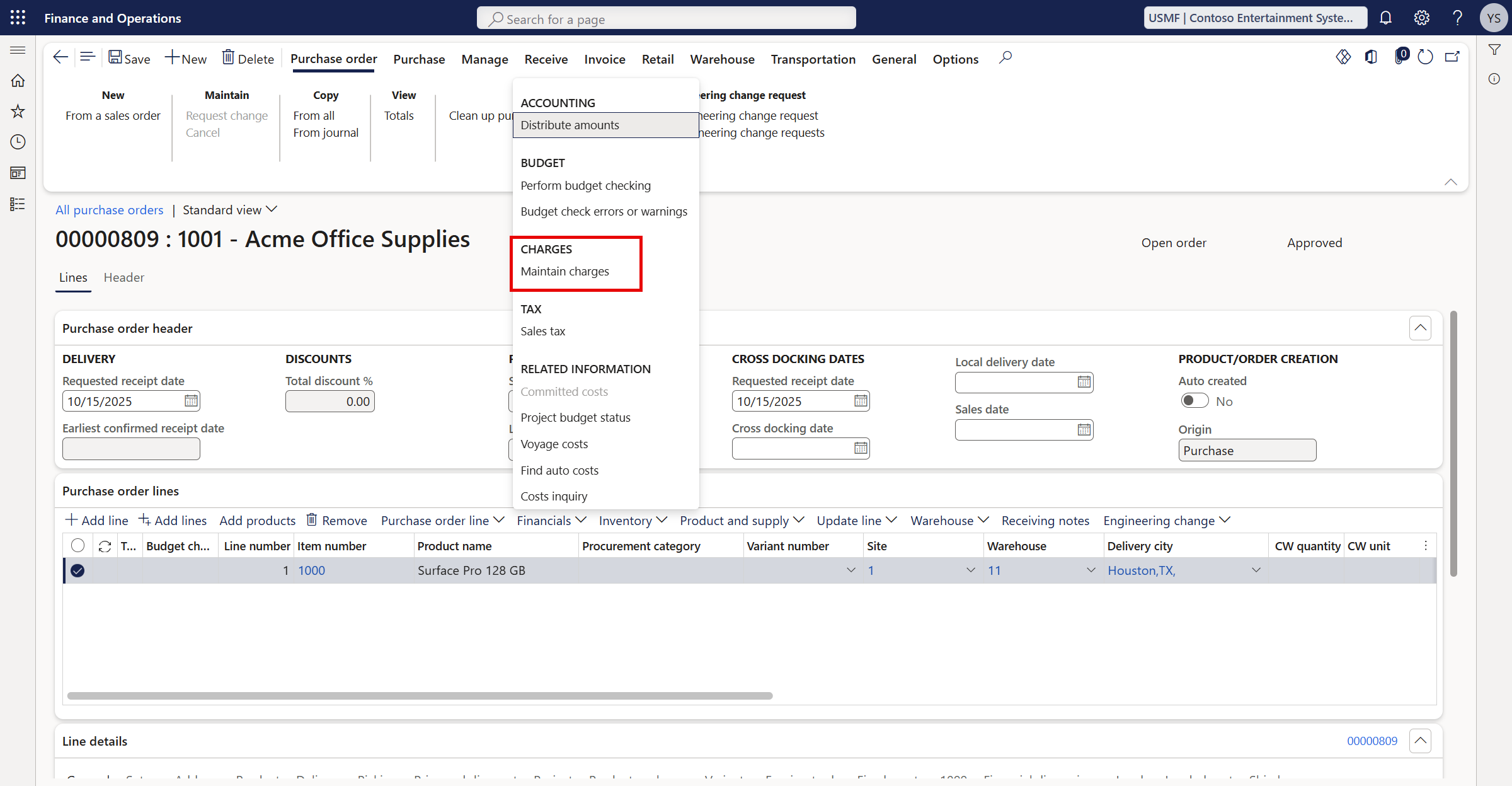
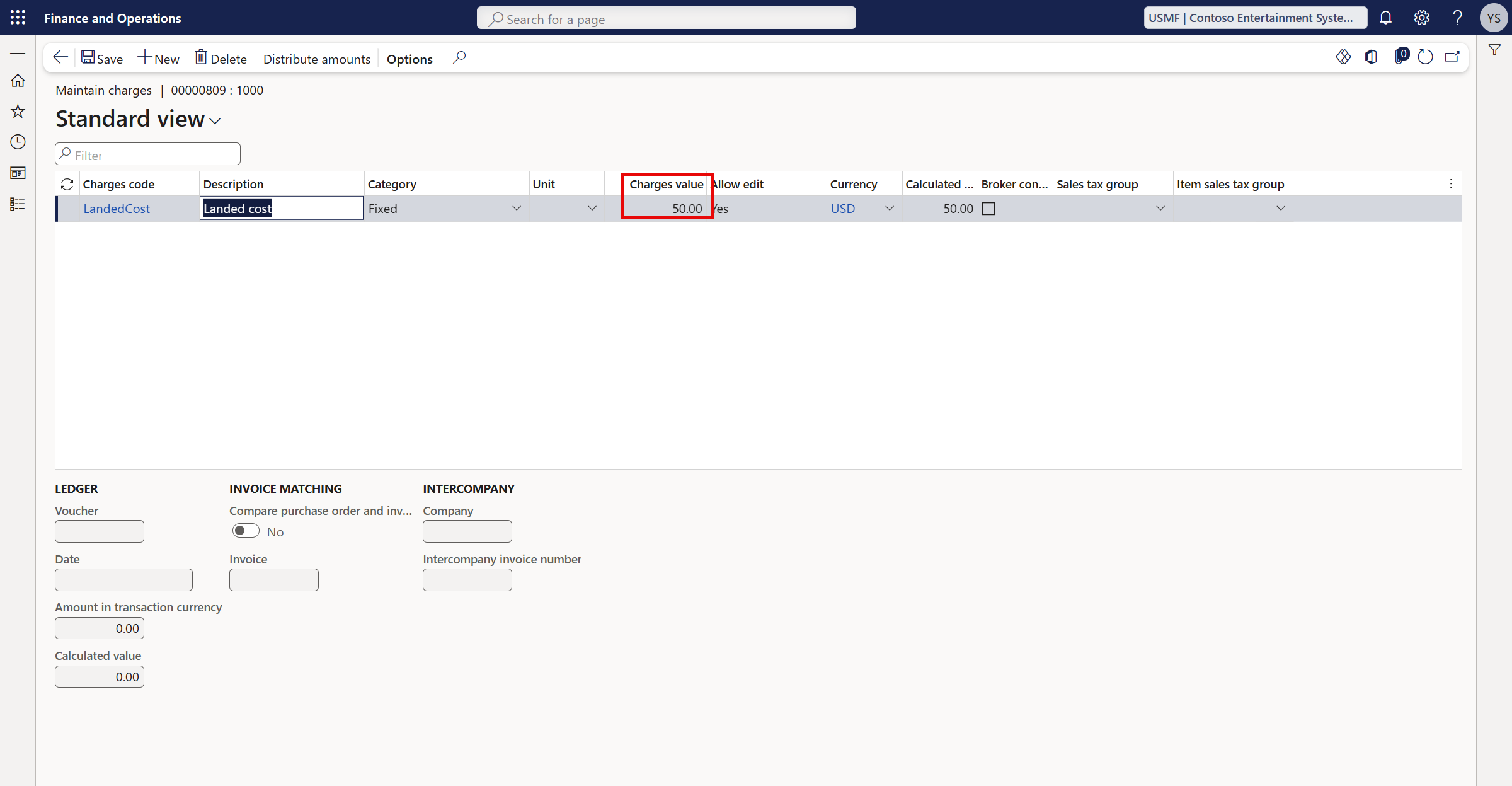
The Components of cost provides a comprehensive breakdown of the landed costs associated with each delivery city and configuration option.Here is an example of the Components of costs page entry that was used to calculate the additional costs. This example is specific to Houston, Texas and is where we can view the additional $50 to be added to the purchase order.
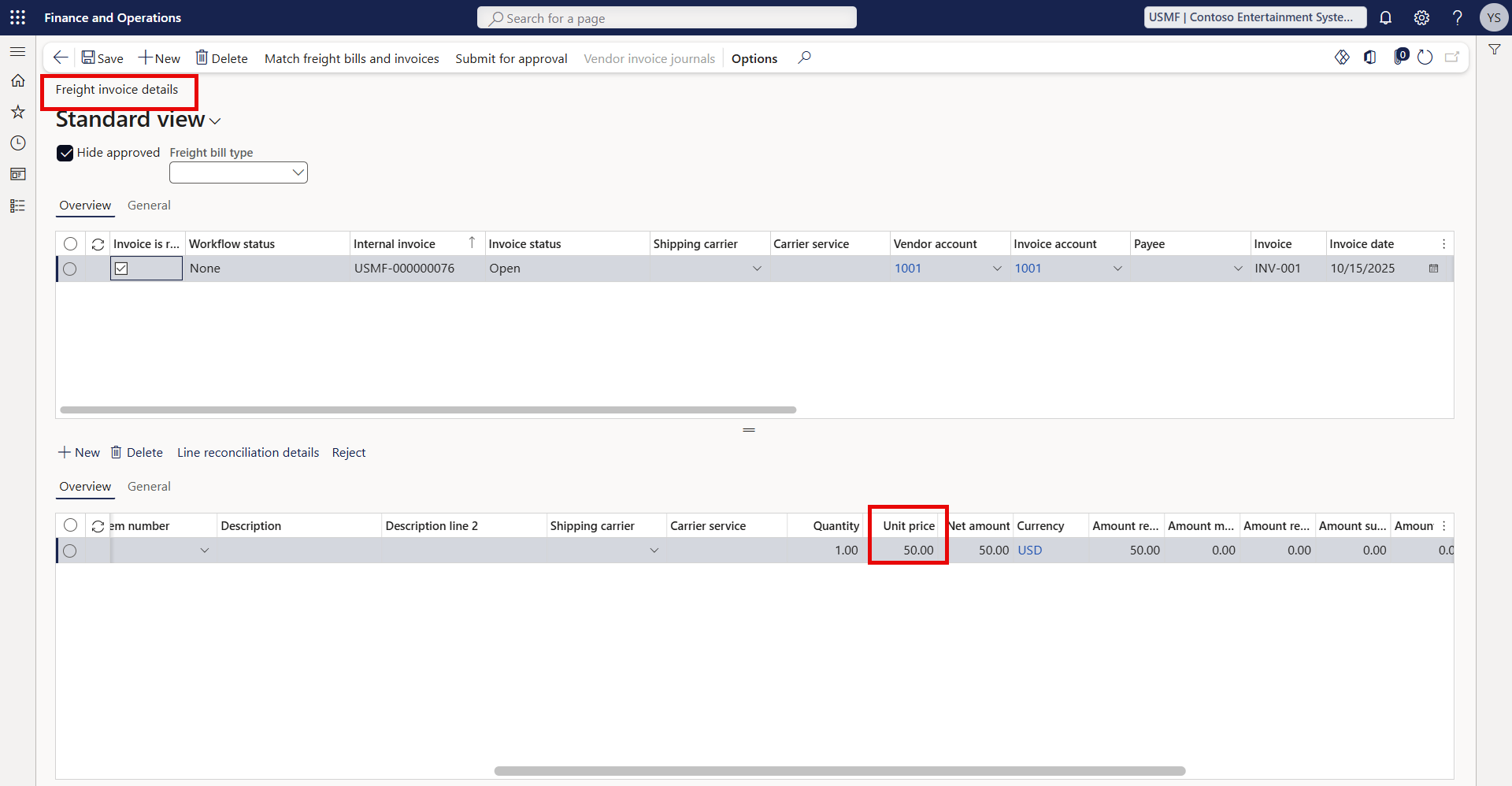
Upon receiving the freight invoice, it will be matched to the purchase order and approved. This will then trigger the creation of the landed cost freight invoice, which will reflect the calculated cost from the AXIO Landed Cost module.