AXIO - Purchase Orders cleanup history
The AXIO - Purchase orders cleanup history feature adds the ability to run a batch process that closes Open Purchase orders that have not been fully received, and no further receipts are expected.
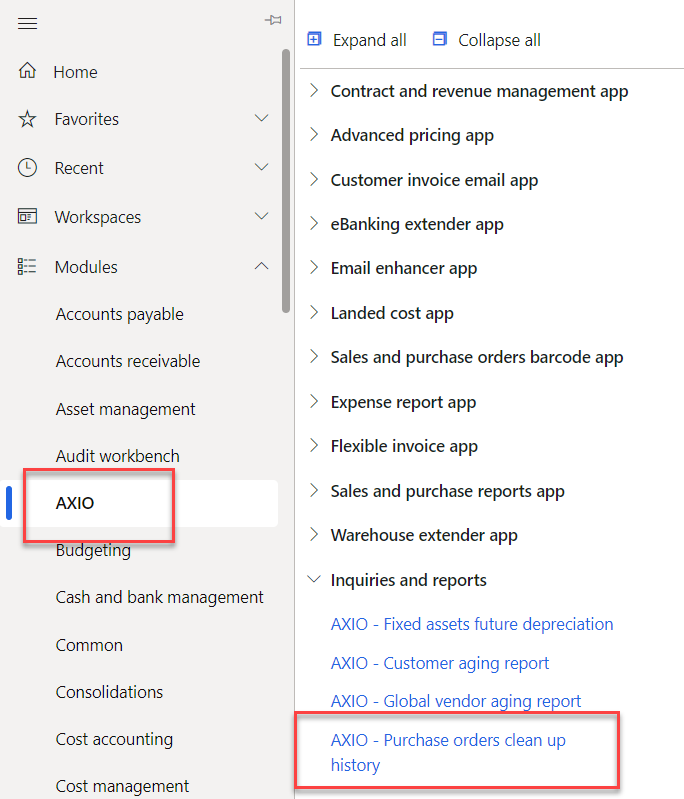
To access this tool, navigate to AXIO > Inquiries and reports > AXIO - Purchase orders clean up history.
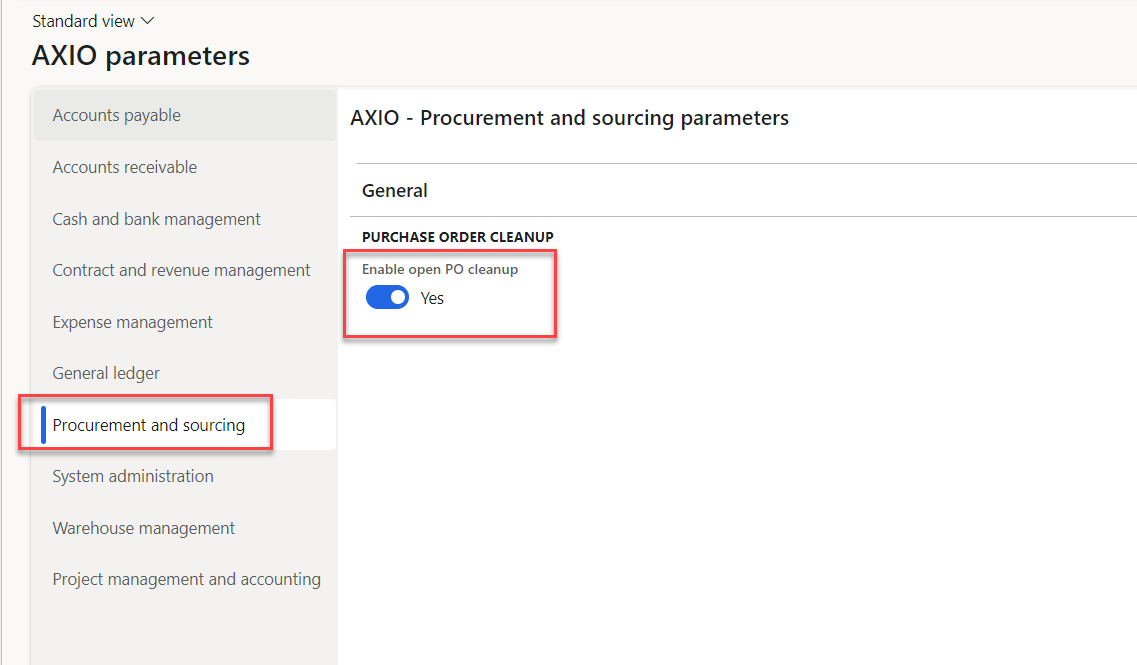
Navigate to AXIO > Setup > AXIO parameters > Procurement sourcing.
Toggle Enable open PO cleanup to Yes to enable this feature.
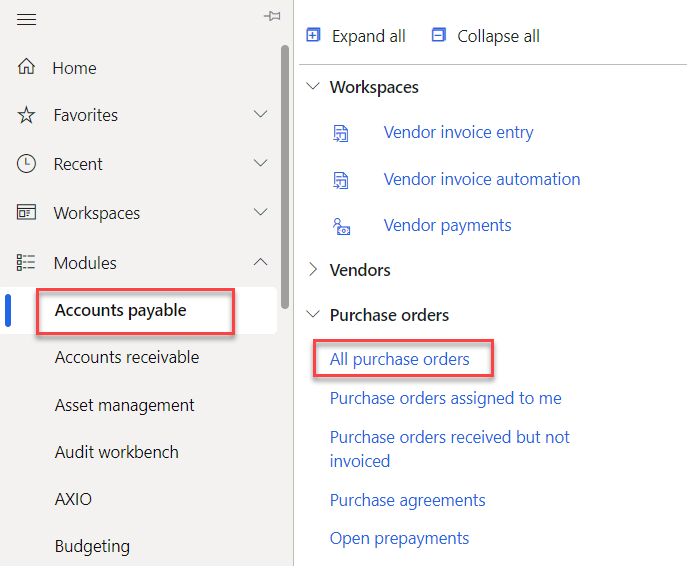
To obtain a list of Purchase orders that are partially received (open status), run the Accounts Payable > Purchase orders > All purchase orders.
Filter the results to display only Purchase orders with a Status of 'Open order'.
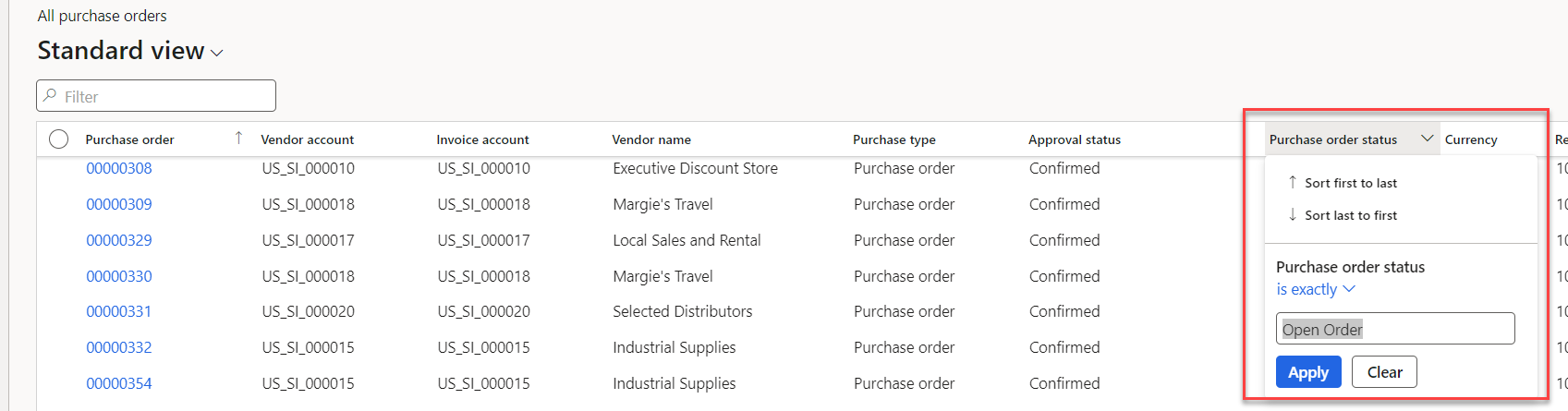

Export the resulting report to Excel.
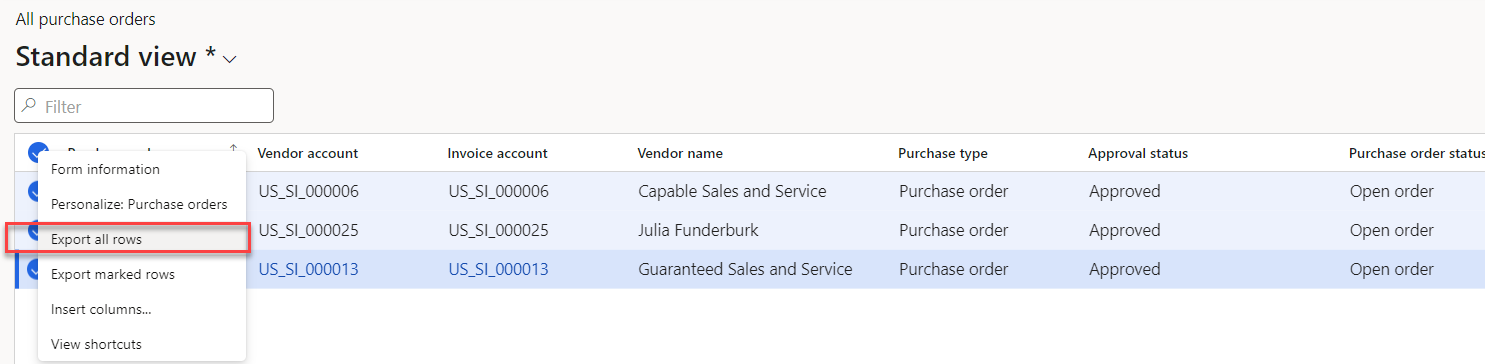
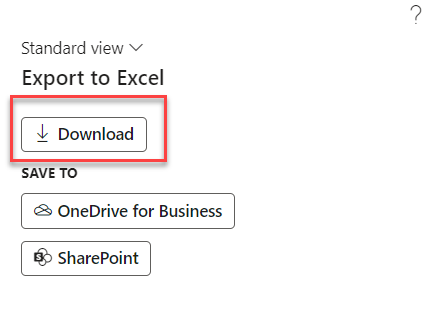
Open the report and make any desired edits (i.e. remove anything that should remain open).

Important
It is essential that the first column in the Import file is the Purchase order number. If this is removed or changed, the file will not import properly.
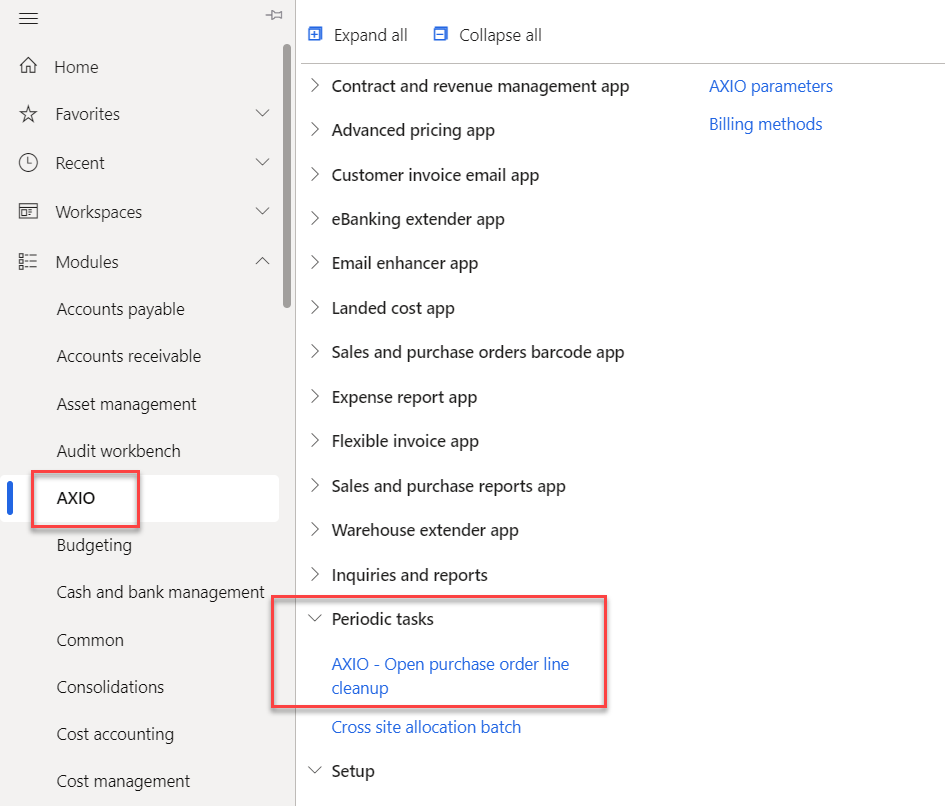
Import the Excel file by navigating to AXIO > Periodic tasks > AXIO - Open purchase order line cleanup.
Click "Browse" on the Upload open orders field and select the Excel file just created.
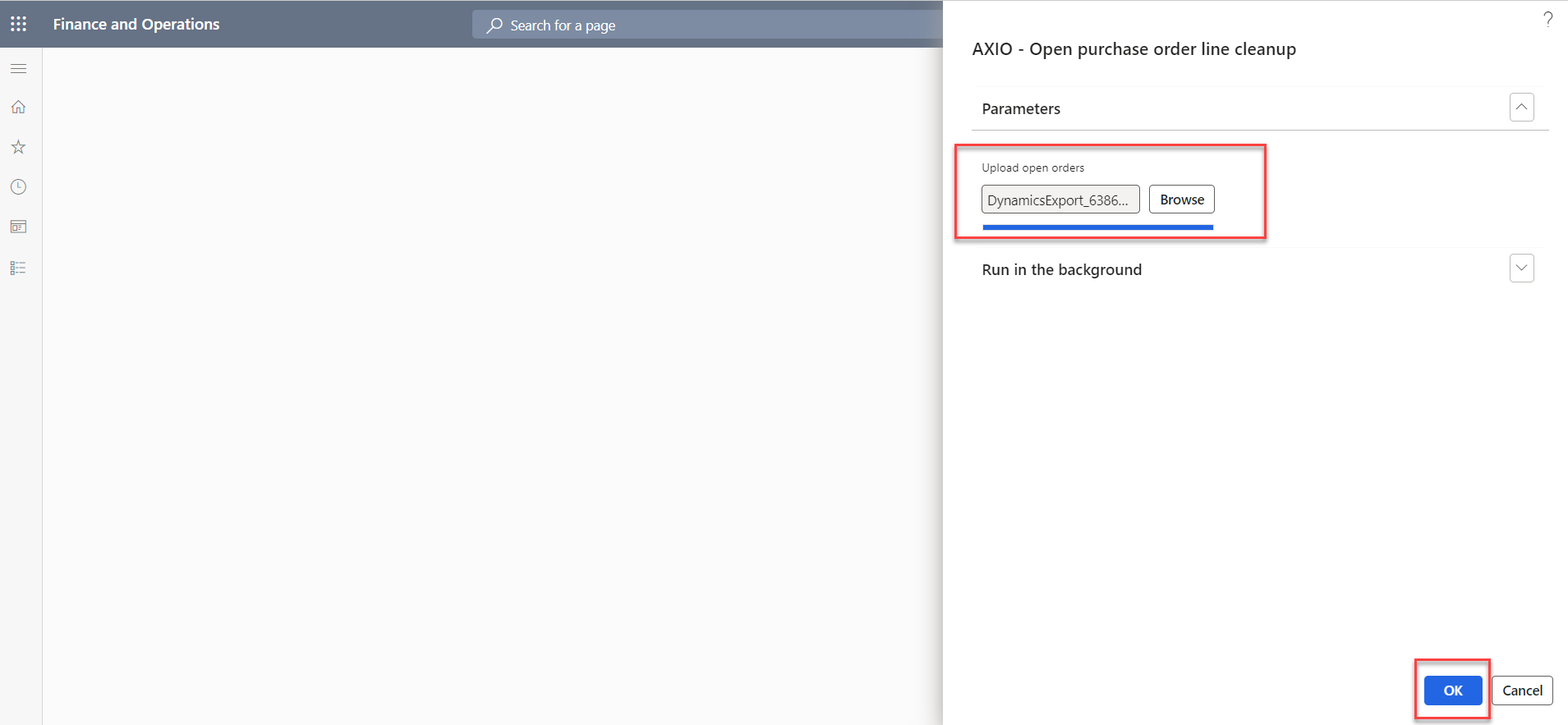
Review the status of the process in System Administration > Batch Job.
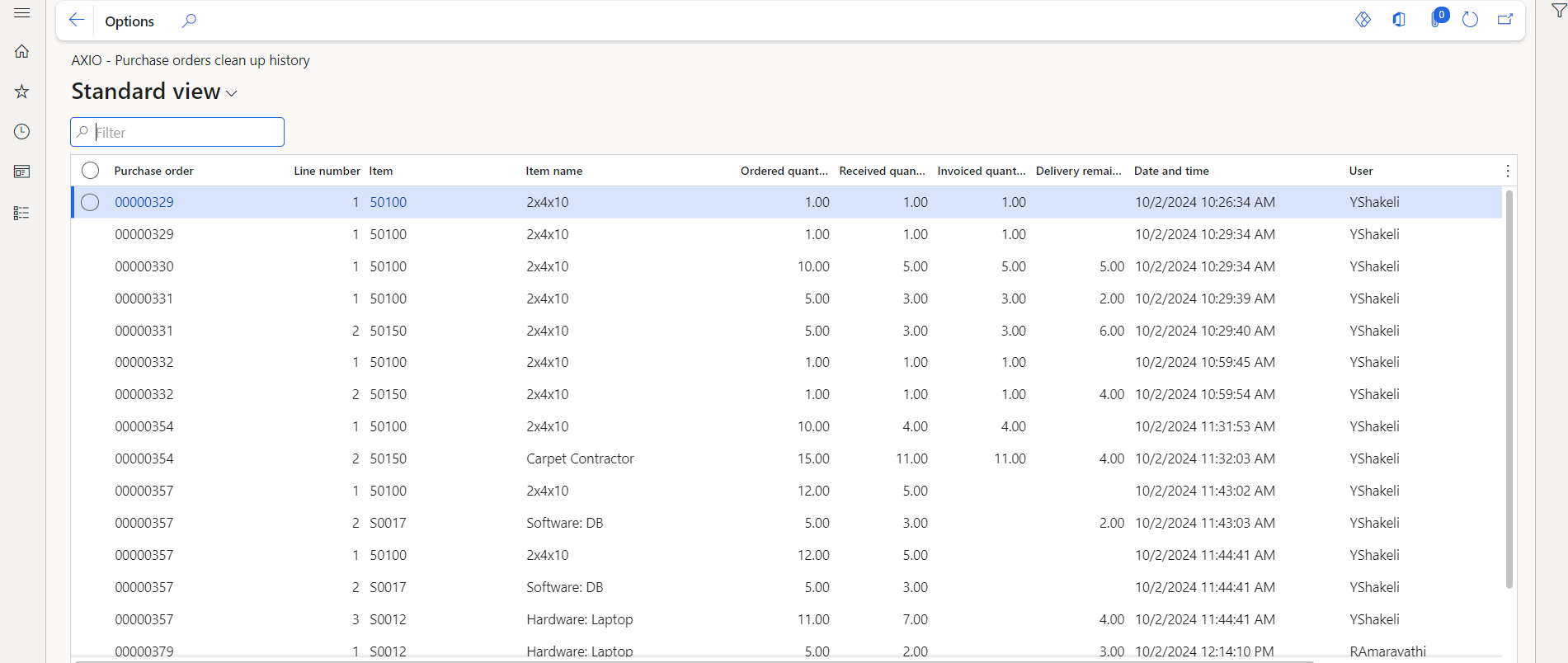
Once the batch job is complete, the user can review results in the Purchase orders clean up history page.