AXIO ProServ - Outlook Time Entry & Web Time Entry
The Outlook Time Entry & Web Time Entry App provides alternative ways to make daily time entry quicker and easier for employees.
Overview
Time entry can be a tedious and time-consuming task, but it doesn't have to be. AXIO Outlook Time Entry & Web Time Entry designed to streamline the process, reducing the time spent on data entry while increasing accuracy. Benefits include:
Efficiency: AXIO Outlook Time Entry & Web Time Entry is designed to minimize the steps needed to enter time, allowing employees to focus on what truly matters - their work.
Accuracy: With built-in error checking and validation, you can be confident that entries are accurate the first time around.
Accessibility: Whether used in the office or on the go, the solution is accessible from any device, making it easier than ever to keep track of time.
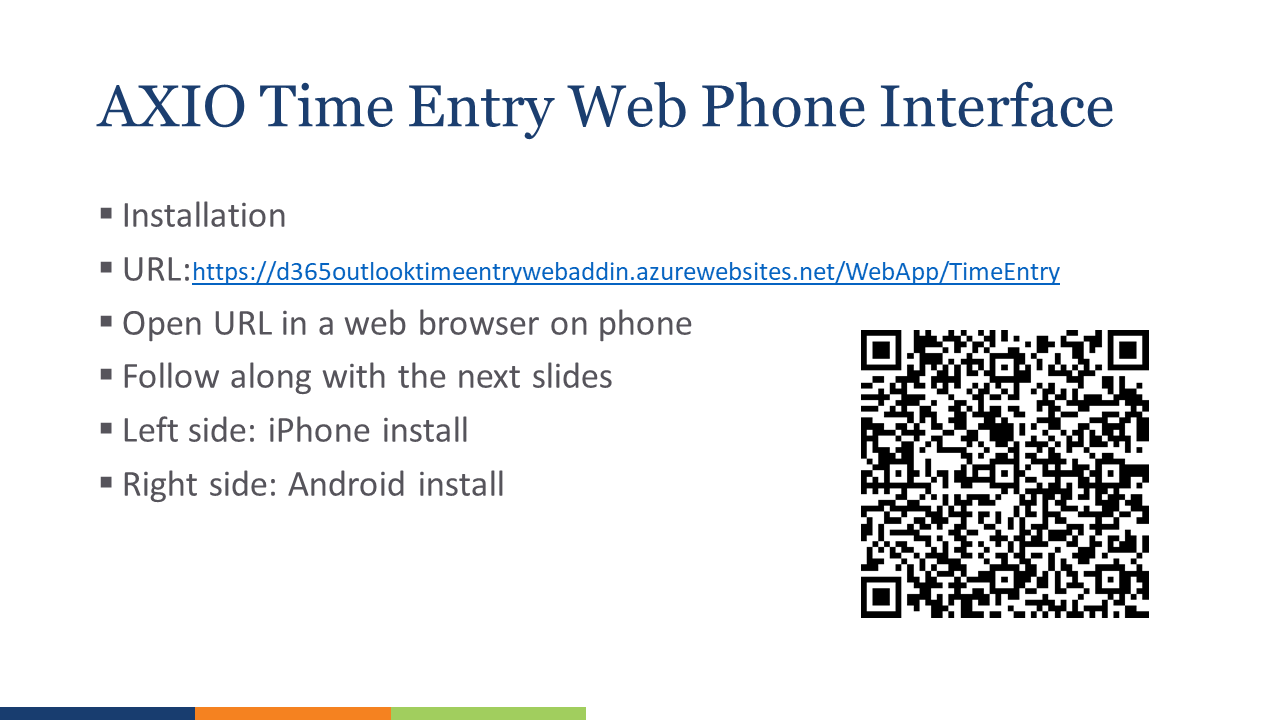
AXIO Time Entry Installation
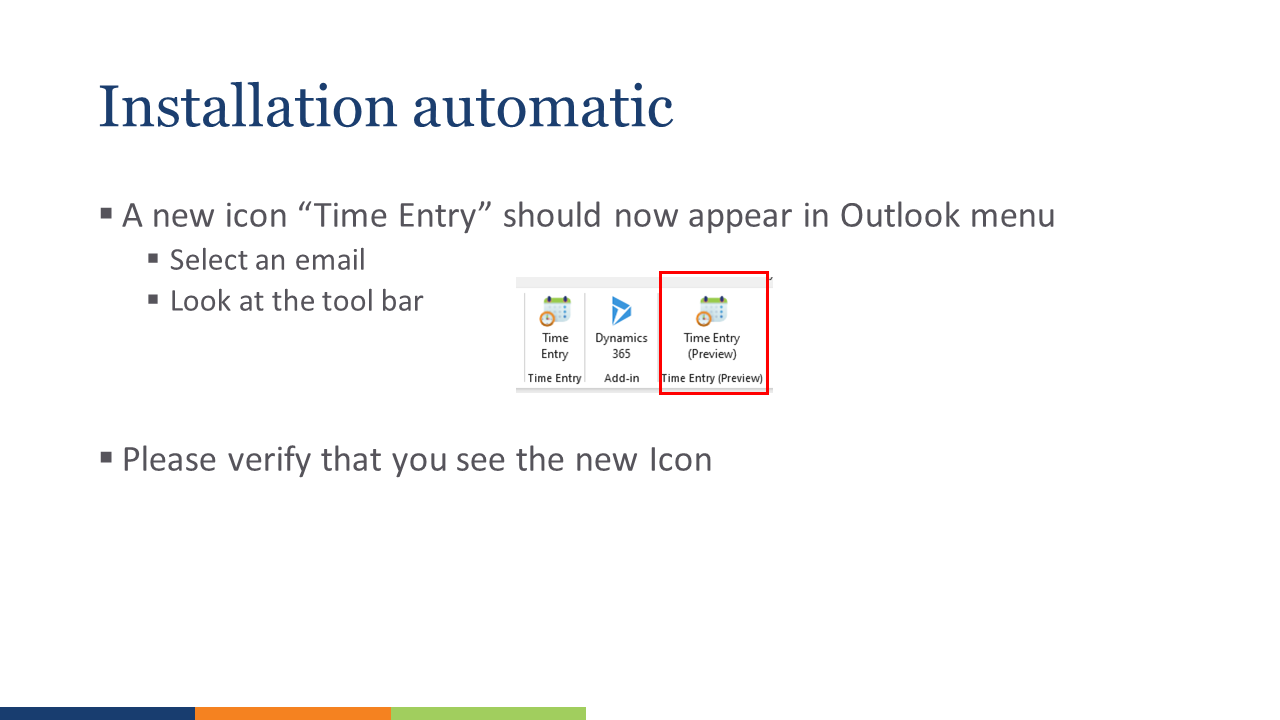
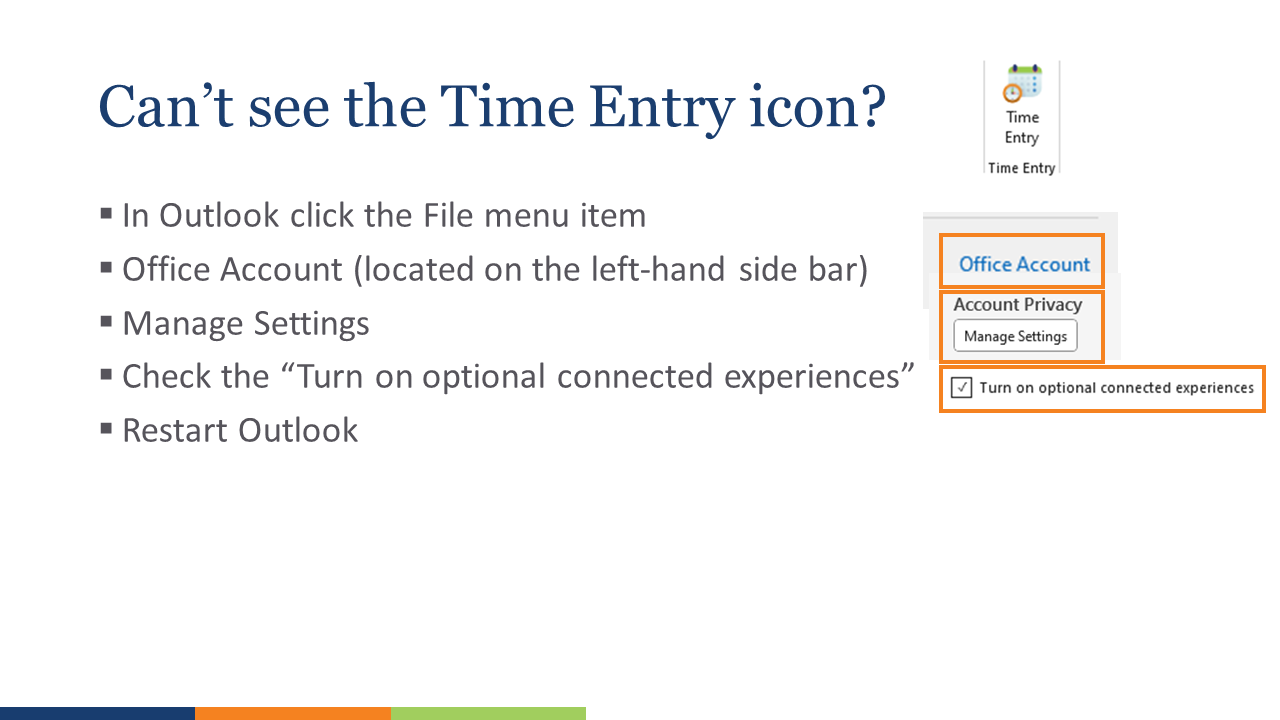
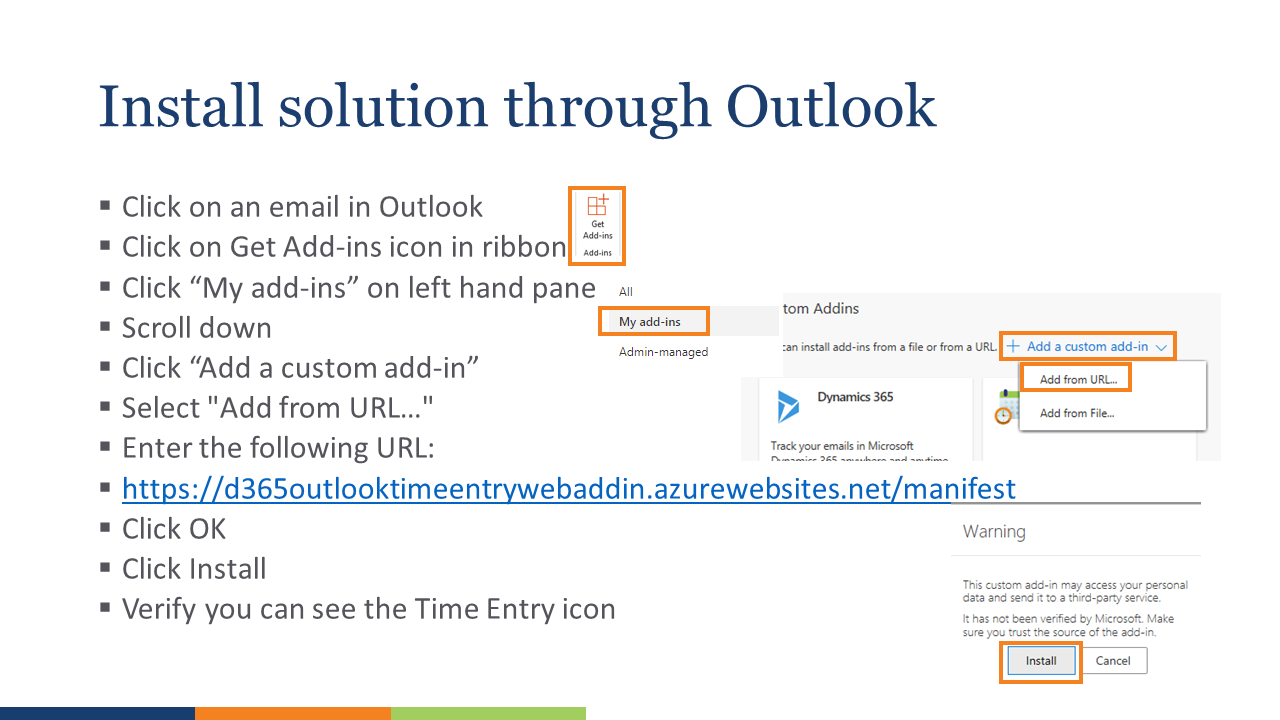
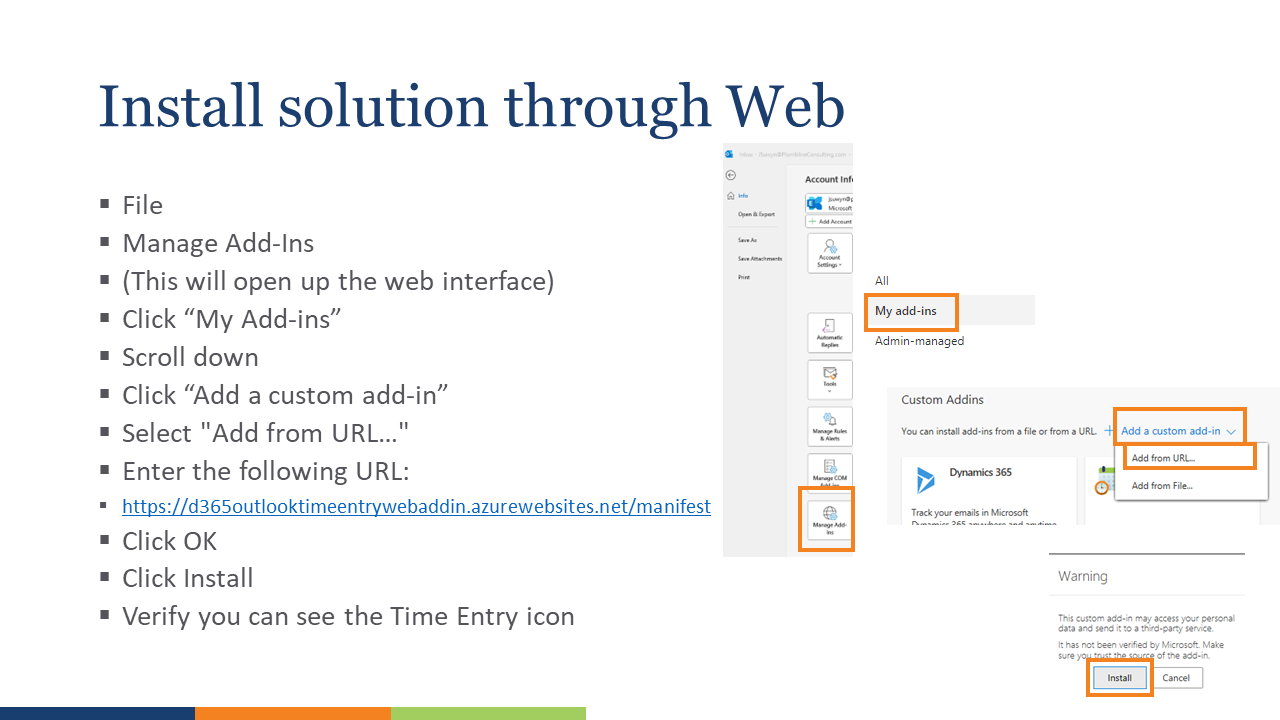
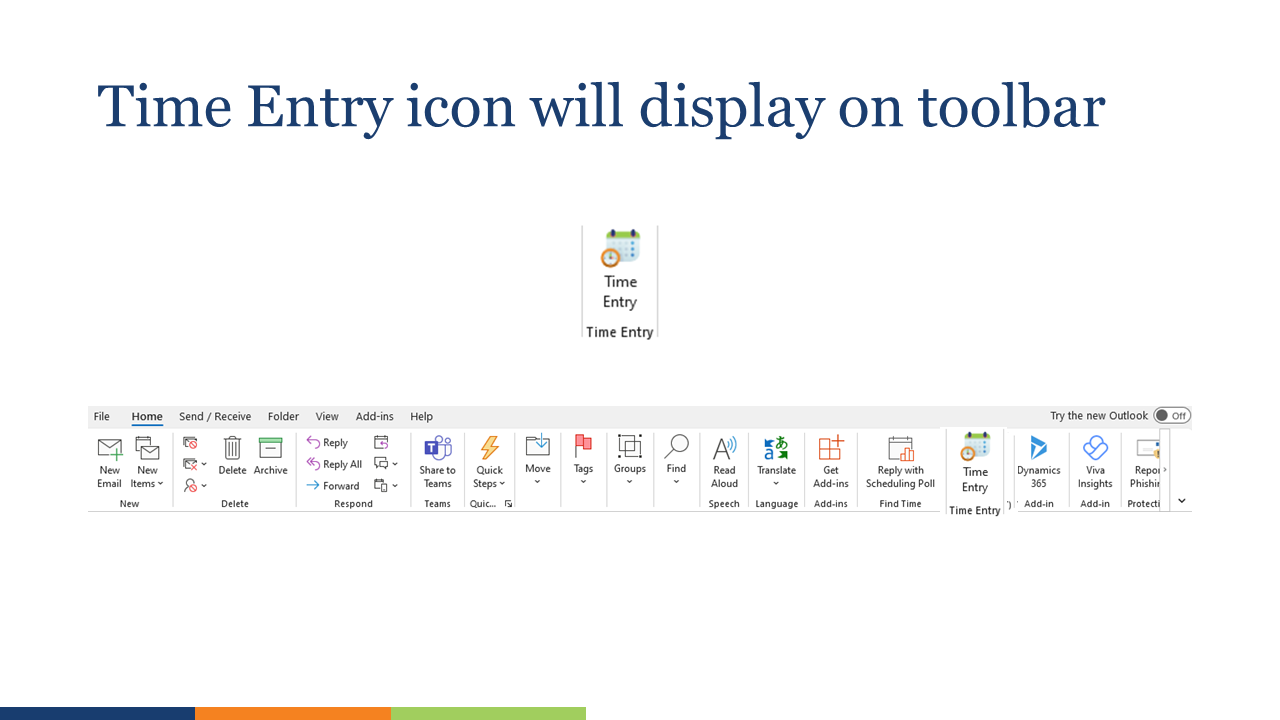
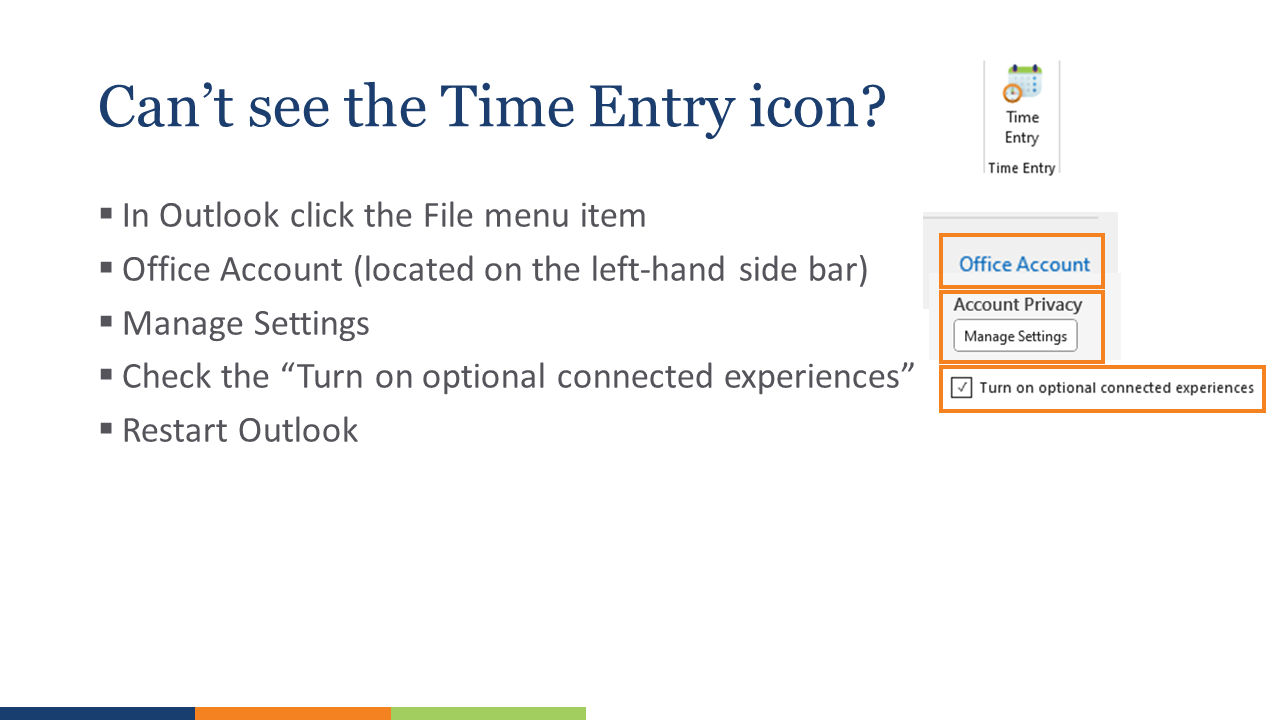
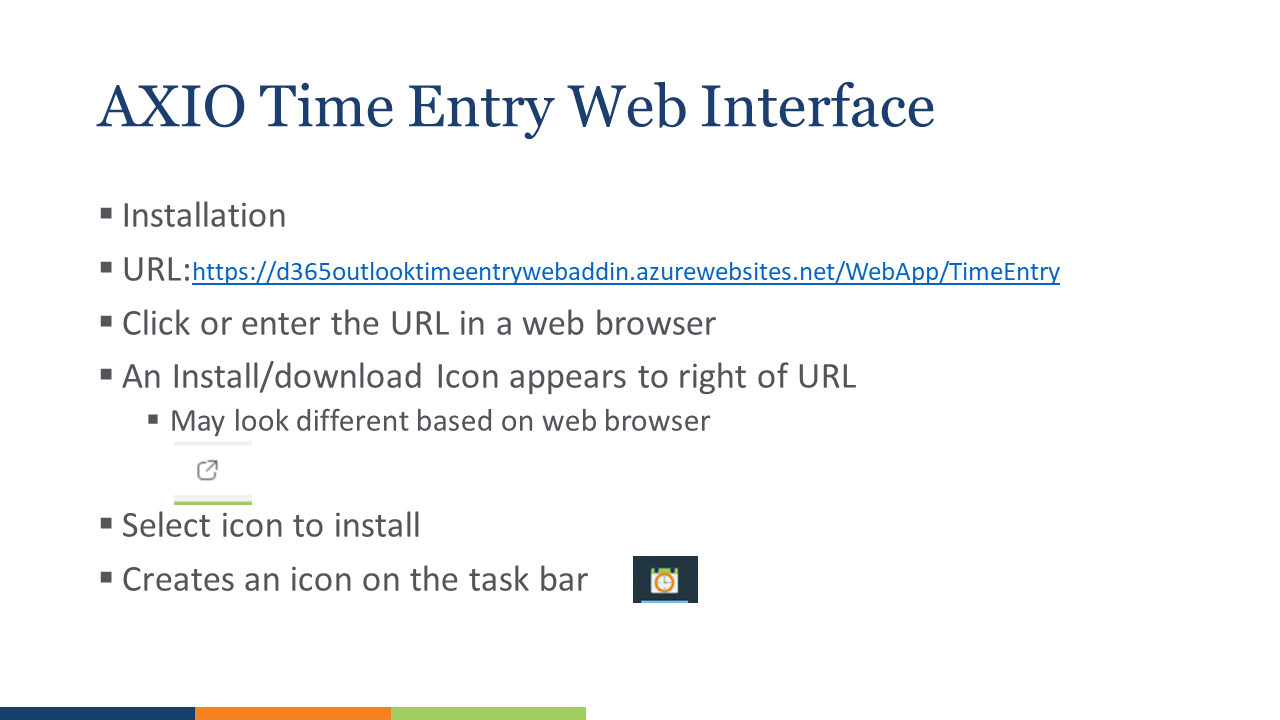
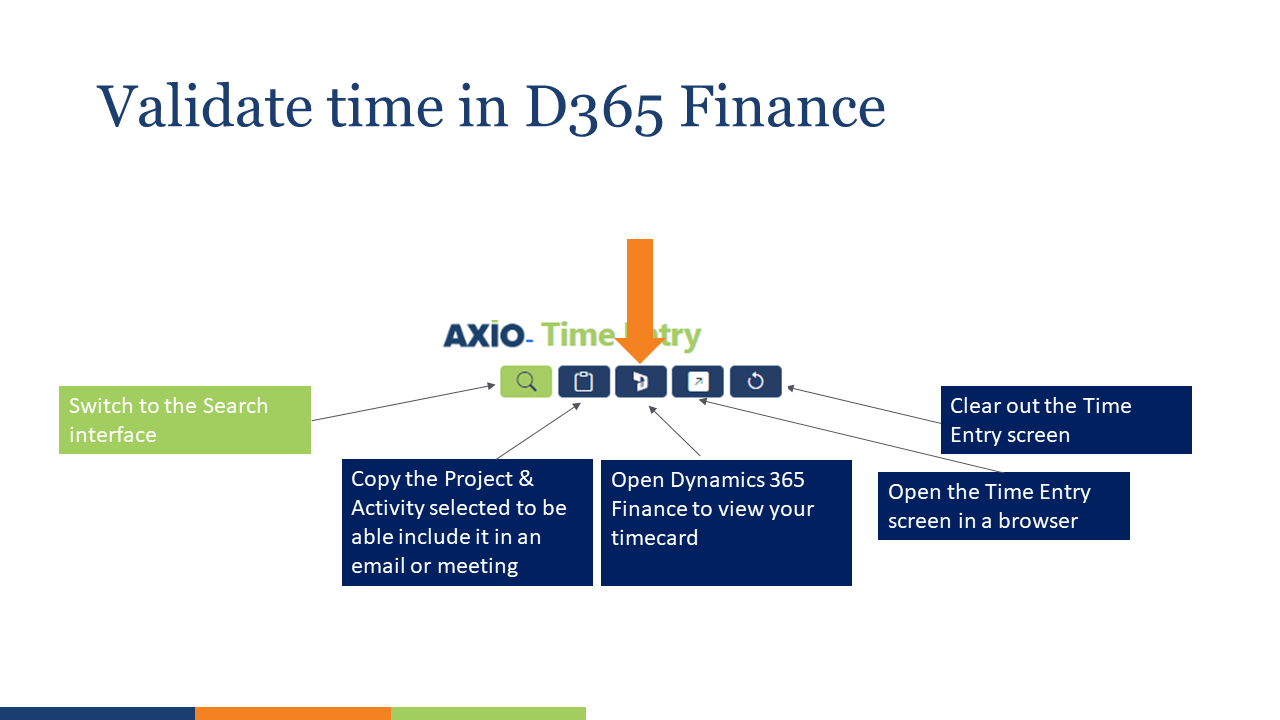
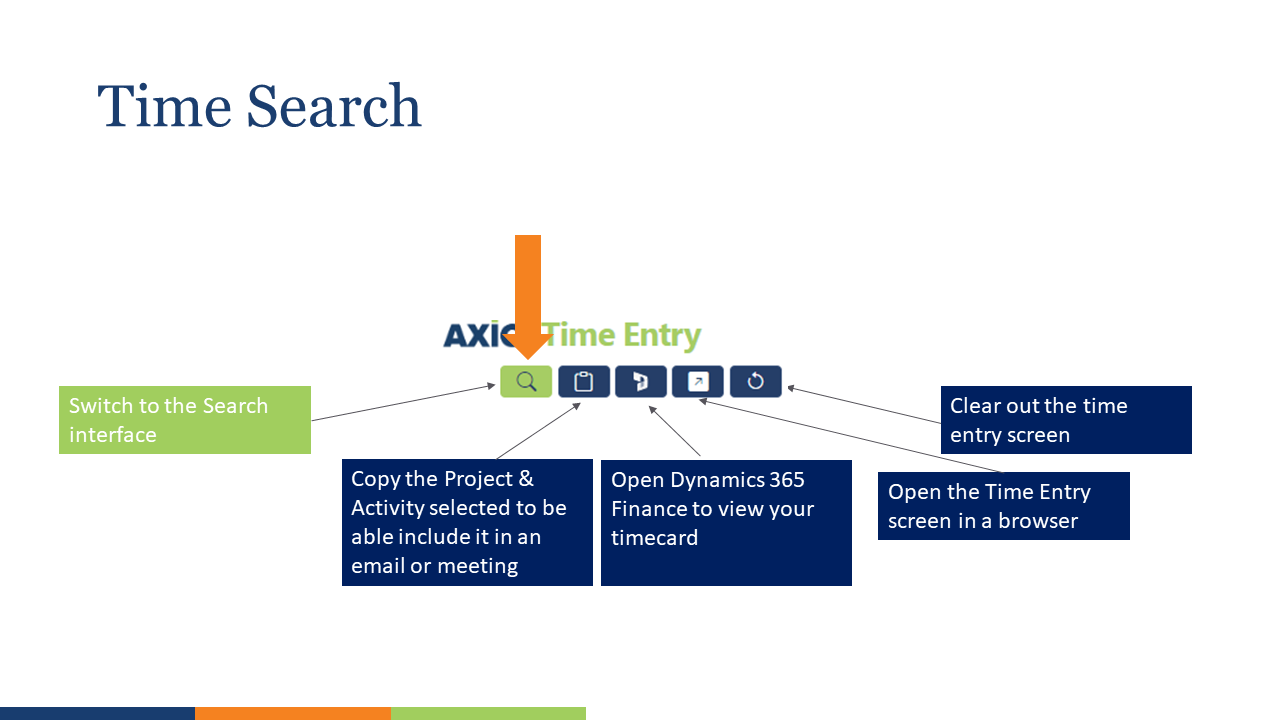
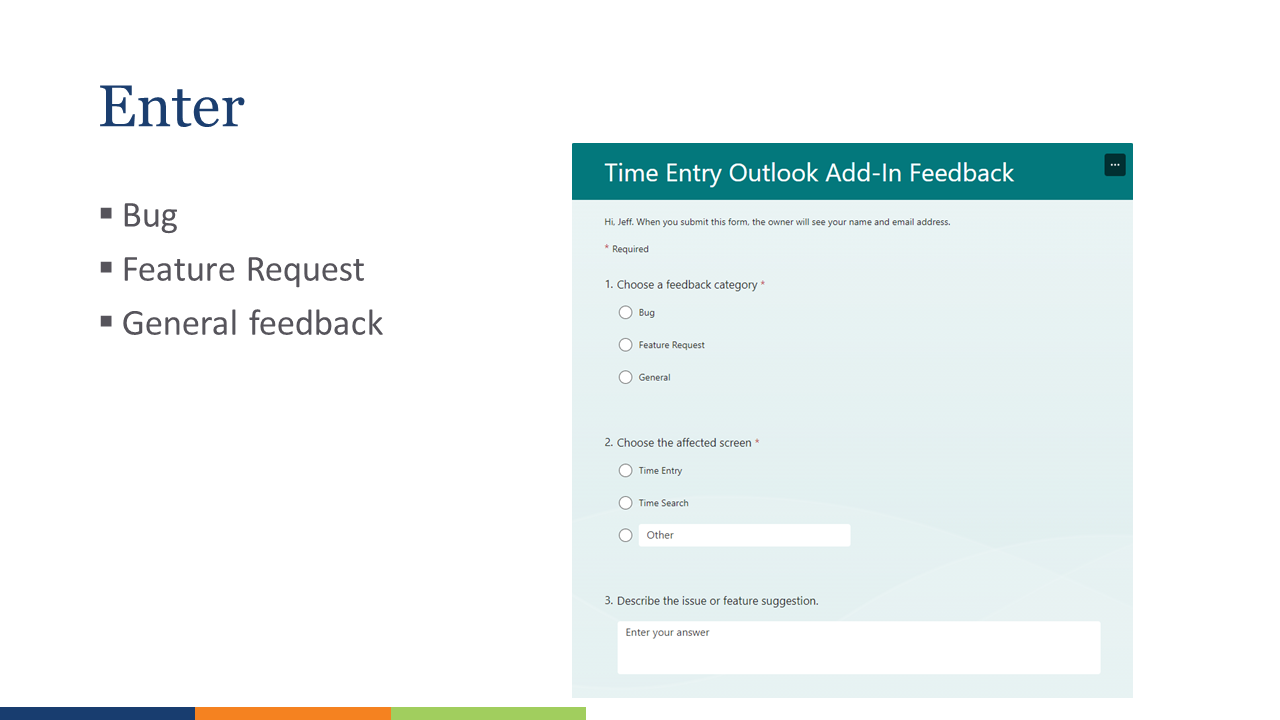
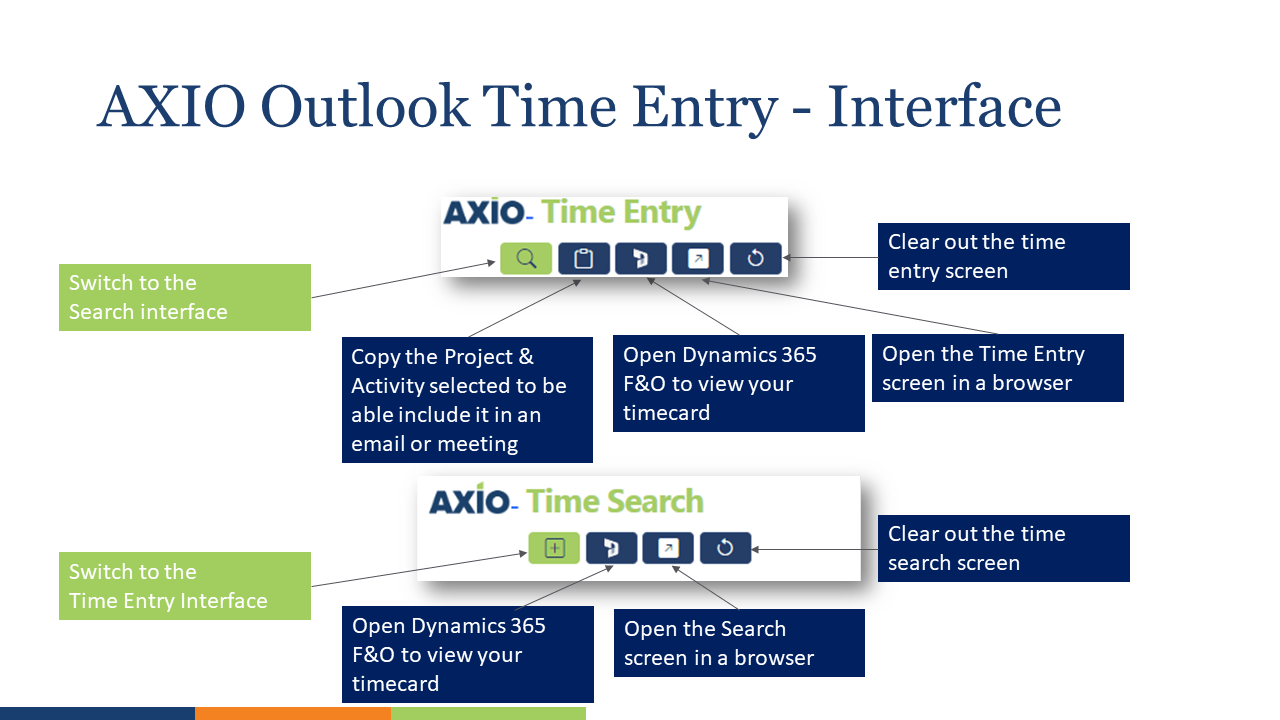
AXIO Outlook Time Entry Interface and Menus
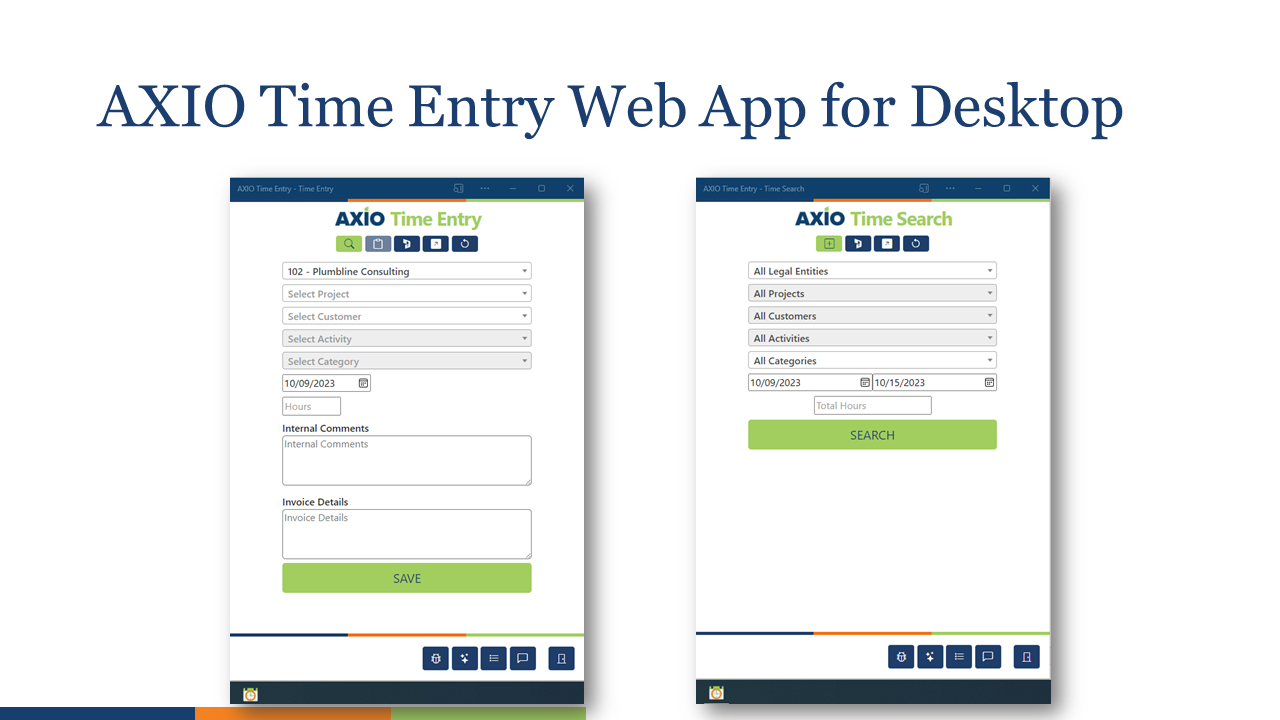
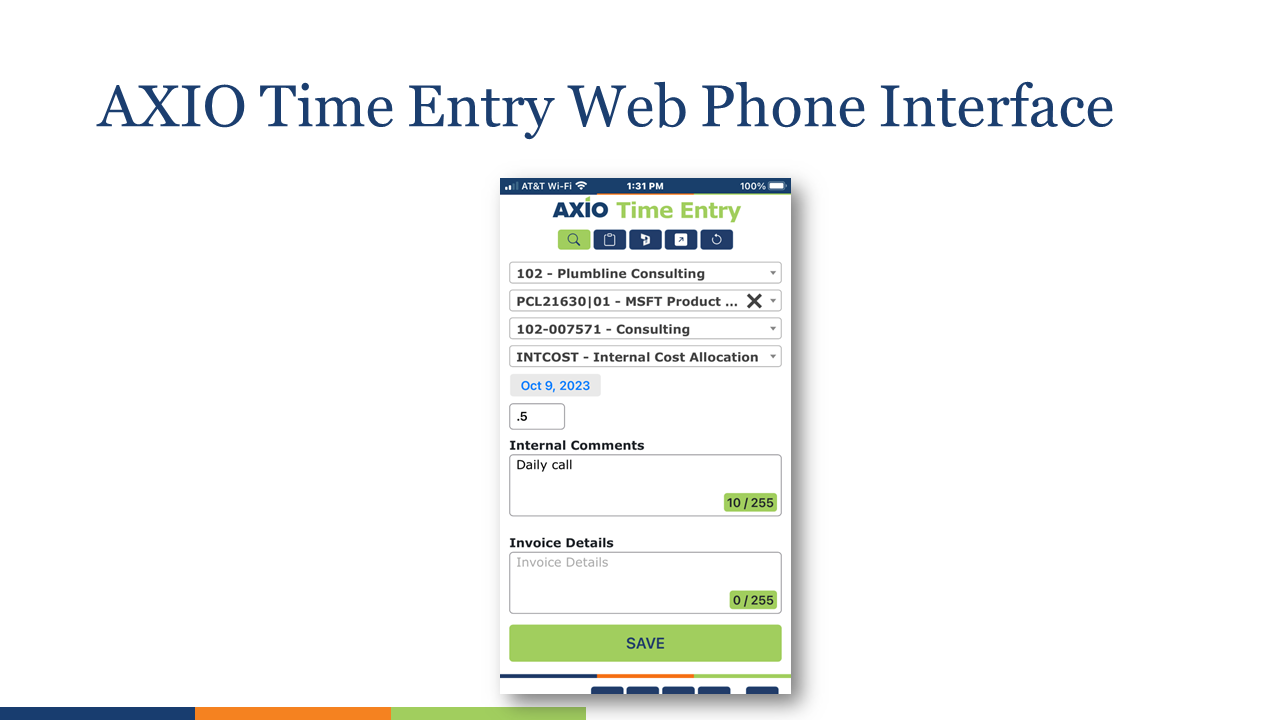
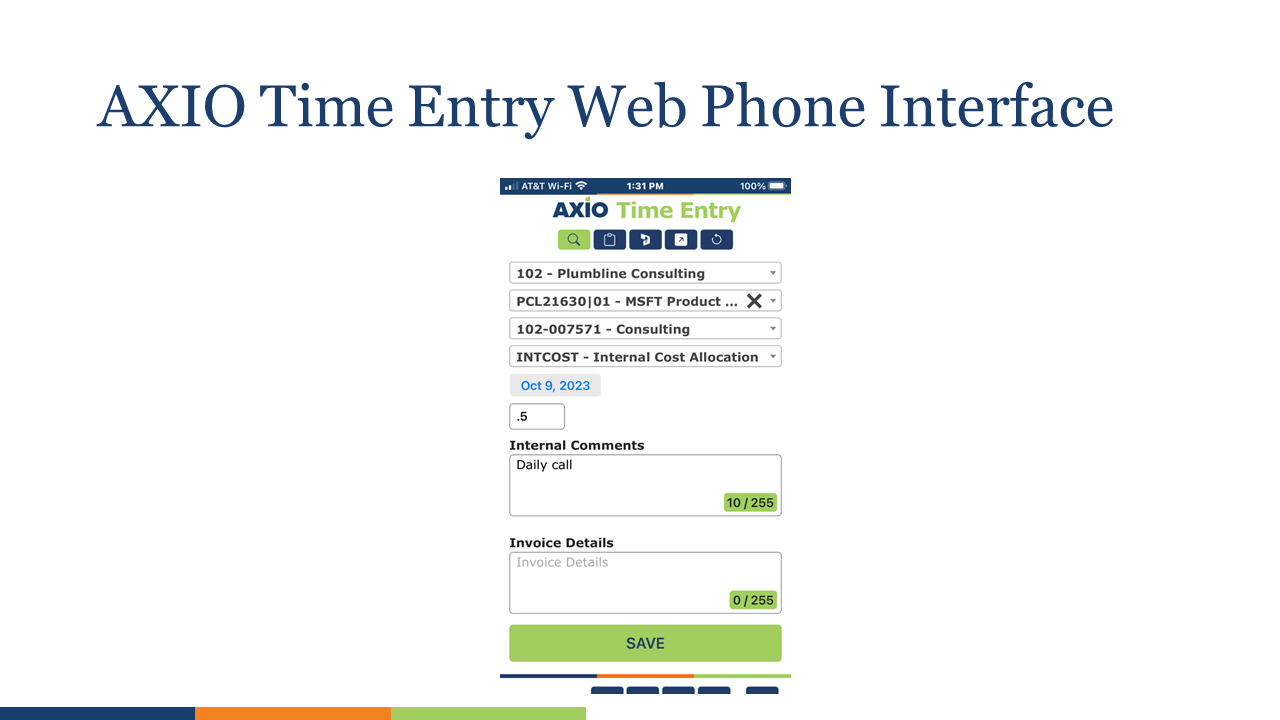
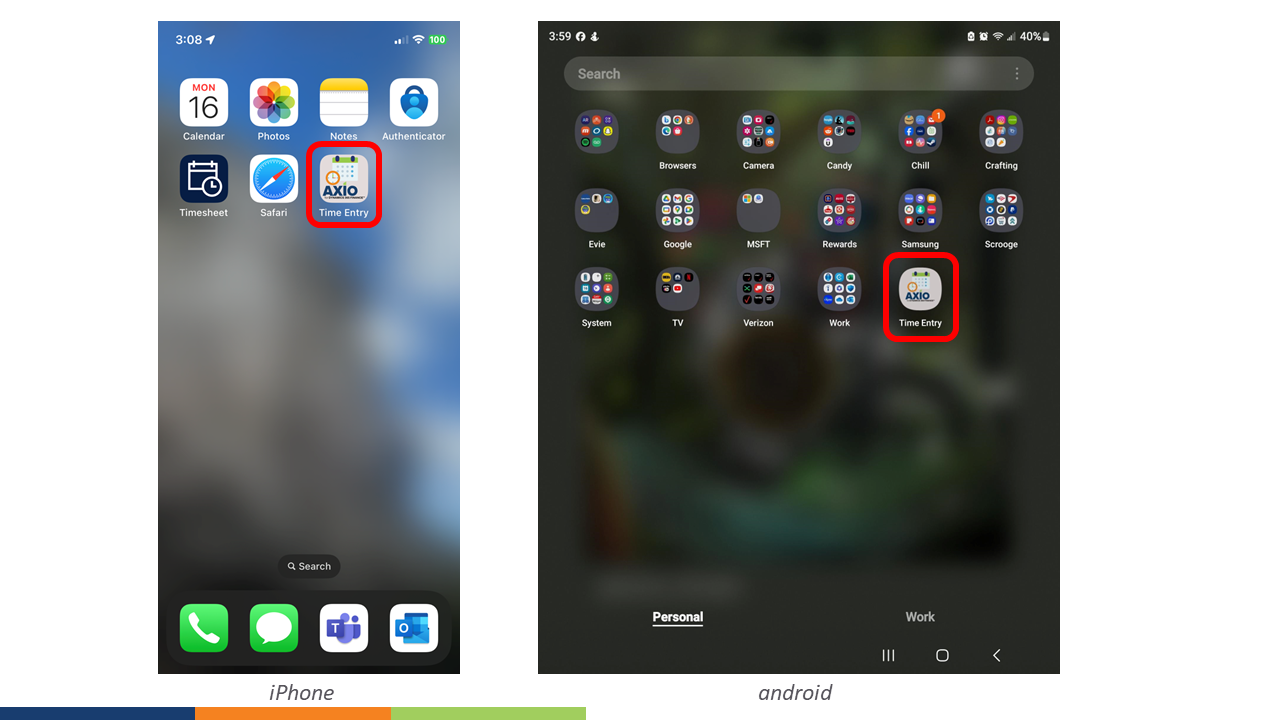
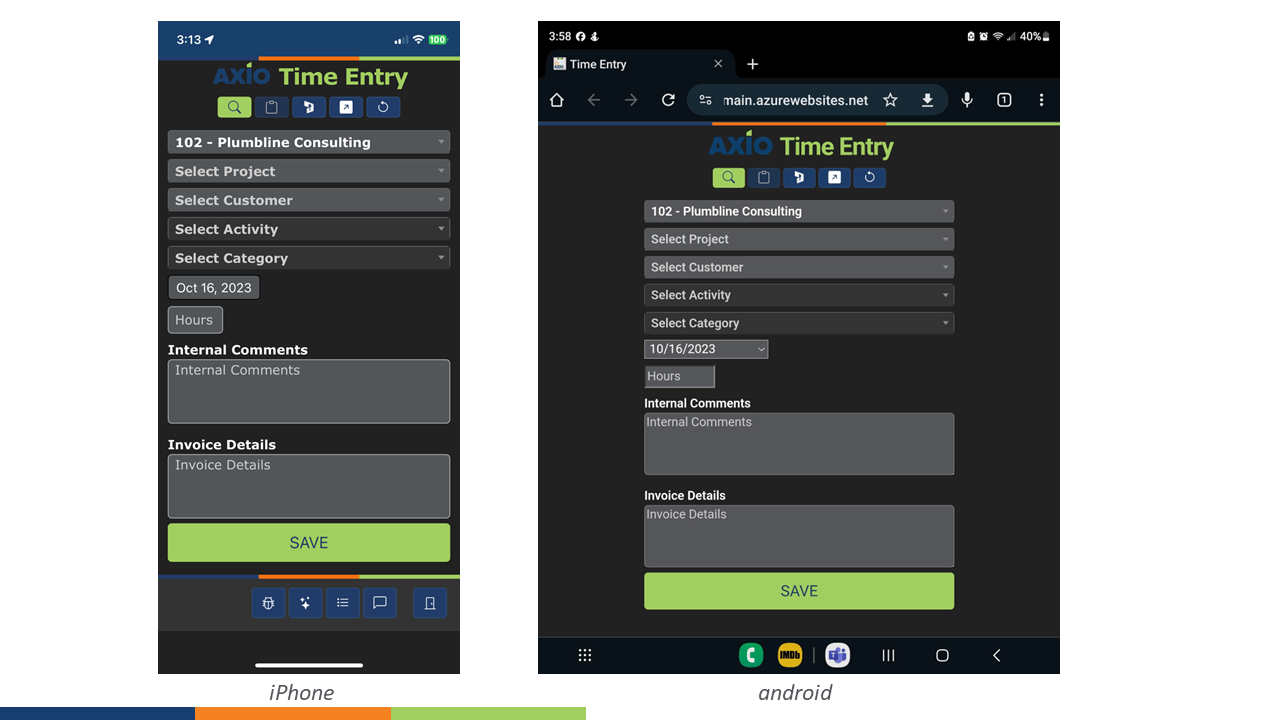
iPhone or Android Interface and Installation
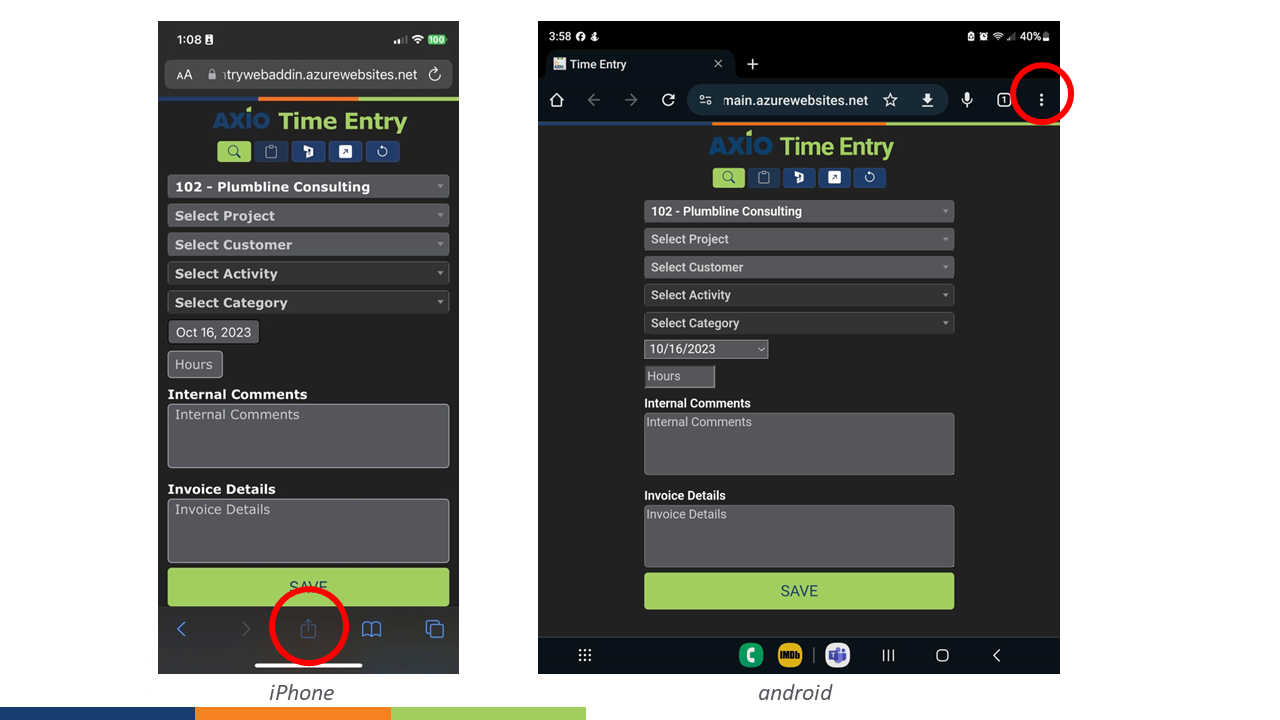
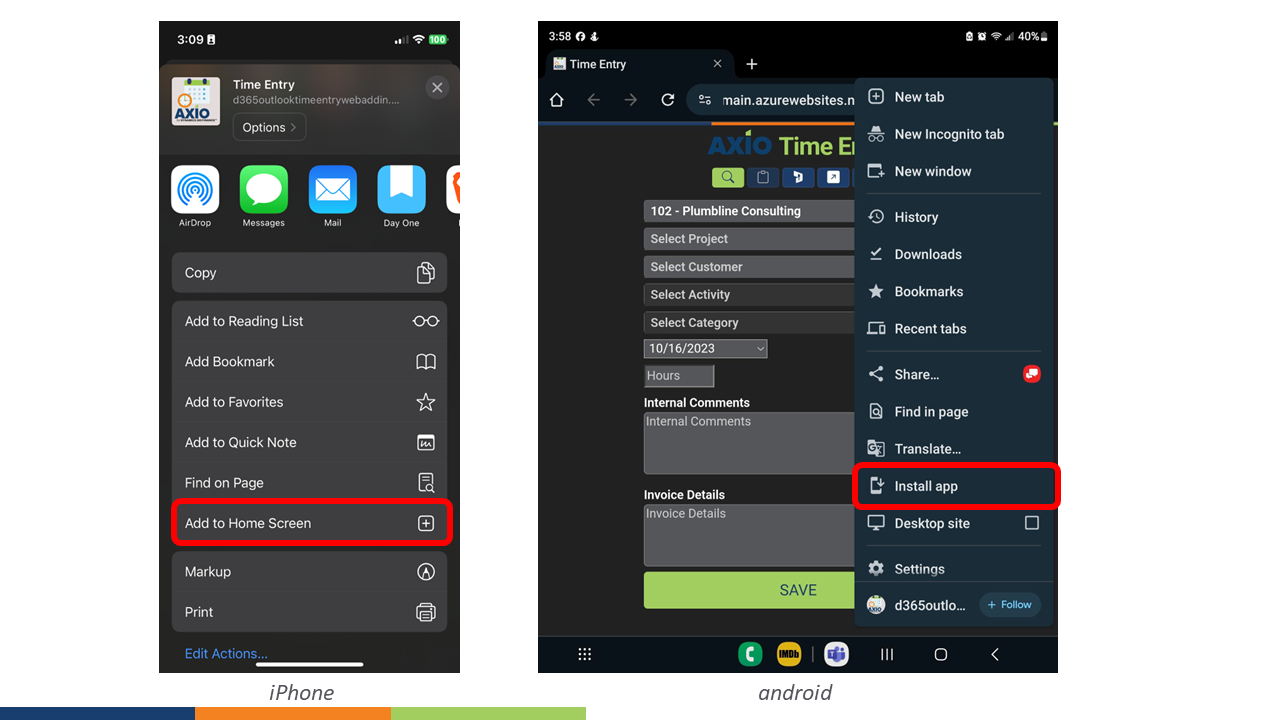
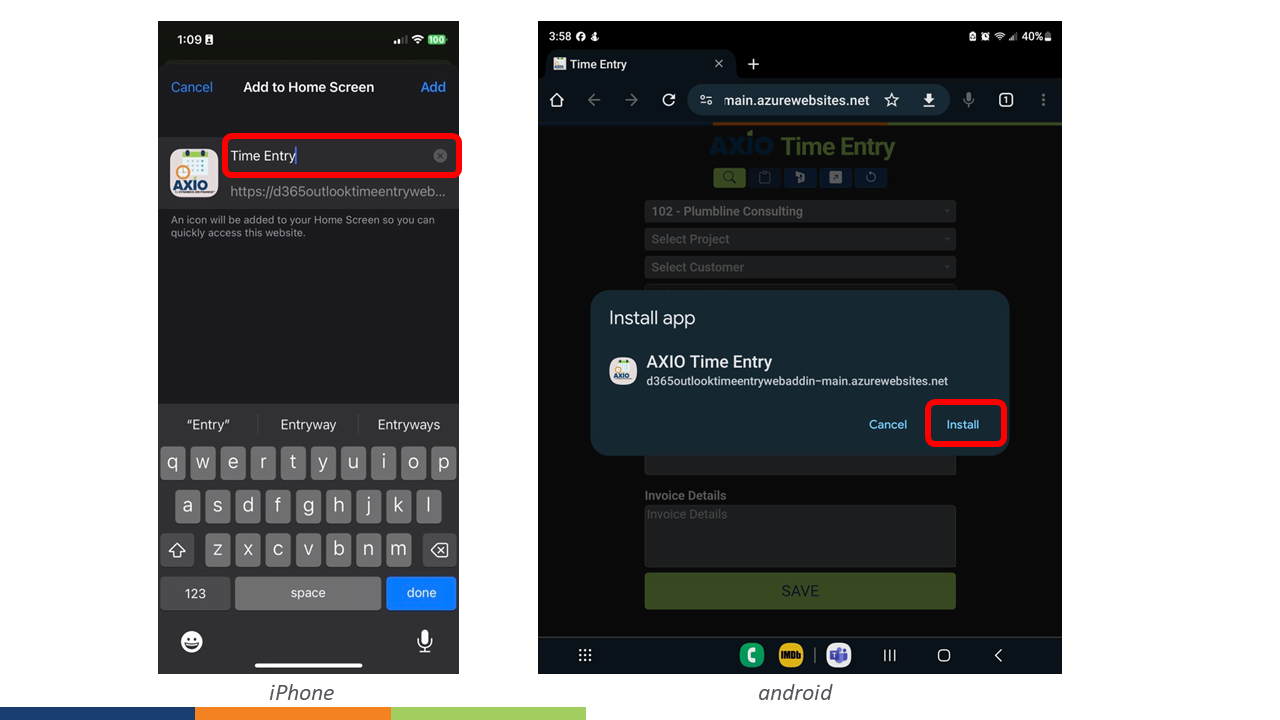
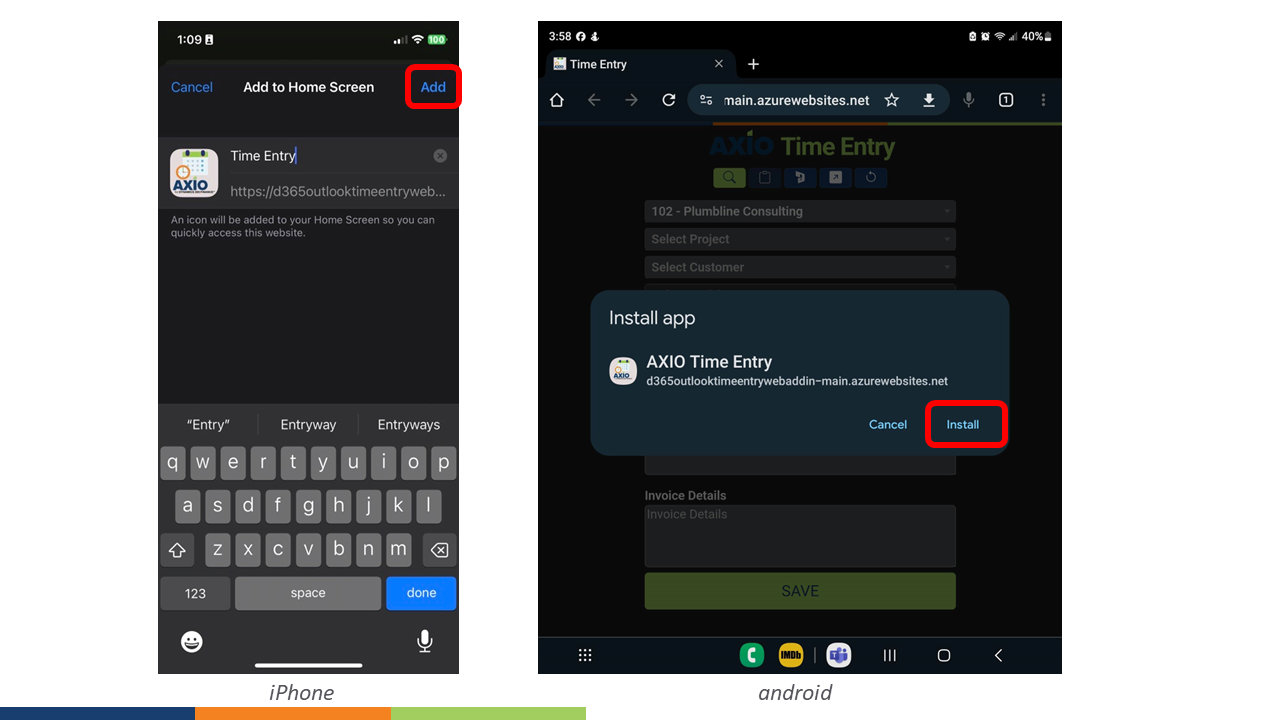
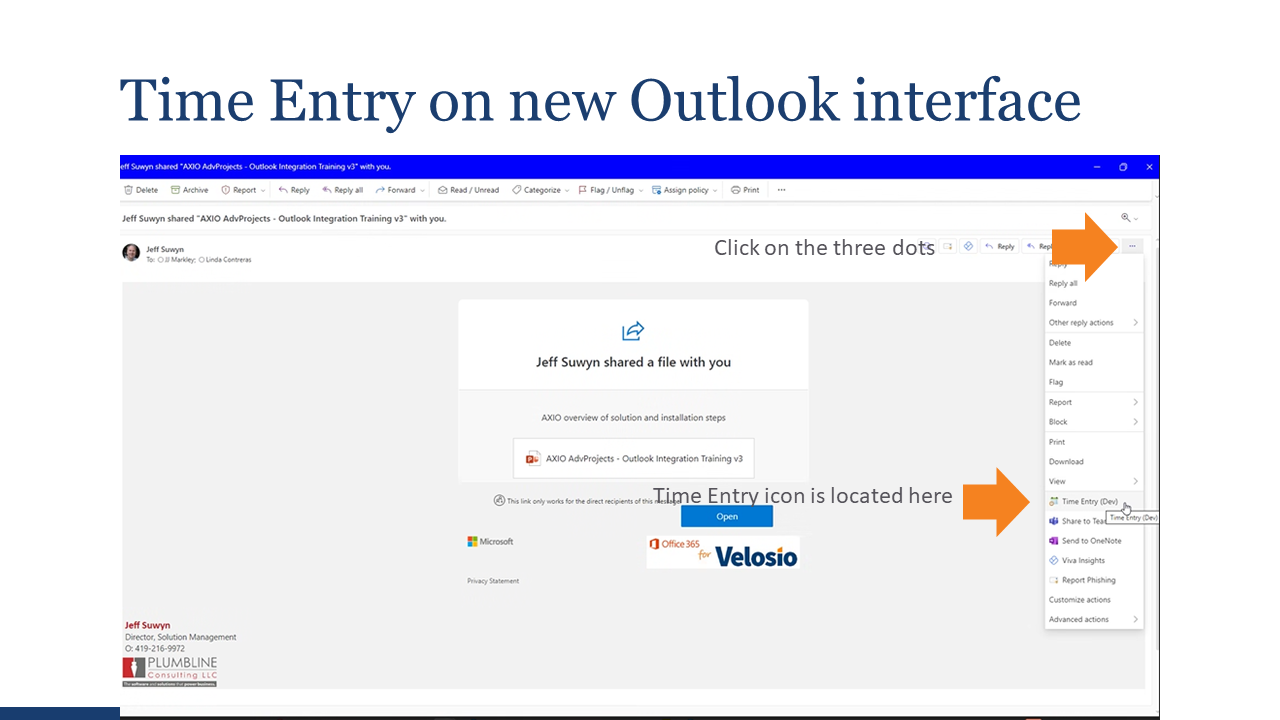
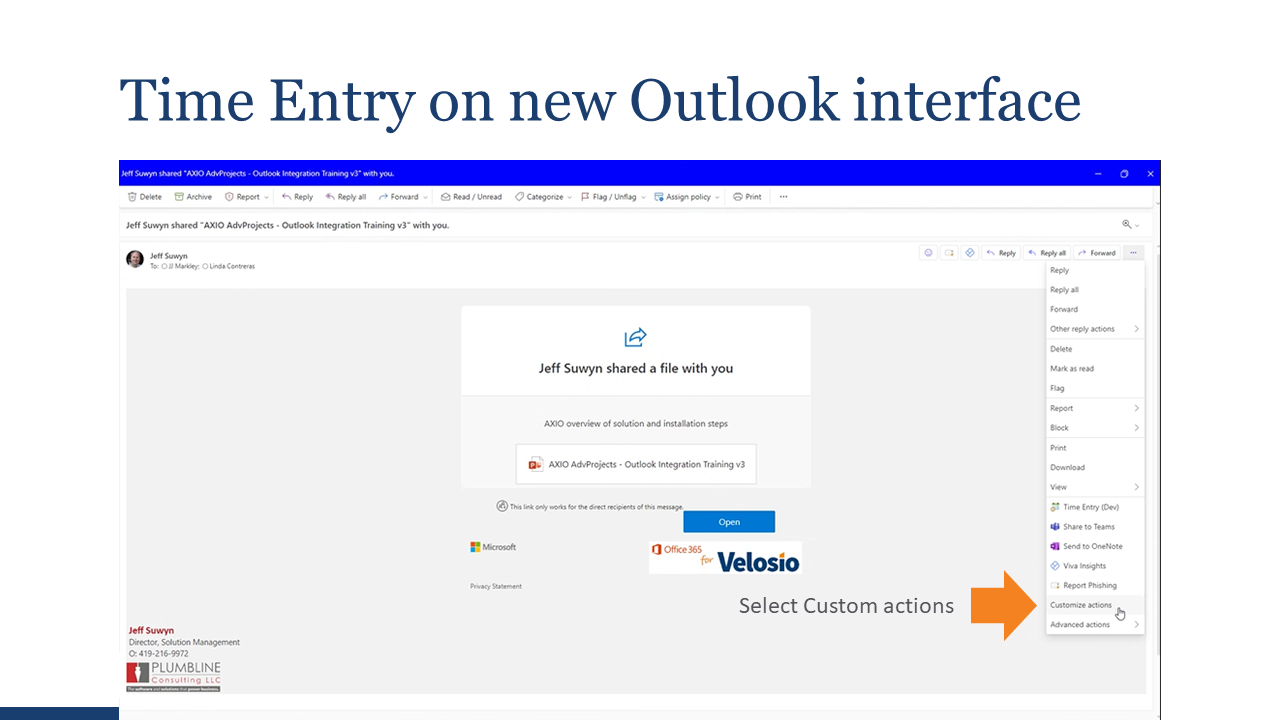
New Outlook Interface (optional)
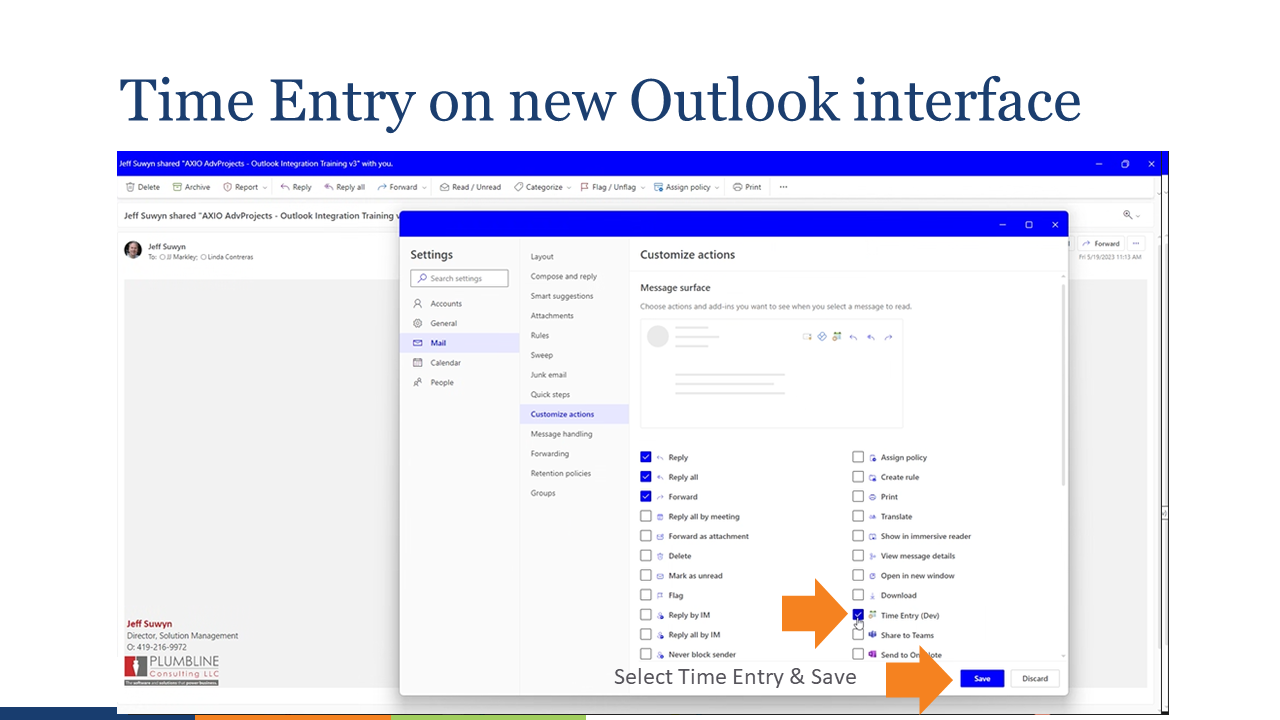
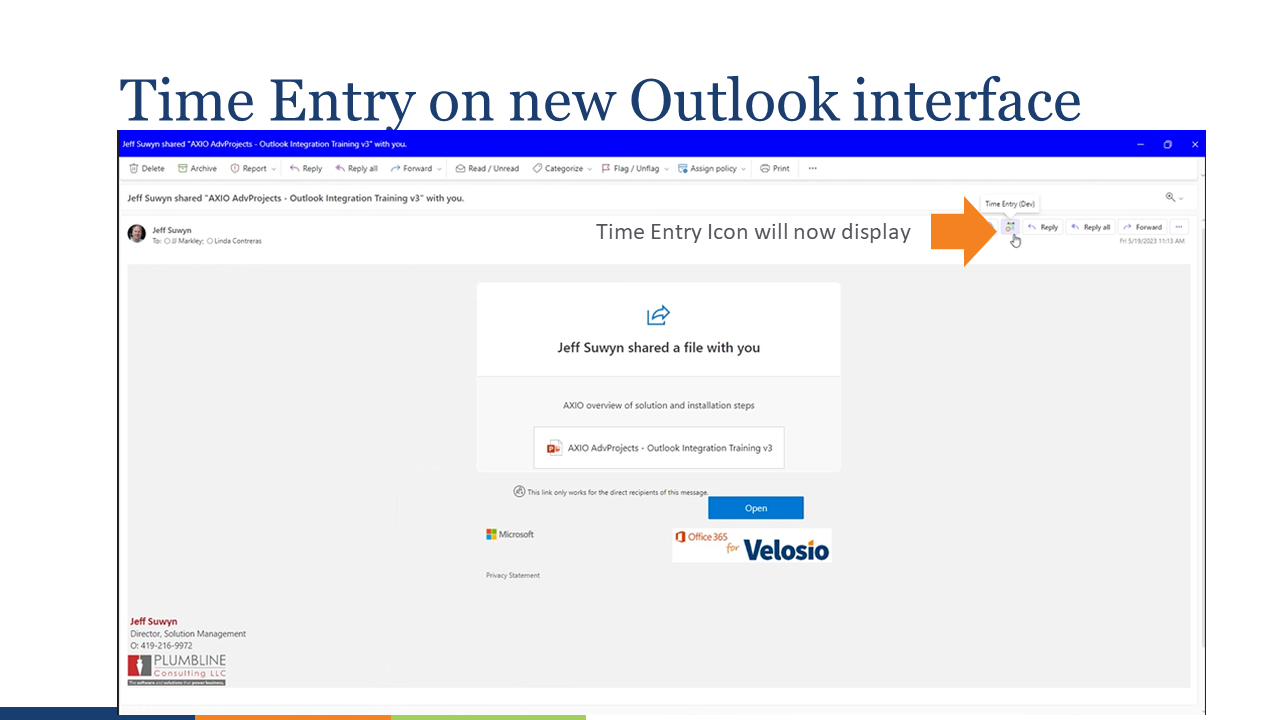
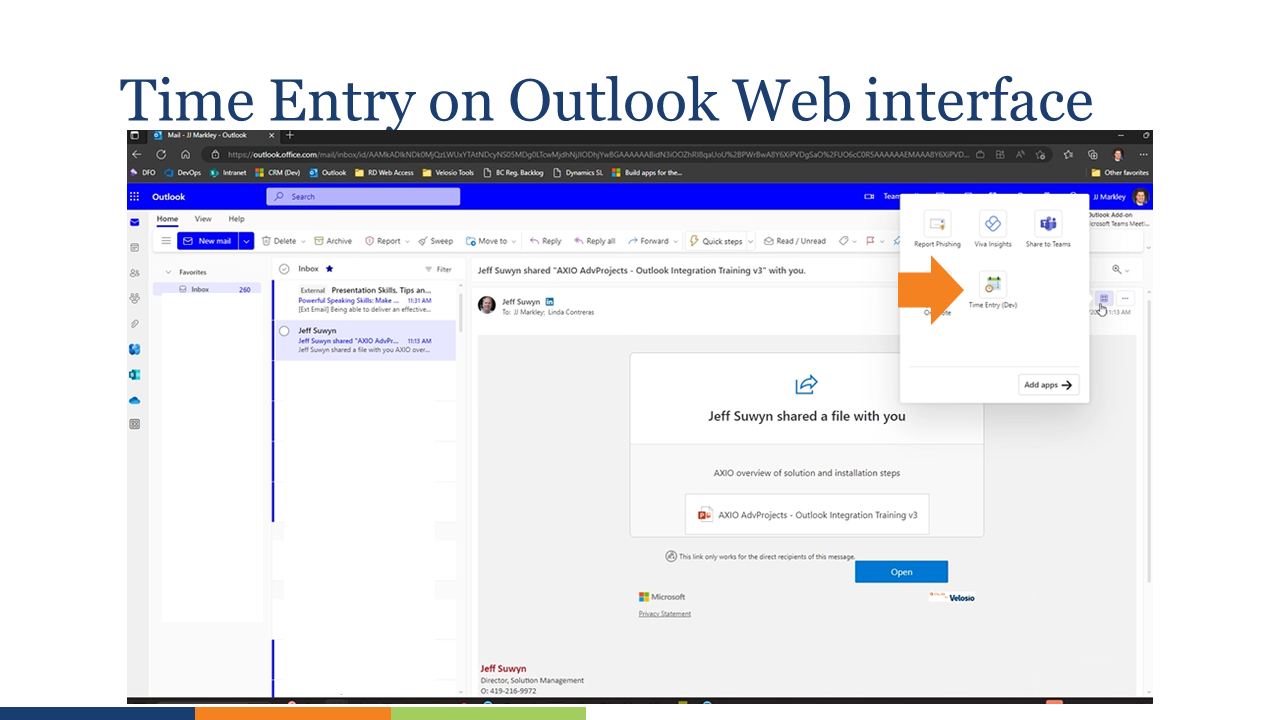
AXIO Outlook Time Entry
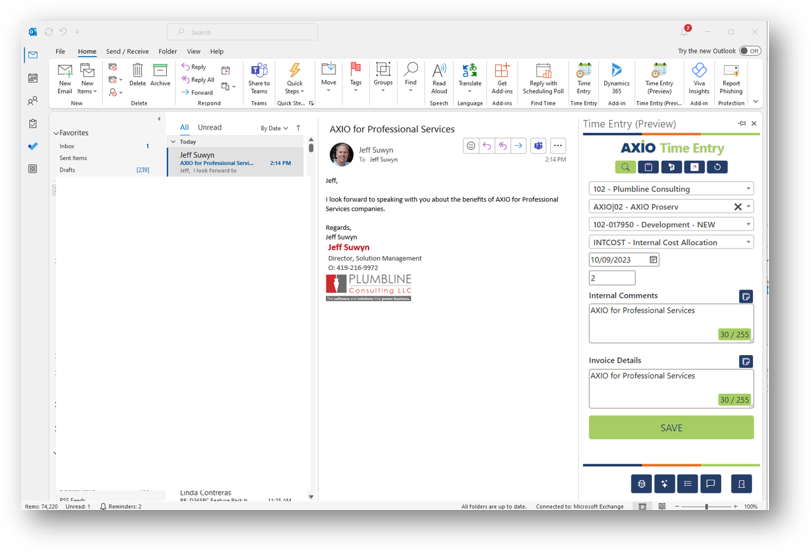
AXIO Time Entry lets you record your work hours directly from Outlook without opening Microsoft Dynamics 365 Finance.
You can use Time Entry to log your time when you send or receive an email, or when you schedule or attend a meeting.
Time Entry helps you track your productivity and efficiency without leaving Outlook.
Important
AXIO Time Entry does not submit your weekly Timecard at the end of the week. You must open the Dynamics 365 Finance Timecard page to submit your time.
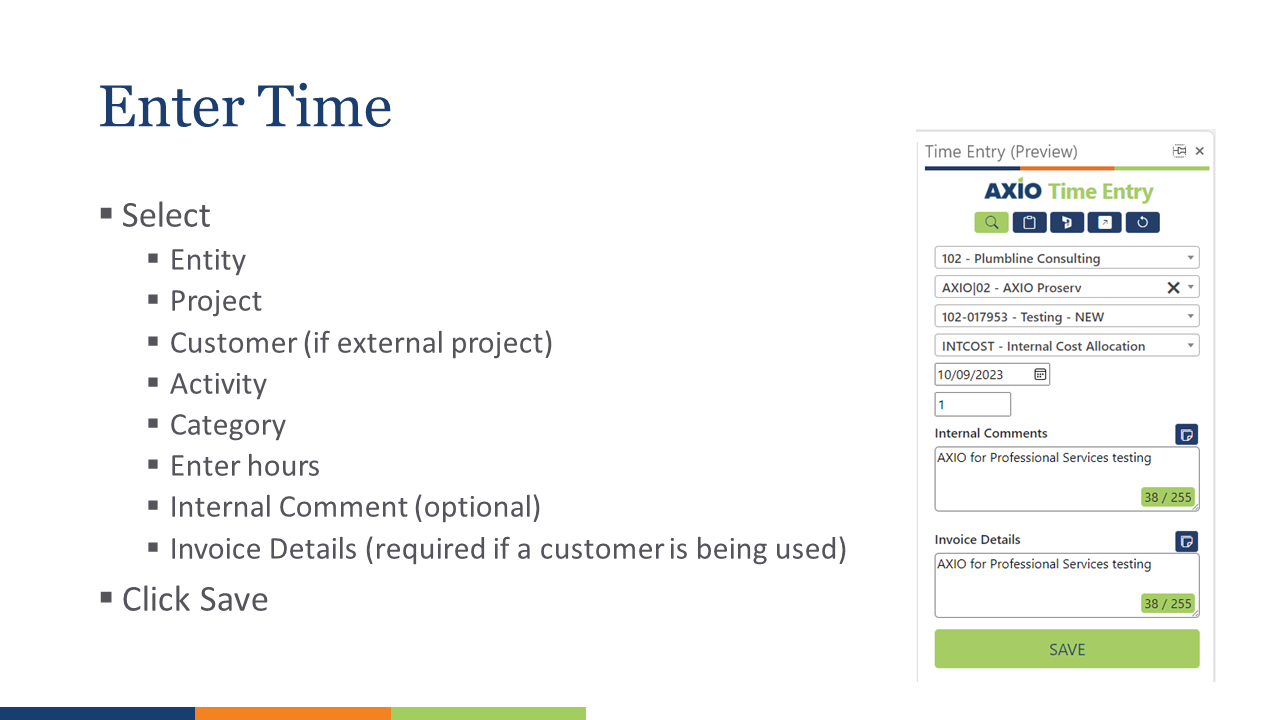
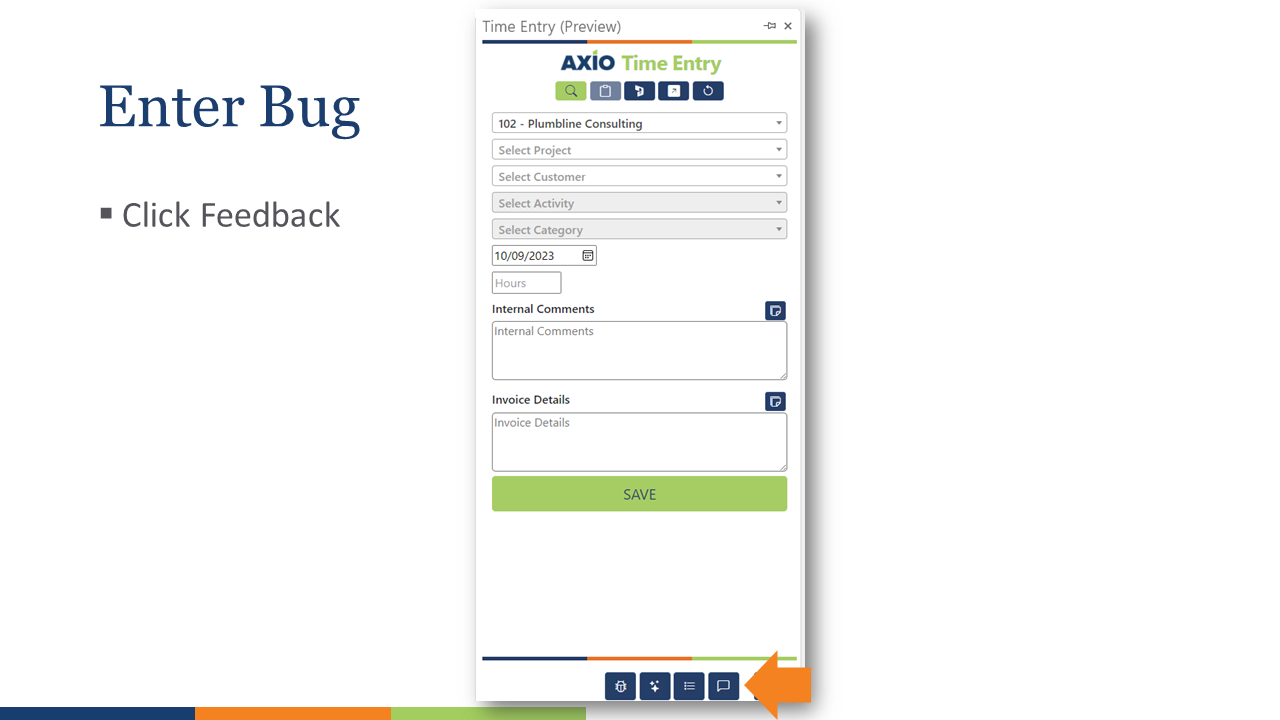
Time Entry
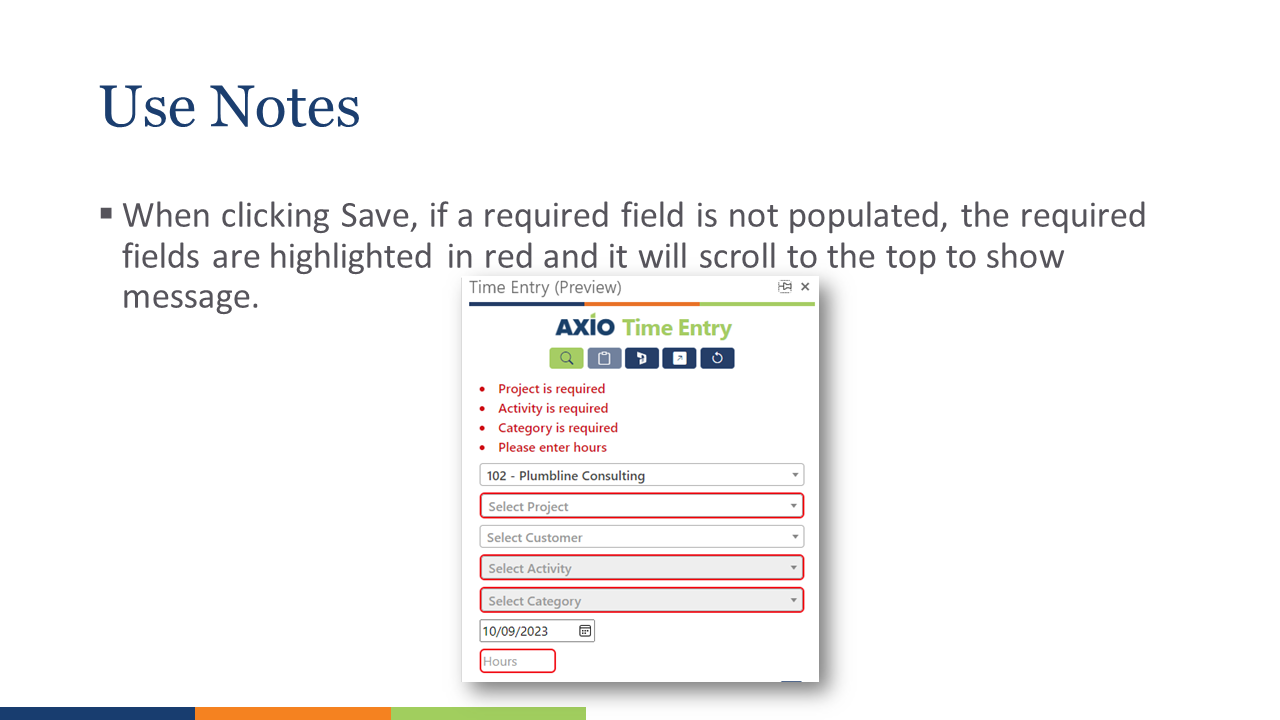
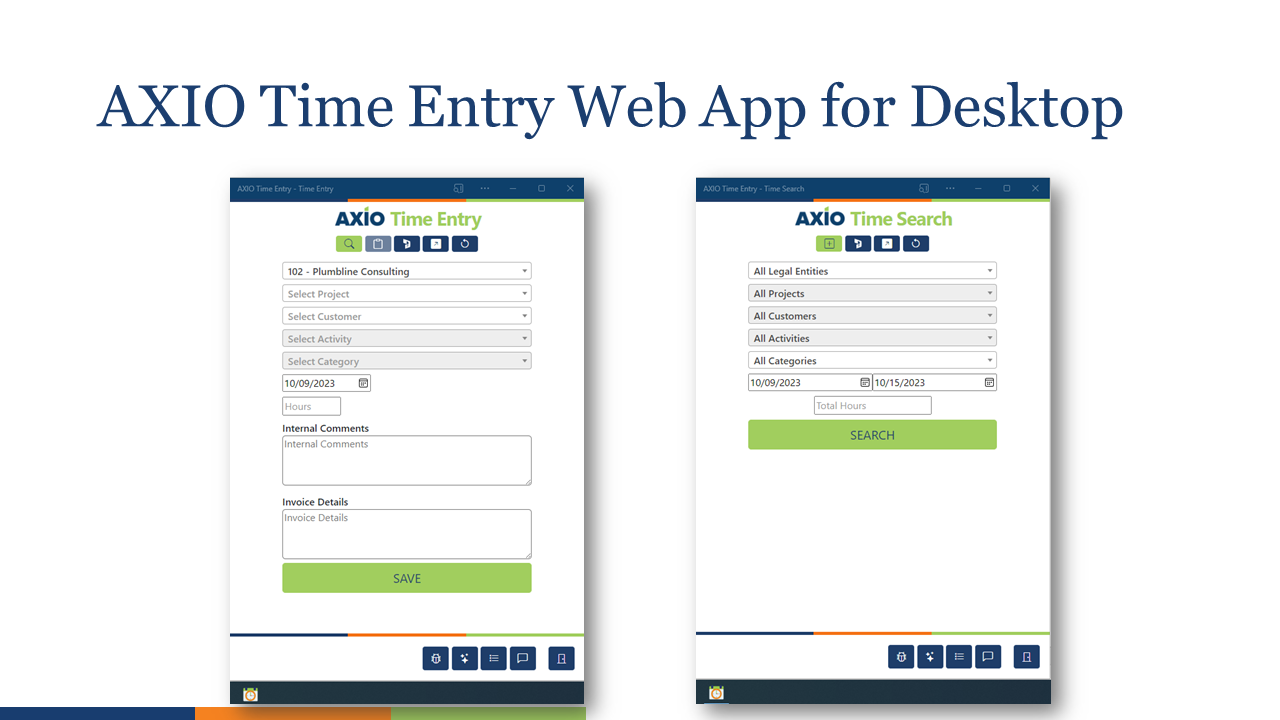
Enter or select the following information:
- Entity
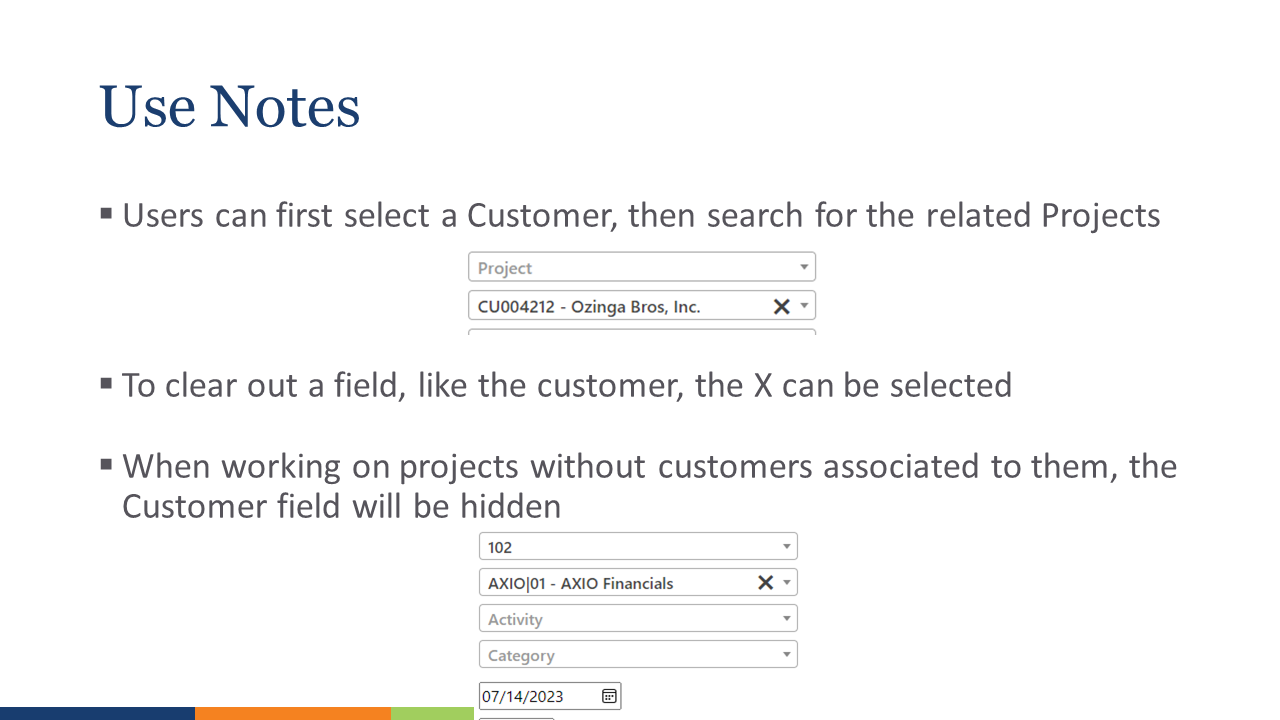
- Project
- Customer (if applicable)
- Activity
- Category (if applicable)
- Date
- Hours (cannot exceed 24 hours)
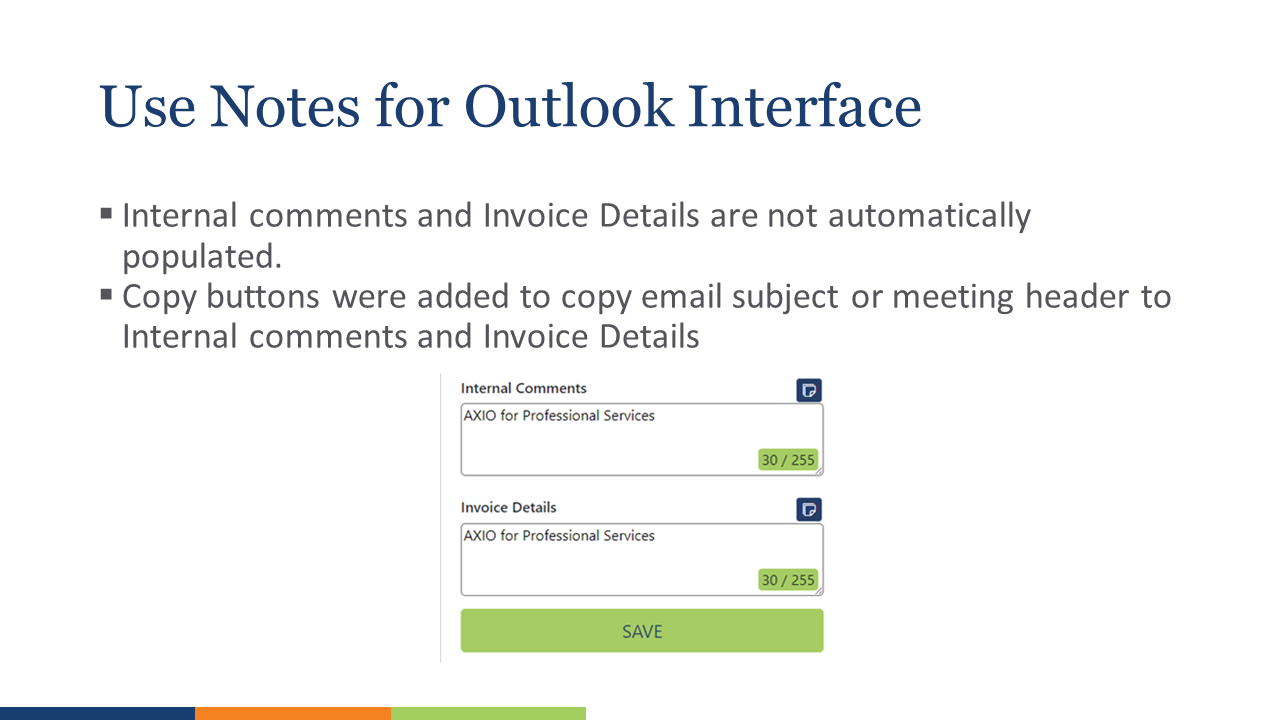
- Internal Comments
- External Comments
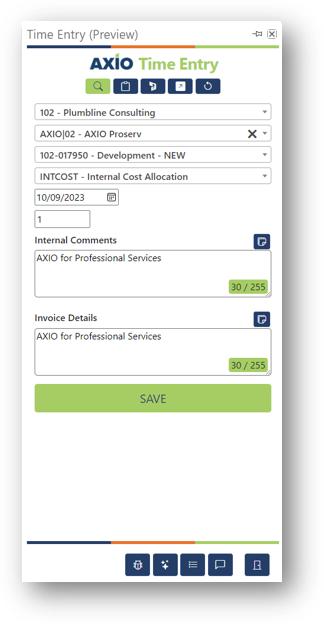
Click Save
A new Time Entry is added to your AXIO Finance Timecard.
Tip
A new Dynamics 365 Finance Timecard is created, if one does not already exist for the date entered.
Time Entry from a Meeting
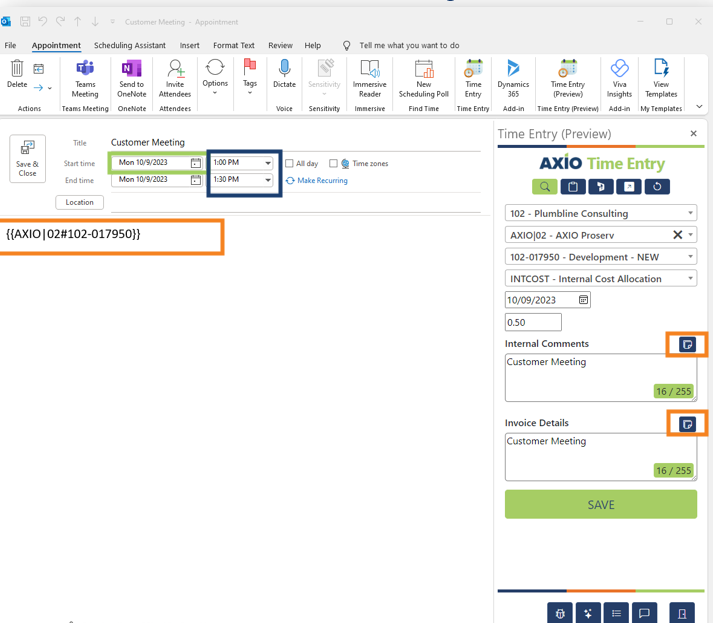
- Add a tag to automatically populate the following values from the Outlook meeting information:
- Project related fields
- Date of meeting
- Length of meeting
- Title of meeting (can be copied into the Internal Comments and Invoice Details using the copy buttons).
Create Tags
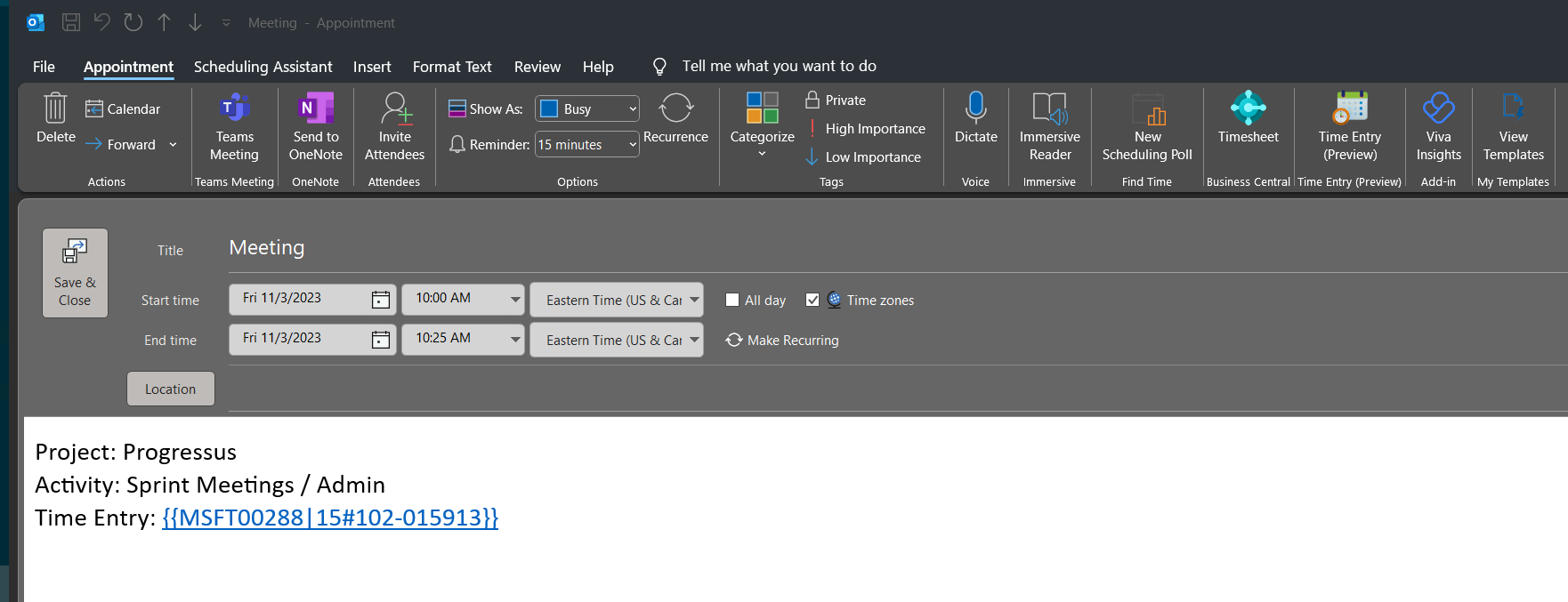
Manually create a tag and add it to the Body of the meeting. Format: {{Project#Task}}
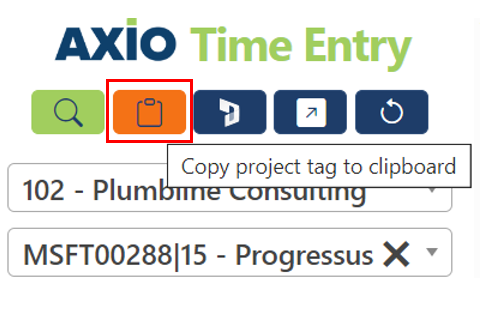
Click Copy project tag to clipboard in the menu to copy the Project/Activity tag from one meeting, then CTRL+V to paste the Project/Activity tag into another meeting.
Time Search/Edit Entries
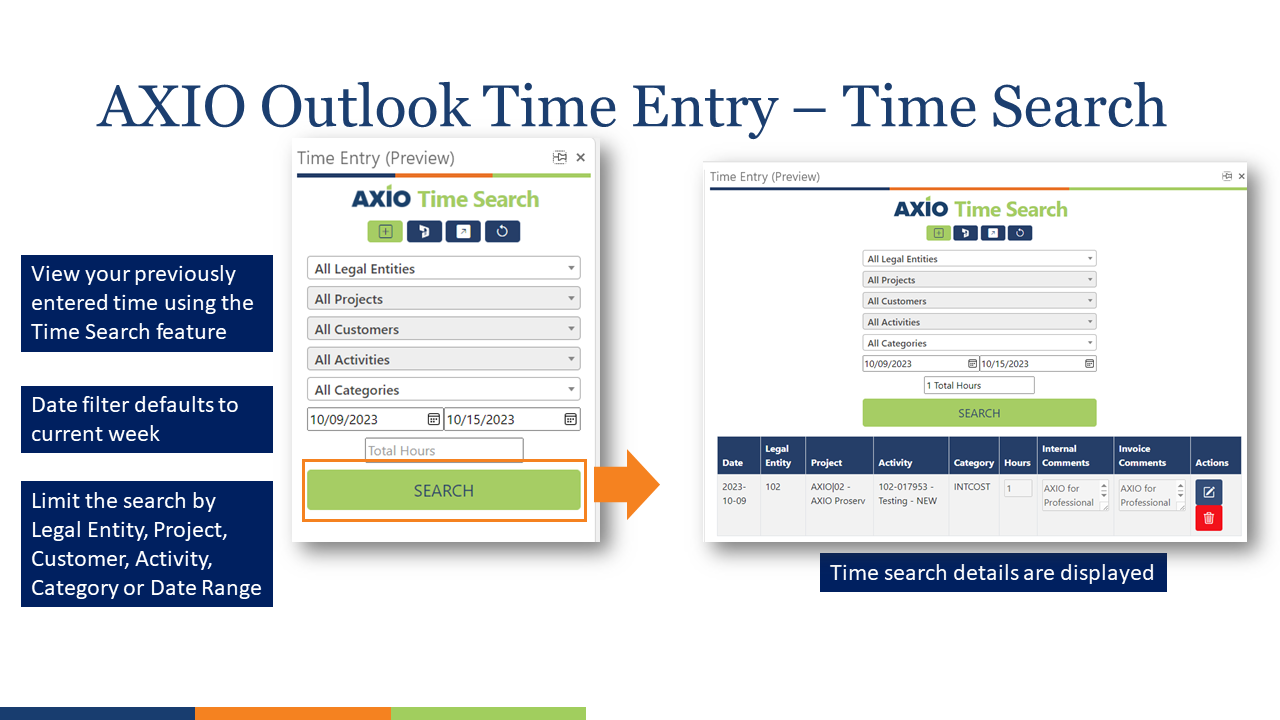
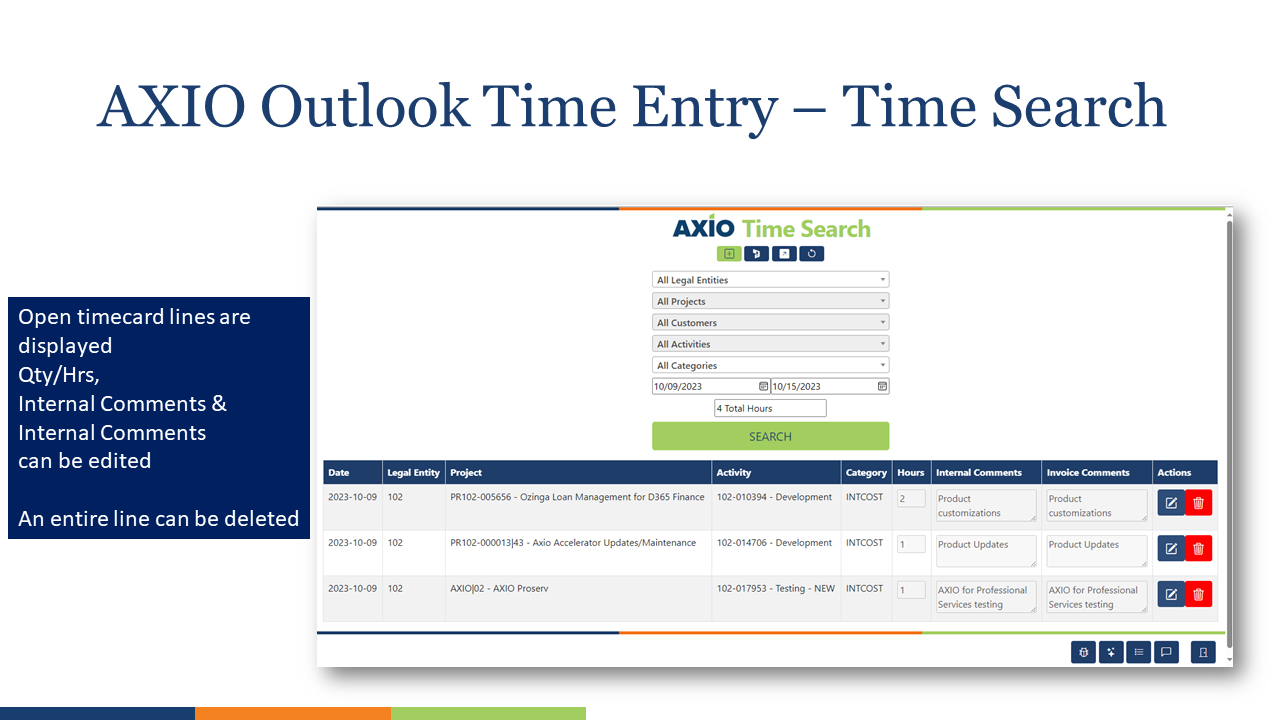
Use the Time Search feature to view previously entered time.
Click the Search button from the menu.

The AXIO Time Search page opens.
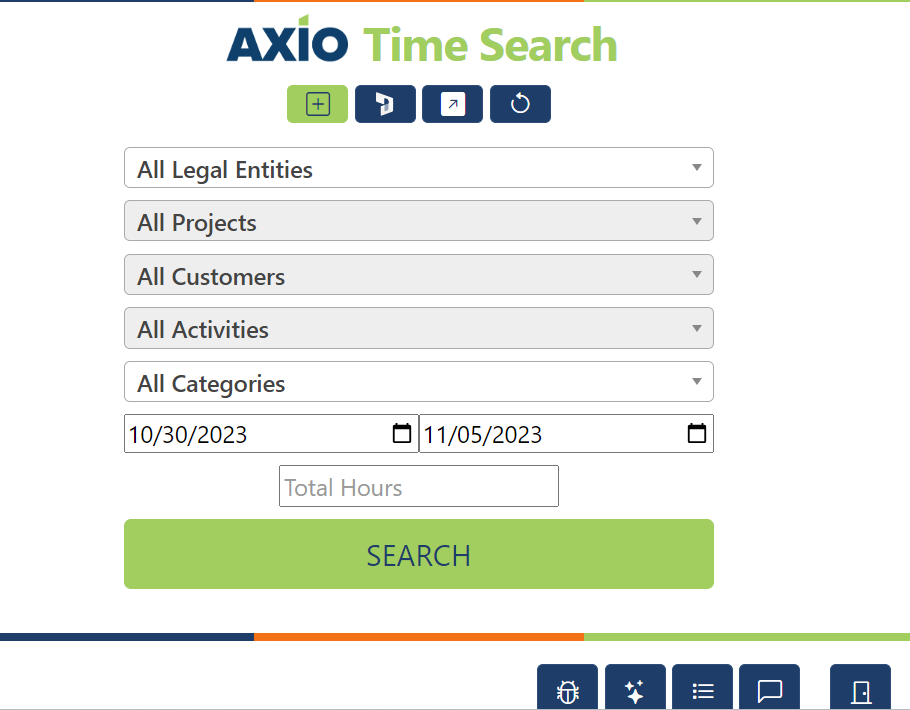
Select filters from the list to narrow results displayed at the bottom:
- Entity
- Projects
- Customers
- Activities
- Categories
- Start Date
- End Date
Click Search to start the search.
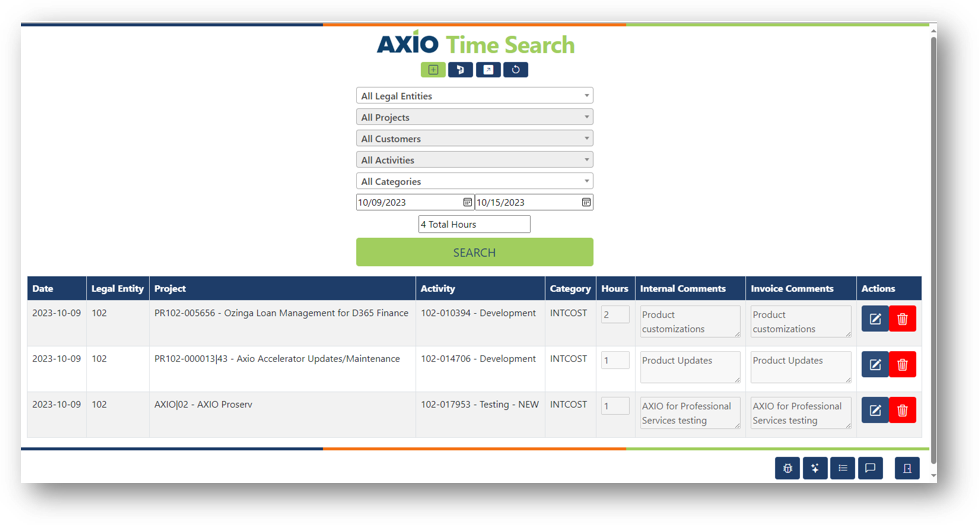
The Total Hours field displays the total hours entered for the selected Date Range and filters.
Open Timecard lines are displayed in the grid.
Important
The only information that can be edited is the Hours, Internal Comments and Invoice Comments. If there was a data entry error on the other fields, the entry must be deleted and reentered.
To edit an entry, click the blue Edit icon in the Actions column and edit the Hours, Internal Comments or Invoice Comments*.
To delete a line, click the red Delete icon in the Actions column.
Time Entry Walkthrough