AXIO ProServ - Project Email Notification App
The Project Email Notification App enables an organization to effectively handle Project Management and automated Email notifications to Project Stakeholders.
Overview
With the Project Email Notification App, an automated Email notification will be sent to the stakeholders for specific activities performed for Projects. For example, when a resource is added to the Project, an automated Email notification will be sent to the user about the Project Assignment. Similarly, when the Project hours are allocated to the Resource or reduced, an Email notification will be sent to the Project Manager.
Resource Email addresses
Resources must have Email addresses set up in order to receive Emails based on Assignments.
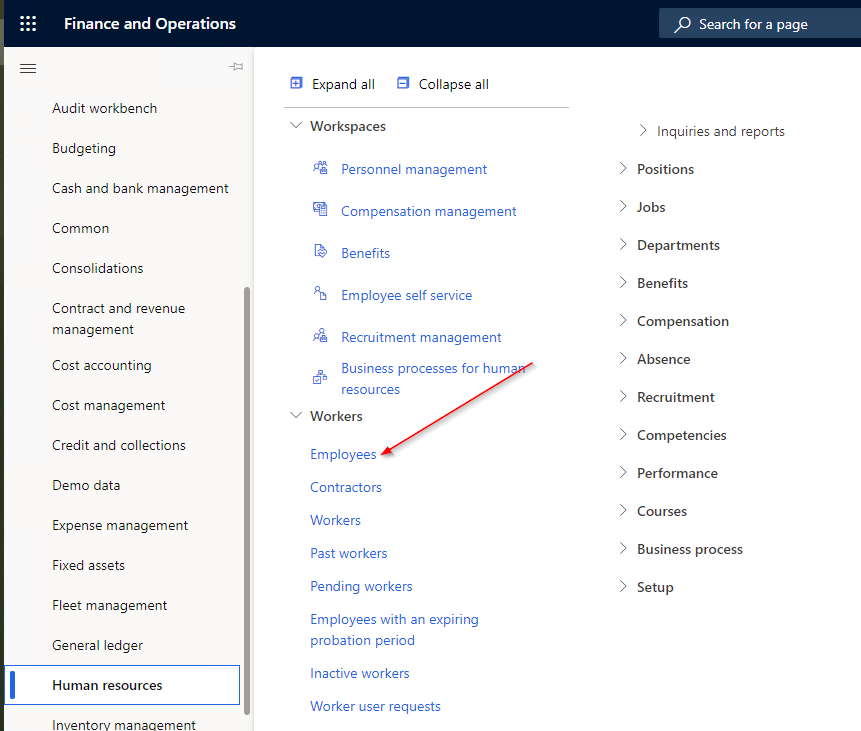
Navigate to Human Resources -> Workers -> Employees
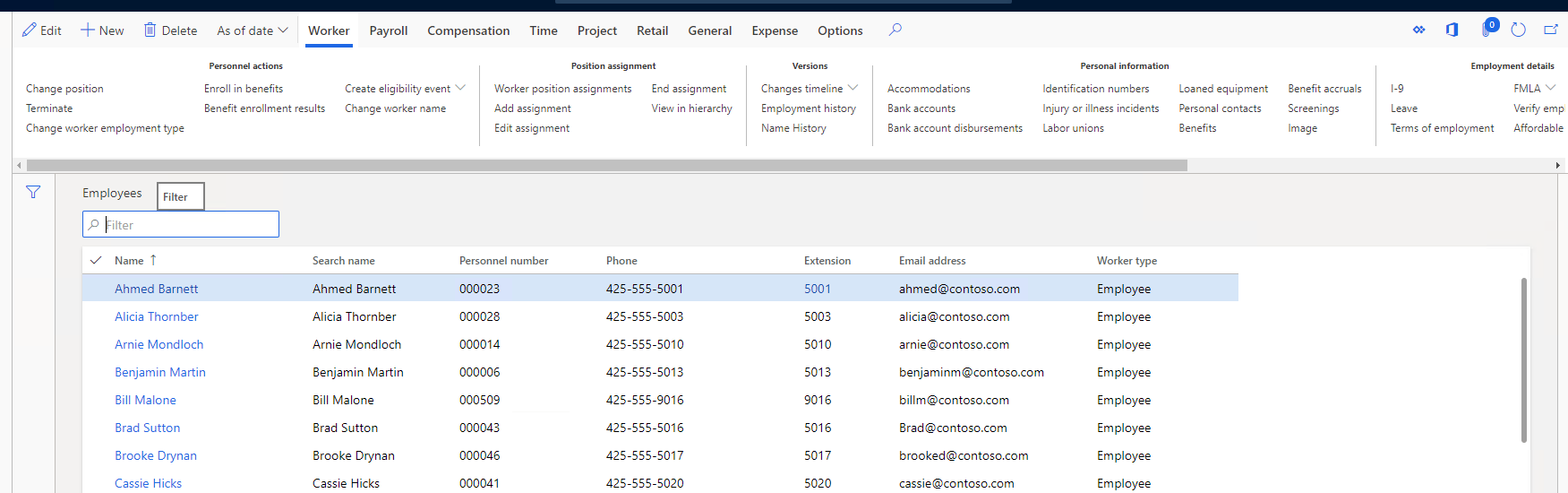
Select the Employee.
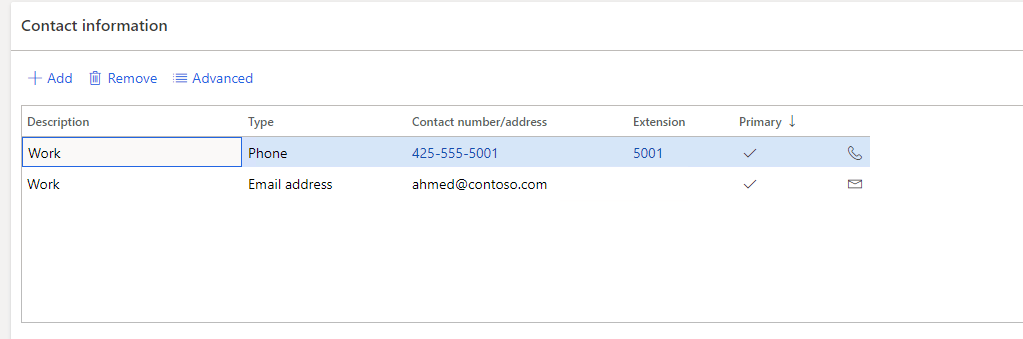
Under Contact Info tab update Email ID.
Email Templates
Email Templates are used to determine what information is sent in the Email.
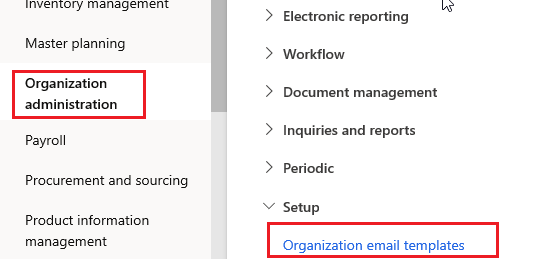
Navigate to Organization administration -> Setup -> Organization Email templates.
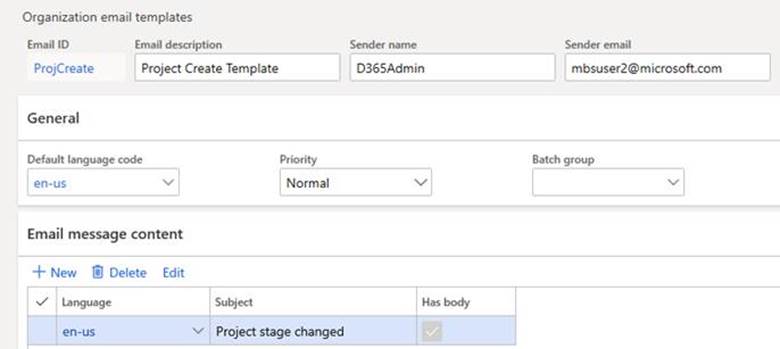
Select New and enter the below information.
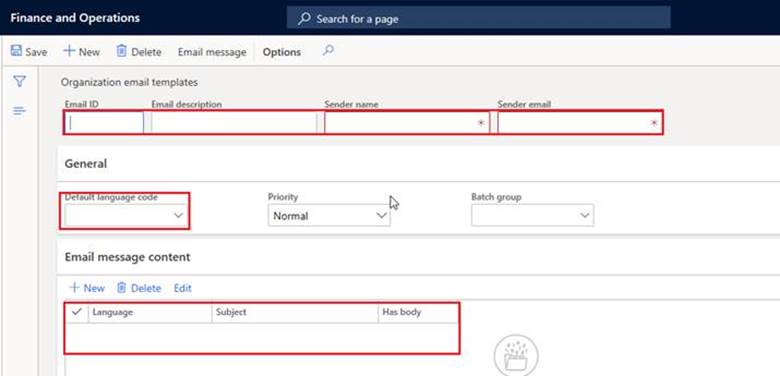
Sample data for reference
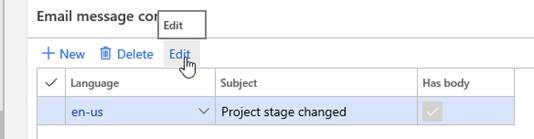
- Upload an Email template which is in html format.
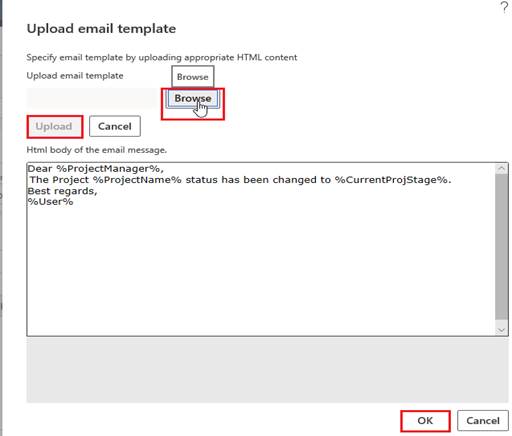
Information
Use the Scheduling menu options to tell the system when to send Emails and which templates to use for each process.
Navigate to Project Management Accounting -> Setup -> Project Management Parameters.
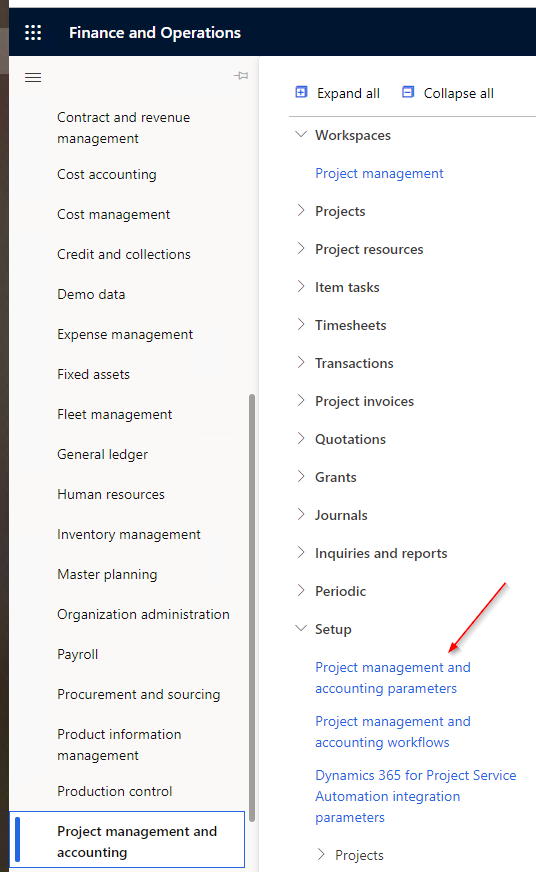
When the page opens Select the Scheduling Menu option:
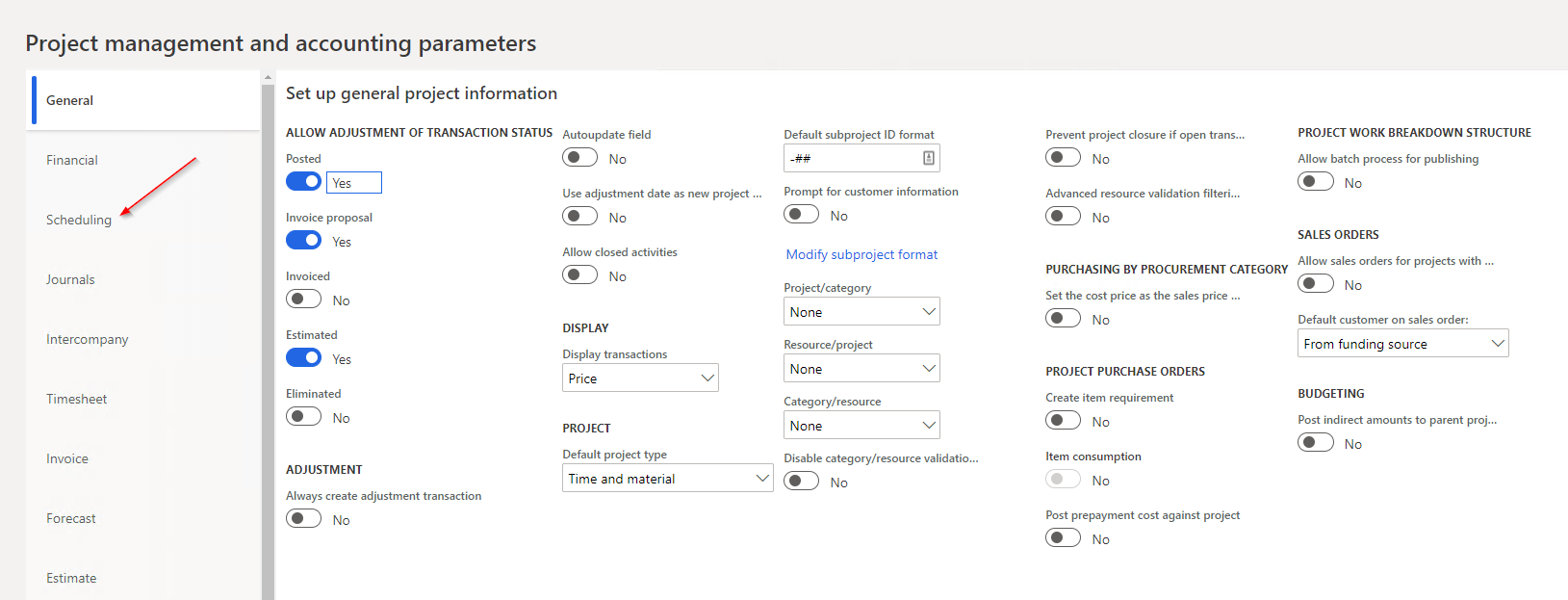
Project Stage Setup
Project Stage Setup, if set to Yes, allows you to send an Email to the Project Manager when a Project status is changed. Options for Status change Emails are:
Created
In Process
Finished
Estimate
Scheduled
Resource Email Notification
Allows you to send an Email to the Resource when their Assignments are changed. Changes are:
Assigned to a Project
Removed from a Task
Booked on a Task
Hours Assigned on a Task
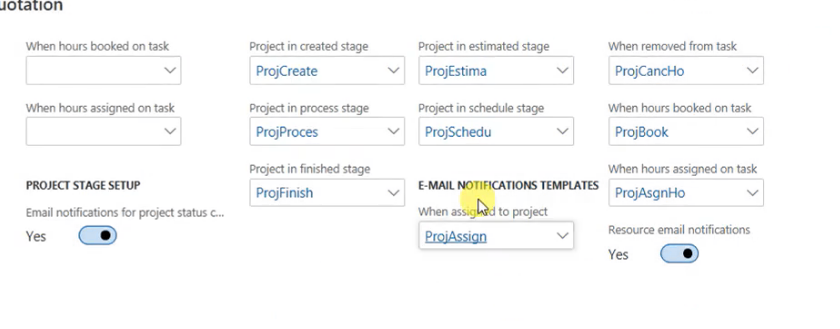
Project Manager Notifications
Automated Email notification sent to Project Manager when:
Project is created
Project status is changed
Project is completed
Navigate to Project management and accounting -> Projects.
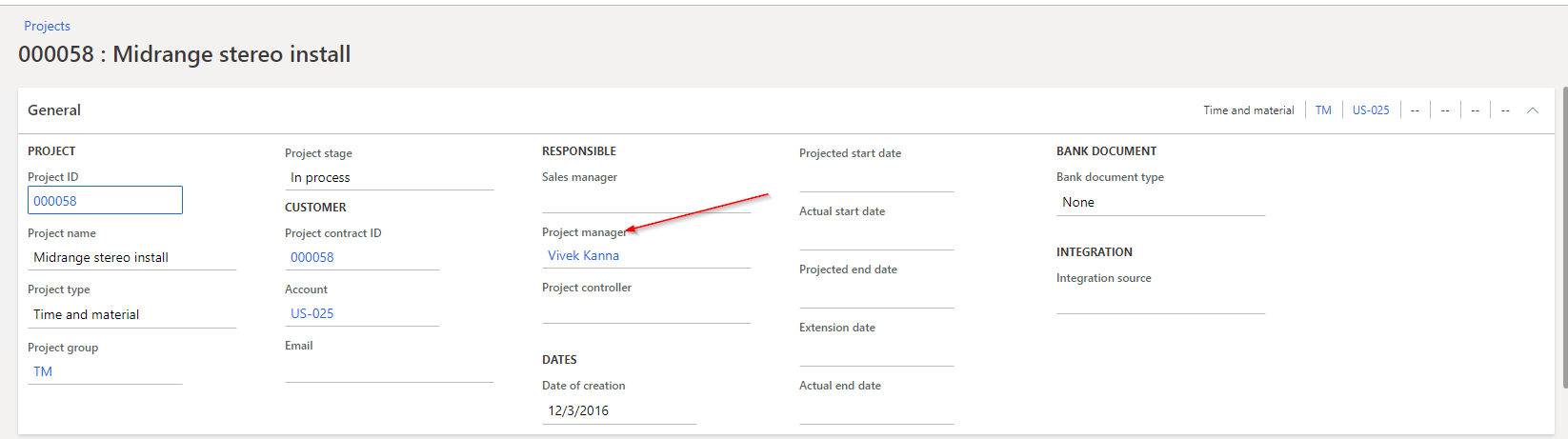
Select a Project and navigate to the General Tab.
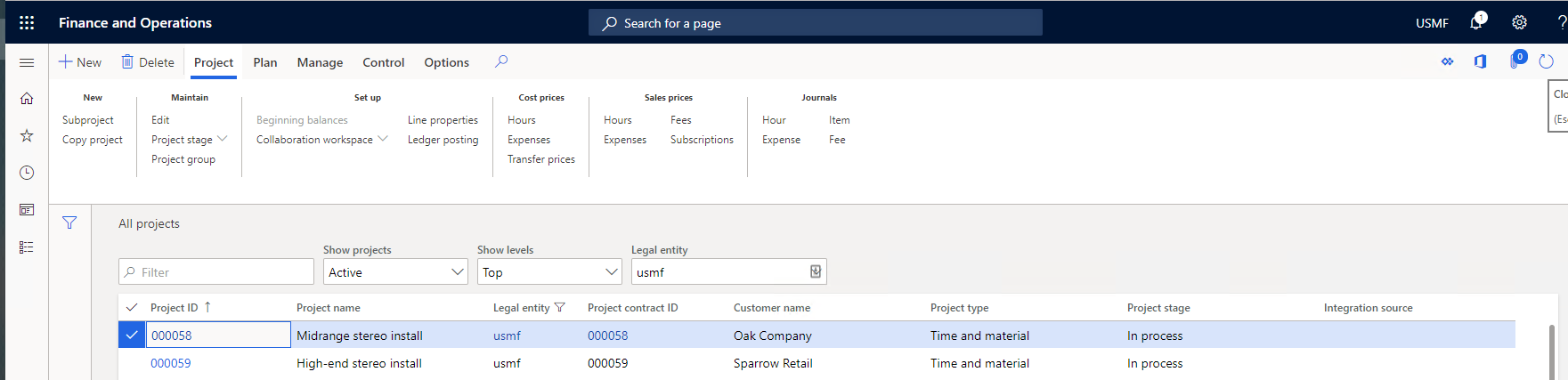
Select a Project manager.
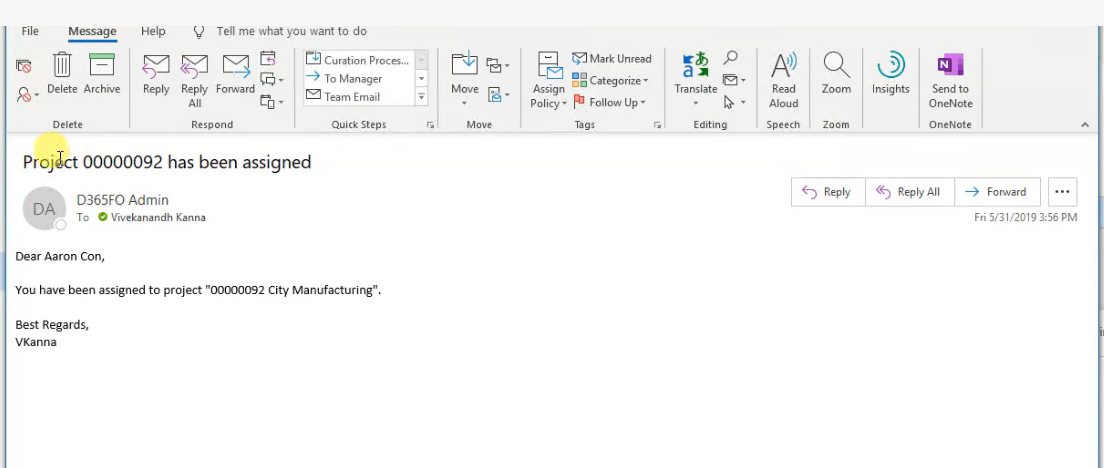
An Email, such as the one displayed below, will be sent to the Project manager notifying them of their assignment to the project. This Email is based on the templates assigned in Setup and is customizable based on the template.
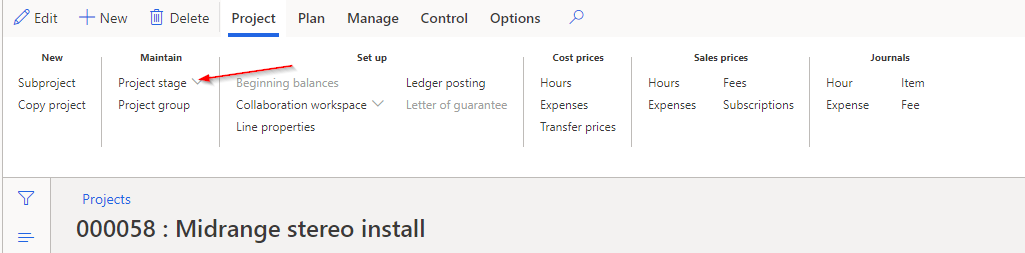
Navigate to Project -> Maintain-Project stage on the Project Card.
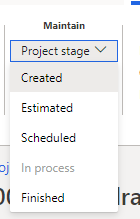
Update the stage from the list and an Email will be sent updating the Project Manager
A notification is displayed on the page letting the user know the Email was sent.

Project Resource Notifications
Automated Email notification sent to Project employees when:
Assigned to a project
Removed from a task
Hours booked on a task
Hours assigned to a task
Navigate to Project Management and Accounting -> All Projects.
Select a Project
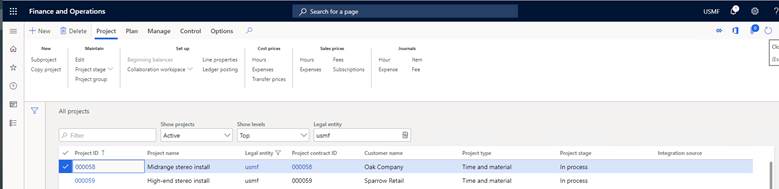
Navigate to the Project team and scheduling section.
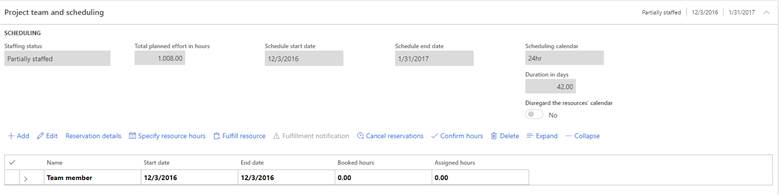
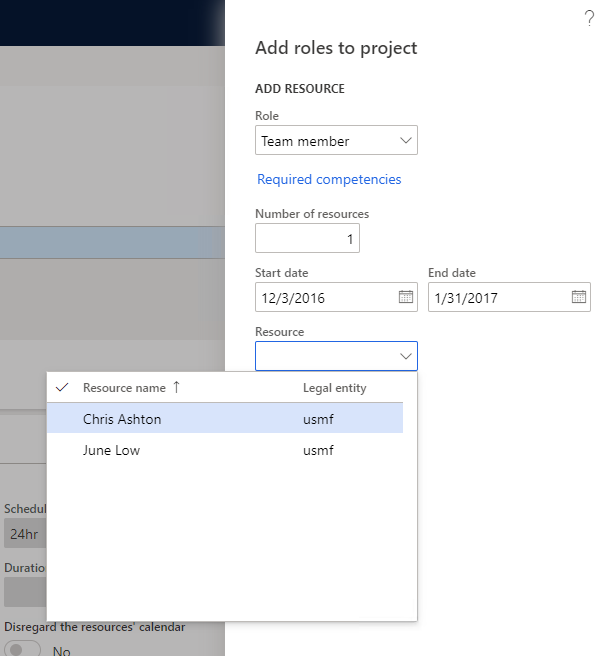
Click Add to add a Resource to the Project.

The Add Roles to project page opens. Enter the Start date, End date, and Resource. Click Create.
A notification displays, and the Email will be sent as seen below.
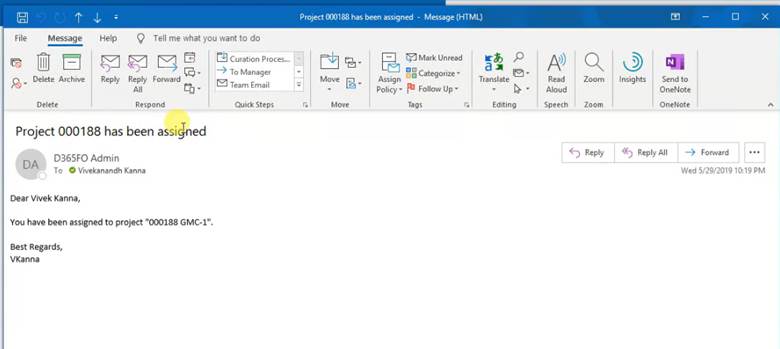
When hours are assigned the system can also generate an Email.
From the top menu select Plan ->Activities -> Work breakdown structure.

Select Edit and then select a Task name, Start date, End date, and select the Resource. When completed click Publish from the top menu.
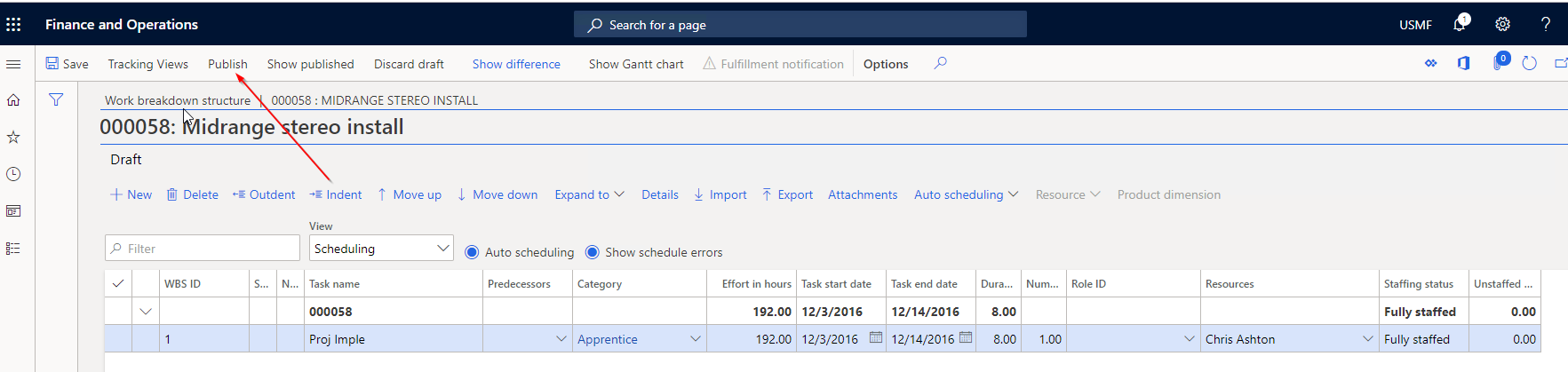
A notification displays, and an Email is sent to the Resource.
Note
If hours are reduced, a similar Email is sent to the Resource.