AXIO Distribution - WMS – Label Printing Enhancement
Setups
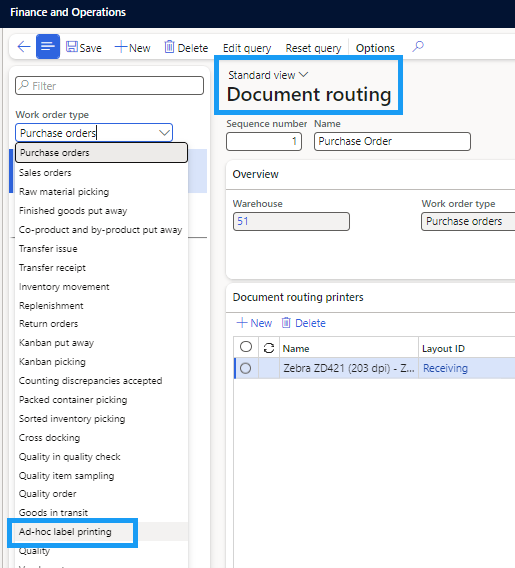
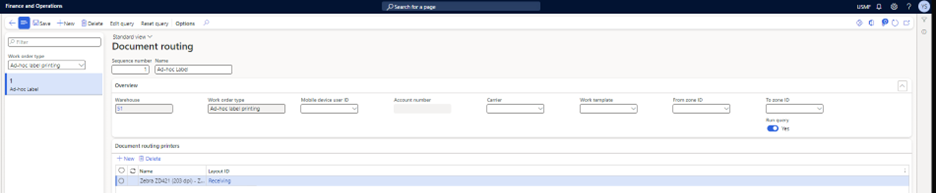
Navigate to Document routing > Document Routing. The routings set up on this page determine the layout of the printed labels. You (the customer)provide the HTML code and paste it into this page. Your outsourcing or internal agent provides this information.
Document Routing
For information on how to set up printers in Document Routing see: Install the Document Routing Agent to enable network printing
For information on Document routing label layouts, see: Document routing label layouts
Set up Document routing printers using the Layout ID created in Document routing layout.
Overview
The WMS – Label Printing Enhancement g feature provides the ability to bulk print labels for serialized Items from Purchase orders with a Confirmed status.
Install and configure individualized serial printing: Enable individual serial number label printing
Create Lines
Navigate to AXIO Distribution > Warehouse App > Print labels > Create lines.
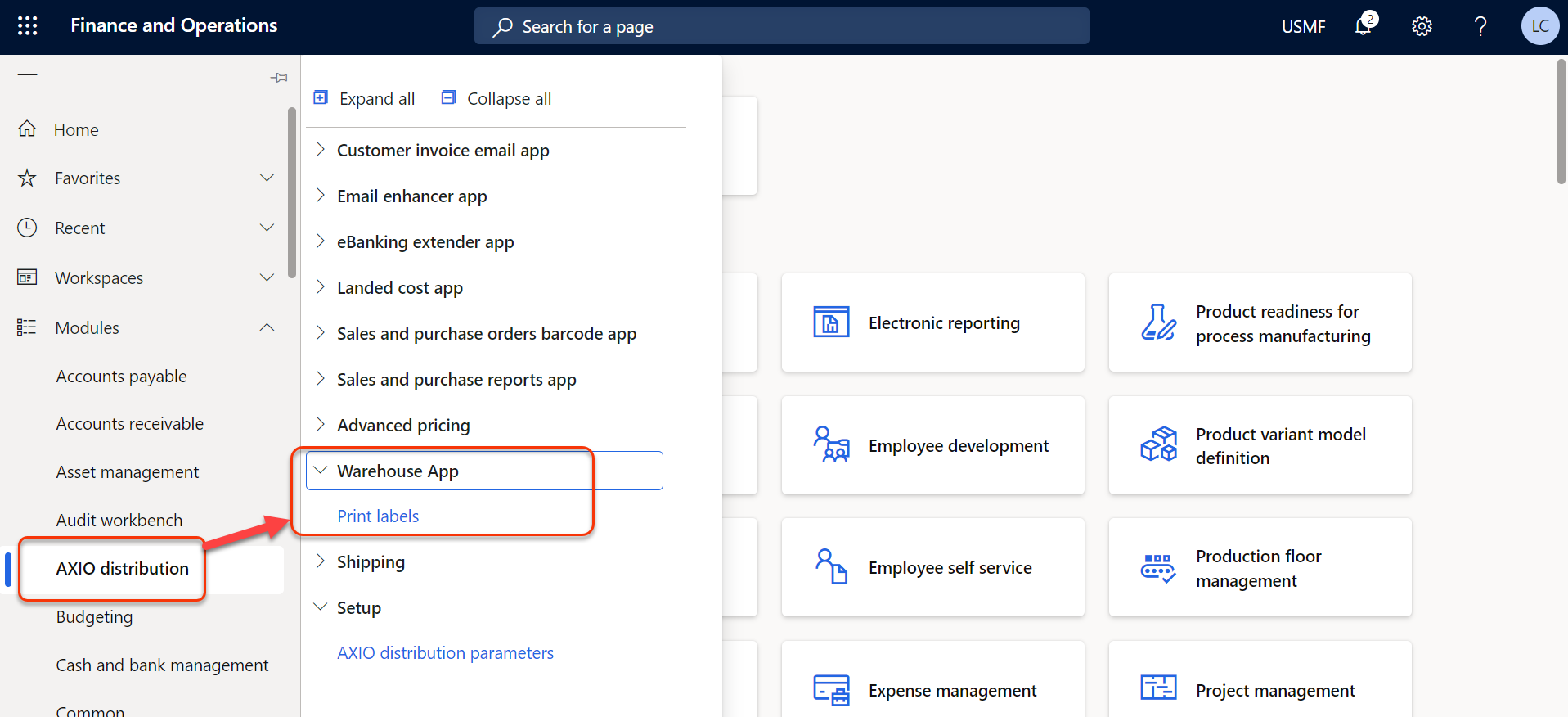
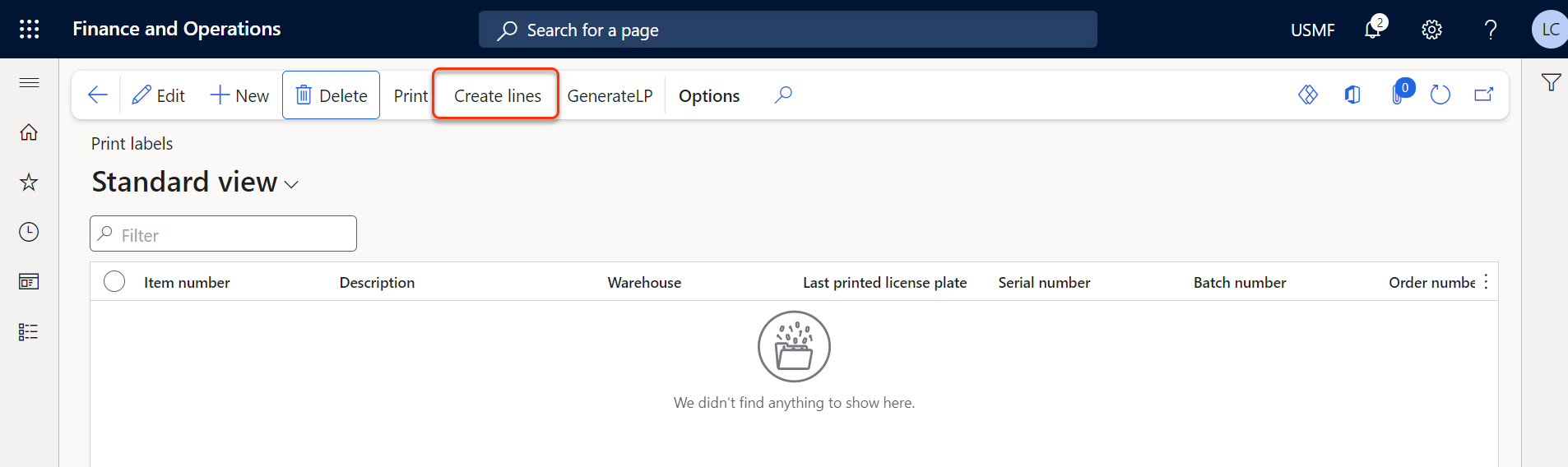
The Create lines page opens.
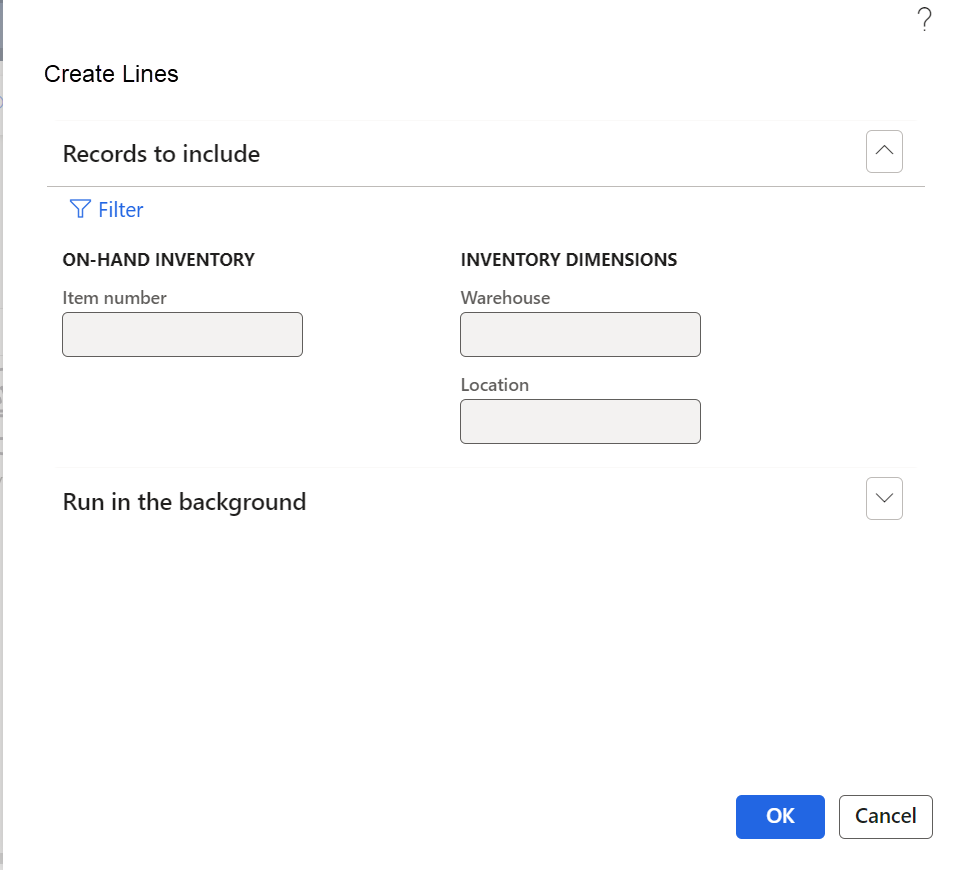
Filters may be added to narrow results on which lines to load.
Important
If no filters are selected, all lines from confirmed Purchase documents that have serialized items will load when OK is clicked.
| Field Name | Description |
|---|---|
| On-HAND INVENTORY | |
| Item Number | Specify the Item Number to use as a filter when Create Lines is run |
| INVENTORY DIMENSIONS | |
| Warehouse | Specify the Warehouse to use as a filter when Create Lines is run |
| INVENTORY DIMENSIONS | |
| Location | Specify the Location to use as a filter when Create Lines is run |
Click the Filter link to modify filter options, including Sorting and Join options for the query.
Print Labels
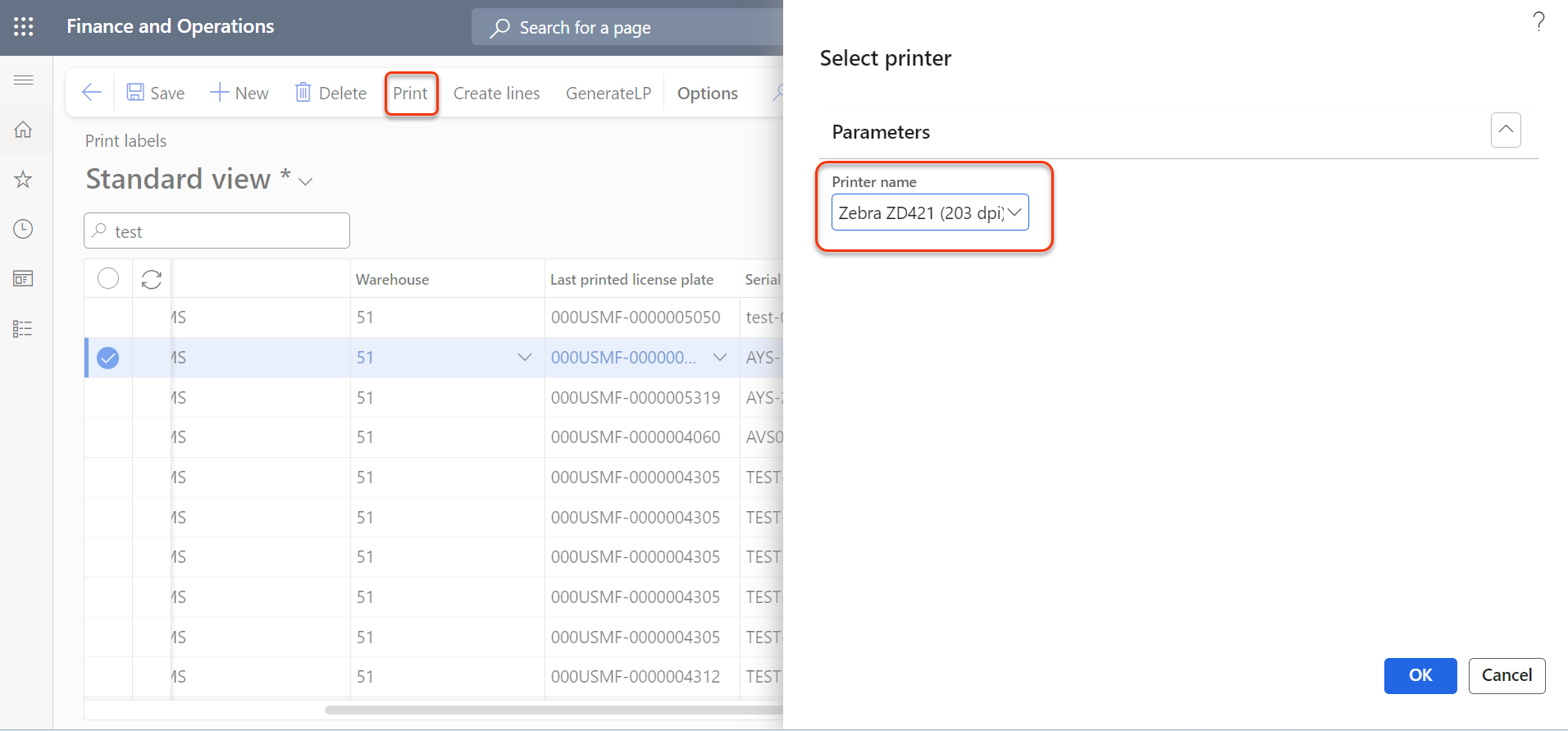
Once the Create Lines process been run, specific lines can be selected from confirmed Purchase documents for label printing by selecting each line, or by using the Select More to select all lines.
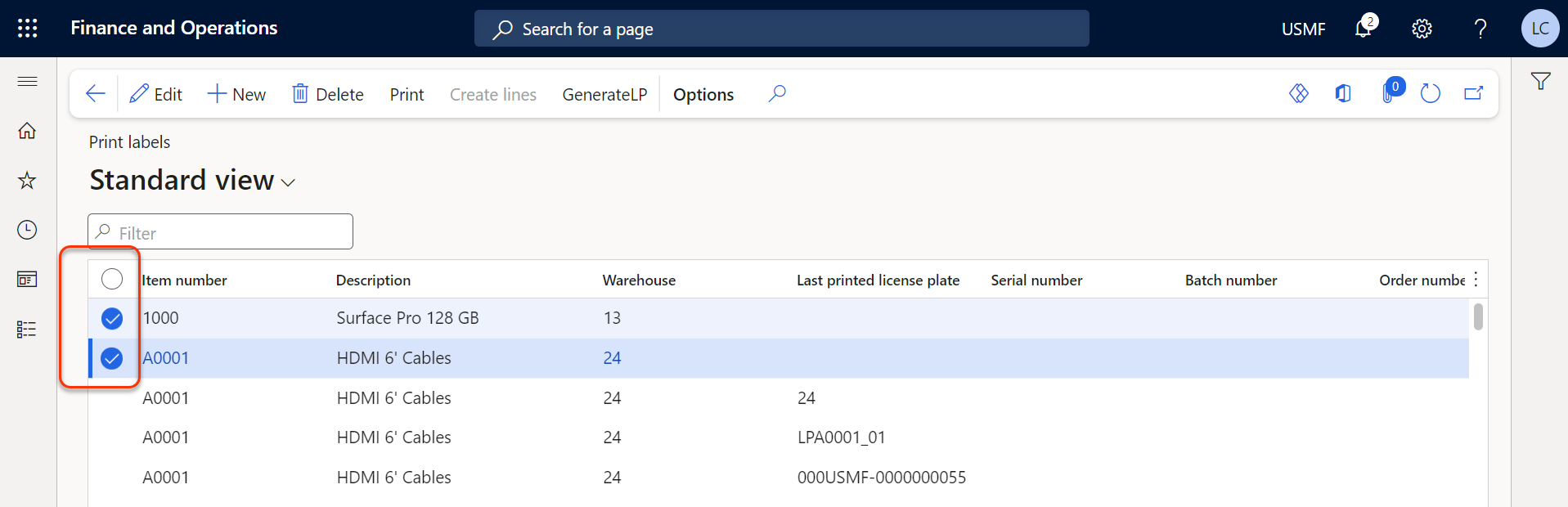
| Field Name | Description |
|---|---|
| Item number | Specifies the serialized Inventory Item. |
| Description | Specifies information about the serialized Inventory Item. |
| Warehouse | Specifies the warehouse location for the serialized Inventory Item |
| Last printed license plate | Specifies the last printed license plate (a unique identifier assigned to a group of Items in a warehouse) associated with the serialized Inventory Item. |
| Serial number | Specifies the unique serial number that was assigned during receipt that identifies the Inventory Item. |
| Batch number | Specifies the batch number associated with the receipt of the Inventory Item. |
| Order number | Specifies the purchasing order number associated with the receipt of the Inventory Item. |
| Number of labels to print | Specifies the number of labels to print |
Click Print from the menu.
In the Select Printer page, select a printer under Printer Name. Click OK